Remove a passkey or recover after losing a device
Rename or remove a dosya passkey, and what to do when the phone or laptop holding one is lost, stolen or replaced, including how a password reset helps.
Last reviewed
Your passkeys are listed under Profile → Password & 2FA in the Passkeys section. From there you can give one a clearer name or take it off your account. Removing a passkey only stops it from signing in. Your password, Google, GitHub or Apple sign-in and two-factor settings stay as they are.
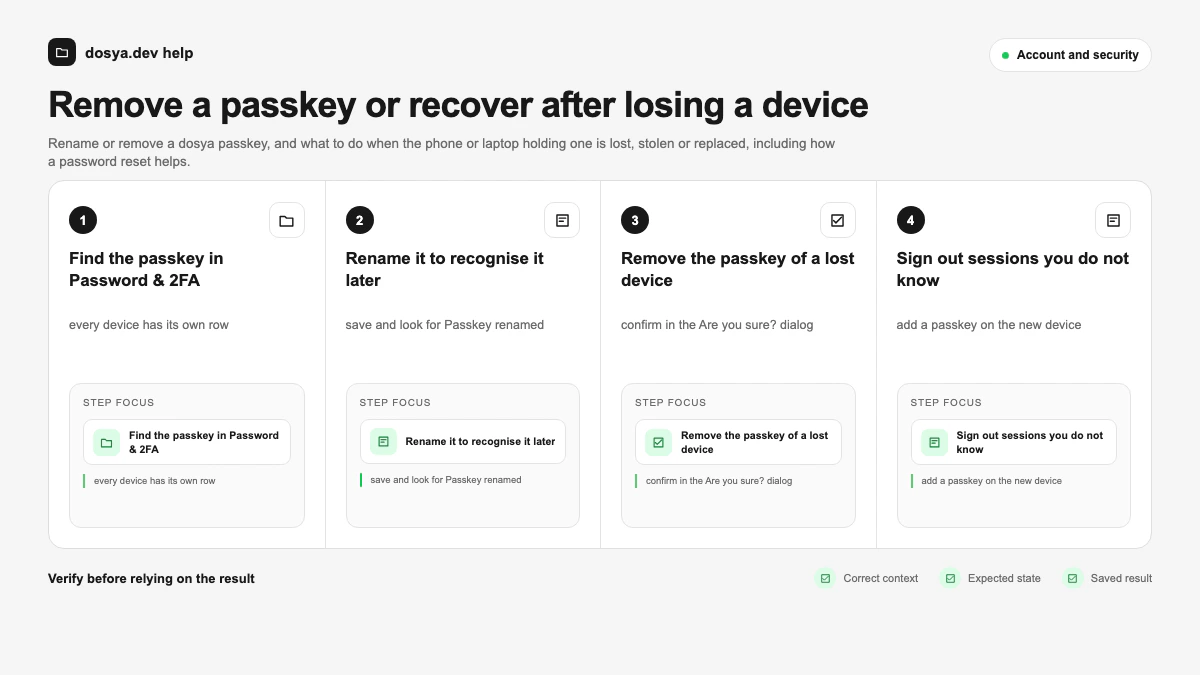
Steps: rename a passkey
- Open Password & 2FA on the web.
- Find the passkey in the Passkeys list and select Rename.
- In Rename passkey, type the new name. It can be up to 60 characters.
- Select Save and look for Passkey renamed.
Renaming is only on the web. The mobile app shows the list but has no rename button.
Steps: remove a passkey
- Open Password & 2FA and find the passkey in Passkeys.
- Select Remove. On a phone, tap Remove on the passkey’s row.
- The Are you sure? dialog names the passkey and says it will no longer be able to sign in. Select Remove to confirm.
- Look for Passkey removed. The passkey leaves the list.
We send a notice titled A passkey was removed from your account. If you did not remove it, change your password straight away.
Removing it from dosya does not delete it from your device or password manager. You can delete the leftover entry there yourself. It can no longer sign in to dosya either way.
If you lose a device or replace it
Check the passkey’s row first. A Synced badge means your password manager backs it up. You can usually still sign in with it from another device that uses the same manager. A passkey without that badge lived only on the lost device.
- Sign in another way. Use your email and password, Continue with Google, Continue with GitHub or Continue with Apple, or a synced passkey on another device. If you have two-factor turned on, you still need your code or a recovery code for those methods.
- Remove the lost passkey. Open Password & 2FA and remove the one named after the missing device. Its Last used date can help you spot it.
- End the old sessions. A lost device may still be signed in. Follow Secure Dosya after losing a signed-in device to sign it out.
- Add a passkey on your new device. See Add a passkey and sign in with it.
If you cannot sign in at all
If the lost device held your only way in, reset your password from the sign-in page. The steps are in Signing in and resetting a forgotten password.
A password reset removes every passkey on your account, not just the lost one. We do this so a passkey someone else added cannot outlive the reset. We send a notice titled Your passkeys were removed. Once you are back in, add new passkeys on the devices you still have.
Expected result
The lost or unwanted passkey no longer appears in Passkeys and cannot sign in. Your other passkeys keep working unless you reset your password.
Troubleshooting
- The passkey could not be removed. or The passkey could not be renamed. Reload the page and try again.
- Passkey not found means it was already removed, perhaps from another device. Reload the list.
- If a removed passkey still appears in your device’s sign-in prompt, that is the copy in your password manager. Choosing it shows We couldn’t sign you in with that passkey. Try again or use another sign-in method. Delete it from the password manager.
Related guides
Was this helpful?
Loading helpfulness results…
Voting saves a necessary ballot cookie for up to 180 days so you can change your answer.
Questions and replies
Ask about the steps in this guide. Questions are reviewed before publication.
Keep account details, credentials and private files out of public questions. Use private support for those.
Loading questions…
Sign in to your Dosya account to ask a question.