Add a passkey and sign in with it
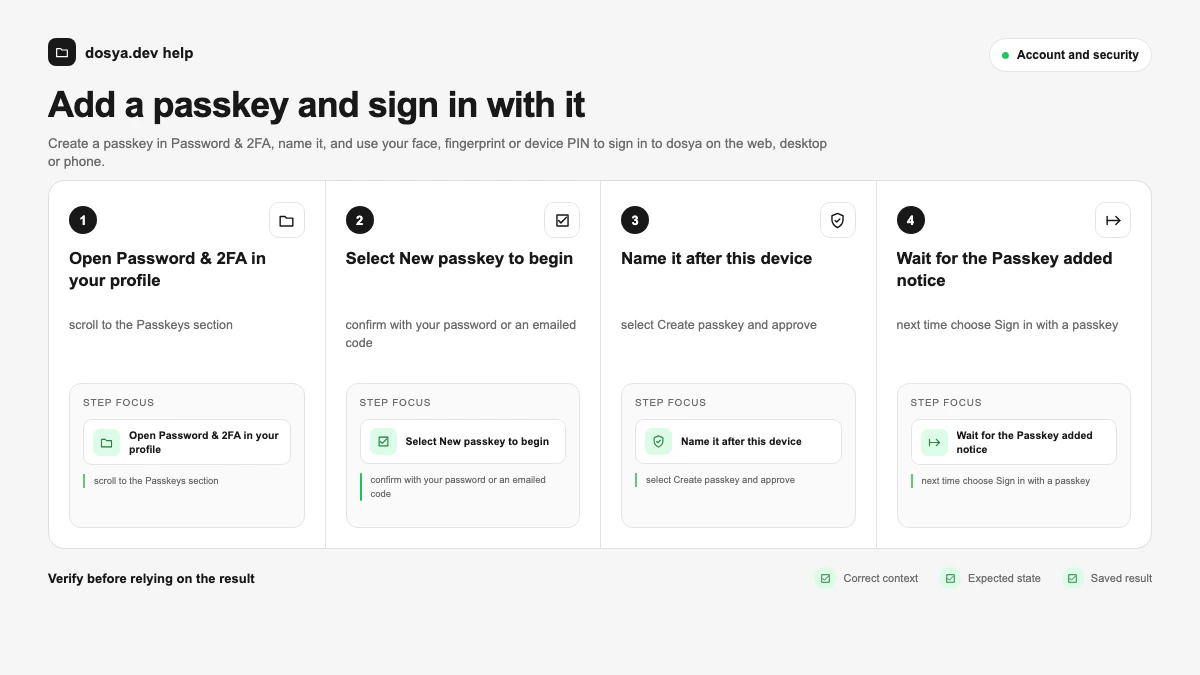
Create a passkey in Password & 2FA, name it, and use your face, fingerprint or device PIN to sign in to dosya on the web, desktop or phone.
Last reviewed
A passkey lets you sign in to dosya with your face, fingerprint or device PIN. You do not type a password, and you are not asked for a two-factor code. Your device or password manager keeps the passkey. We only store a public key that cannot sign in by itself.
Before you start
- Sign in to dosya in a browser that supports passkeys. If it does not, the page shows This browser does not support passkeys. and the add button stays greyed out.
- Know how you will confirm it is you. If your account has a password, you enter it. If you signed up with Google, GitHub or Apple and never set a password, we email you a 6-digit code instead.
- Each account can hold up to 20 passkeys.
- A passkey does not unlock the Vault. The Vault still asks for its own passphrase.
Steps: add a passkey on the web
- Open the avatar menu, select Profile, then select Password & 2FA. You can also go straight to Password & 2FA.
- Scroll to the Passkeys section and select New passkey. The New passkey dialog opens.
- Prove it is you.
- With a password: type it in Current password and select Continue.
- Without a password: we email a code when you open the dialog. Type it in 6-digit code and select Continue. Select Resend code if it does not arrive.
- Name the passkey. We suggest a name from your device, such as iPhone, Mac or Windows. You can change it. Names can be up to 60 characters.
- Select Create passkey. Your browser or device asks you to confirm with your face, fingerprint, PIN or security key.
- Wait for Passkey added and the line You can now sign in with this passkey.
You may also see a bar after you sign in that says Sign in faster with your face or fingerprint. Select Add passkey to start the same steps, or Not now to hide it. After you dismiss it, we ask again in 30 days. After a second Not now, we stop asking.
Steps: add a passkey in the mobile app
- Open your profile and tap Password & 2FA.
- In Passkeys, tap Add a passkey.
- Enter your password in Confirm your password, or the emailed code in Enter the code we emailed you, then tap Continue.
- Approve the system prompt. The app names the passkey after your phone model.
The mobile app has no rename option. Rename a passkey from the web if you want a clearer name.
Expected result
The new passkey appears in the Passkeys list with its name and a line such as Added followed by the date and Not used yet. After the first sign-in, that changes to show when it was Last used. A Synced badge means your password manager backs up the passkey, so it can follow you to your other devices.
We also send a notice titled A passkey was added to your account. If you did not add it, remove it at once and change your password.
Steps: sign in with a passkey
- On the web: on the sign-in page, select Sign in with a passkey and approve the prompt. You do not need to type your email first.
- In the desktop app: select Sign in with a passkey. Your browser opens a page titled Sign in to the dosya desktop app. Select Sign in with a passkey there. After the prompt, the page says You can return to the desktop app and the app finishes signing in.
- In the mobile app: tap Sign in with a passkey on the sign-in screen and approve the prompt.
A passkey sign-in starts a normal session. It appears with your other devices under active sessions.
Troubleshooting
- This device already has a passkey for your account. This device already holds one. Use it, or remove the old one first.
- Password is incorrect or That code is not correct. Check the value and try again. After five wrong tries, wait a few minutes.
- That code has expired. Request a new one. Codes last 10 minutes. Select Resend code.
- You have reached the limit of 20 passkeys. Remove one to add another. Remove an old one, then try again.
- We couldn’t sign you in with that passkey. Try again or use another sign-in method. The passkey may have been removed from your account, or it belongs to another account. Sign in with your password or provider instead.
- We couldn’t use a passkey on this device. Try again or use another sign-in method. The device could not finish the prompt. Try another device or sign-in method.
- This link is incomplete on the desktop page means the browser opened without its sign-in details. Start again from the desktop app.
- On a phone, Turn on a password manager on this device to save a passkey. means no password manager can store it yet. Turn one on in your phone settings.
If you close the device prompt without approving it, nothing changes and no error appears. Try again when you are ready.
Related guides
Was this helpful?
Loading helpfulness results…
Voting saves a necessary ballot cookie for up to 180 days so you can change your answer.
Questions and replies
Ask about the steps in this guide. Questions are reviewed before publication.
Keep account details, credentials and private files out of public questions. Use private support for those.
Loading questions…
Sign in to your Dosya account to ask a question.