Recovering access when a second factor is unavailable
Use a saved one-time recovery code when an authenticator device is unavailable, then replace codes and review account security.
Last reviewed
Authenticator-based two-factor authentication provides one-time recovery codes during setup. Use one when you know the account password but cannot access the authenticator device.
Email-based 2FA does not use authenticator recovery codes. Restore access to the email inbox or contact private support with non-secret account details.
Before you start
- Complete the normal email and password sign-in first.
- Find the recovery codes saved during authenticator setup. Never send them to support or another person.
- Use a trusted device and private connection.
- Each recovery code works once.
Steps: sign in with a recovery code
- At Two-factor authentication, select Use a recovery code instead.
- Enter one unused code in the displayed format.
- Select Use recovery code.
- After sign-in, open Profile → Password & 2FA.
- Confirm the remaining recovery-code count.
- If codes were exposed or are running low, choose the regenerate action and confirm with the current password.
- Store the replacement codes offline. Regeneration invalidates the previous set.
- Enroll a replacement authenticator if the original device is permanently unavailable.
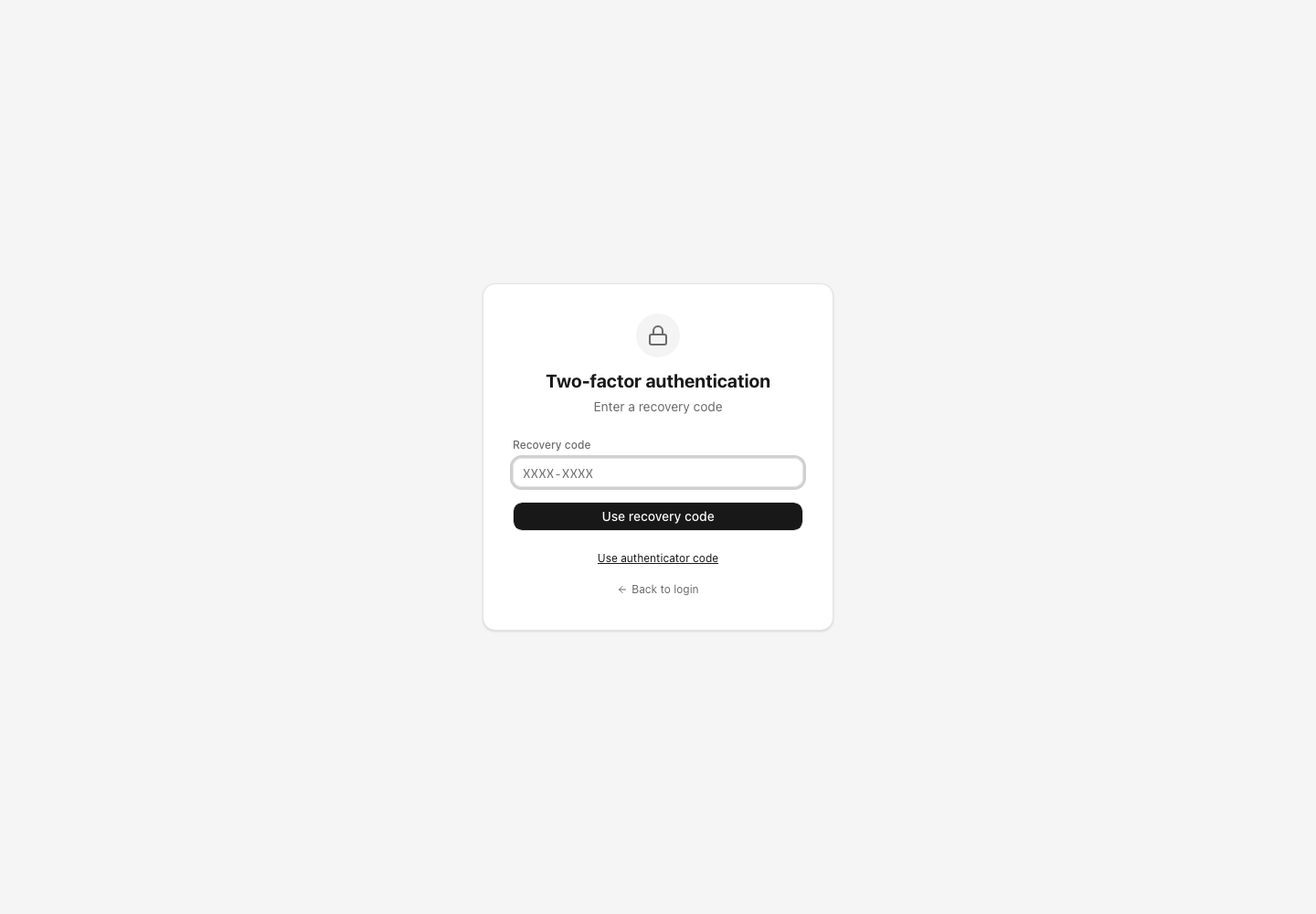
Expected result
A valid unused recovery code completes the second-factor challenge and creates the signed-in session. That code is marked used and cannot authenticate another sign-in.
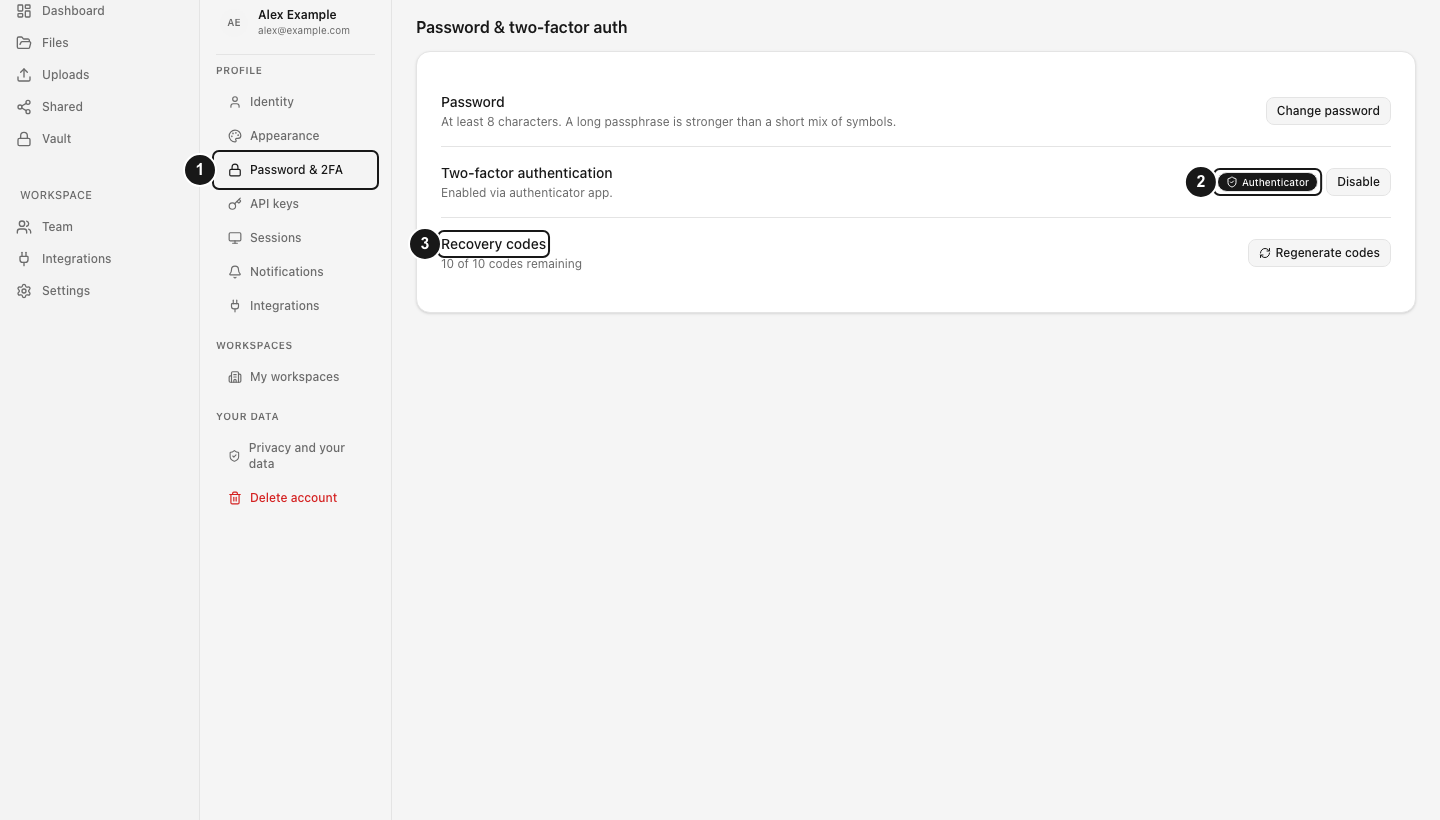
Limits and security behavior
- Recovery codes apply to authenticator-based 2FA and are single-use.
- Regenerating codes invalidates every unused code from the old set.
- Resetting the account password does not remove the second-factor requirement.
- Support should never ask for a password, authenticator code or recovery code.
- Losing both the authenticator and every recovery code can require private account-recovery review; recovery is not guaranteed from public information.
Troubleshooting
The code is rejected. Check for transcription errors and try another unused code from the same set. A code used before or invalidated by regeneration will fail.
The page expects six digits. Select Use a recovery code instead before entering the alphanumeric recovery code.
The account uses email 2FA. Recovery codes are not used. Restore inbox access and request a new email code through the sign-in flow.
No recovery material remains. From a still-signed-in trusted session, open Password & 2FA and regenerate codes. Without a trusted session, contact private support and do not share secrets.
Related guides
Was this helpful?
Loading helpfulness results…
Voting saves a necessary ballot cookie for up to 180 days so you can change your answer.
Questions and replies
Ask about the steps in this guide. Questions are reviewed before publication.
Keep account details, credentials and private files out of public questions. Use private support for those.
Loading questions…
Sign in to your Dosya account to ask a question.