How to check that a Dosya change worked
Confirm a Dosya change by refreshing the relevant view, checking the exact saved state and testing one harmless item before repeating the action.
Last reviewed
After changing a Dosya setting, file or access rule, read the resulting status and refresh or reopen the same view. Confirm the exact saved value, location, count or access state before repeating the action.
A success message shows that a request was accepted, but the task-specific result is the stronger check. For example, verify a copied file in its destination with the file copy result steps, or confirm a small upload with the one-file upload test.
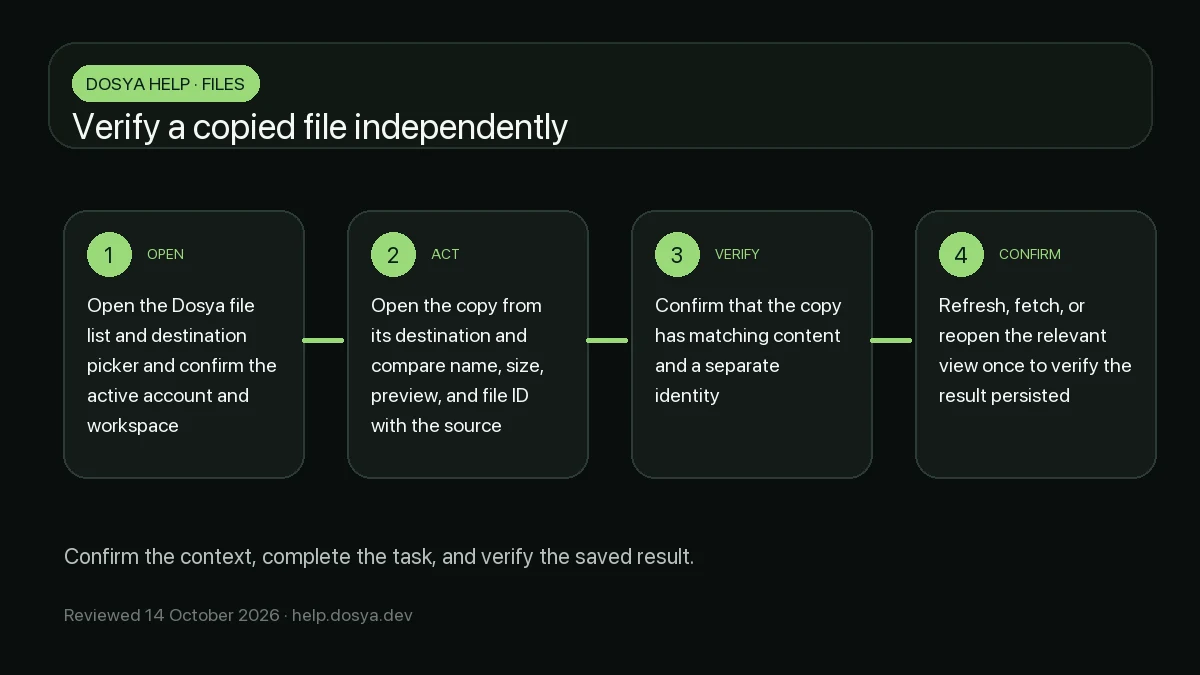
Steps: check the task-specific result
- Stay in the account and workspace where you made the change.
- In the task view, read the final status or error before leaving the page.
- Open the view that owns the result, such as the destination folder, member list, link details or setting panel.
- Refresh that view once or close and reopen it.
- Compare the saved value, path, item count, role, expiry or status with the result you intended.
Use the result named in the task guide. A file action should produce the right item in the right folder. A member or sharing change should show the intended person and access level. A setting change should show the saved value after the view reloads.
Test one harmless item when the result is unclear
Use one nonconfidential file, temporary link or reversible setting when a larger action is uncertain. Record its starting state, make the change once and check the final state. This keeps duplicate uploads, invitations, charges or destructive actions from becoming part of the diagnosis.
Do not repeat a payment, deletion, ownership transfer or other high-impact action only because the confirmation disappeared. Preserve the approximate time and exact nonsecret error, then prepare a safe support request.
When a restart is part of the check
Restart only when the task guide or error asks for it. Save work and note the current status first. For desktop recovery, follow the restart verification steps so you can compare the state before and after the restart.
Expected result
The intended value or item remains visible after the relevant view reloads. If it does not, stop before repeating the action and use the task guide’s troubleshooting steps or send the recorded evidence to support.
Related guides
Was this helpful?
Loading helpfulness results…
Voting saves a necessary ballot cookie for up to 180 days so you can change your answer.
Questions and replies
Ask about the steps in this guide. Questions are reviewed before publication.
Keep account details, credentials and private files out of public questions. Use private support for those.
Loading questions…
Sign in to your Dosya account to ask a question.