Signing in and resetting a forgotten password
Request a password-reset link, choose a new password and complete two-factor authentication when the account requires it.
Last reviewed
Use Forgot password? when an email-and-password account cannot sign in. The reset link changes the password; an account with two-factor authentication must still complete its second factor before a session is created.
Before you start
- Use the email address currently attached to the Dosya account.
- Check whether you normally sign in through Google, GitHub or Apple. An account created only through a social provider may not have a password until one is set from Profile.
- Keep access to the email inbox and, if enabled, the authenticator or recovery codes.
- Use a private device and close any password-reset link after finishing.
Steps: request and complete a reset
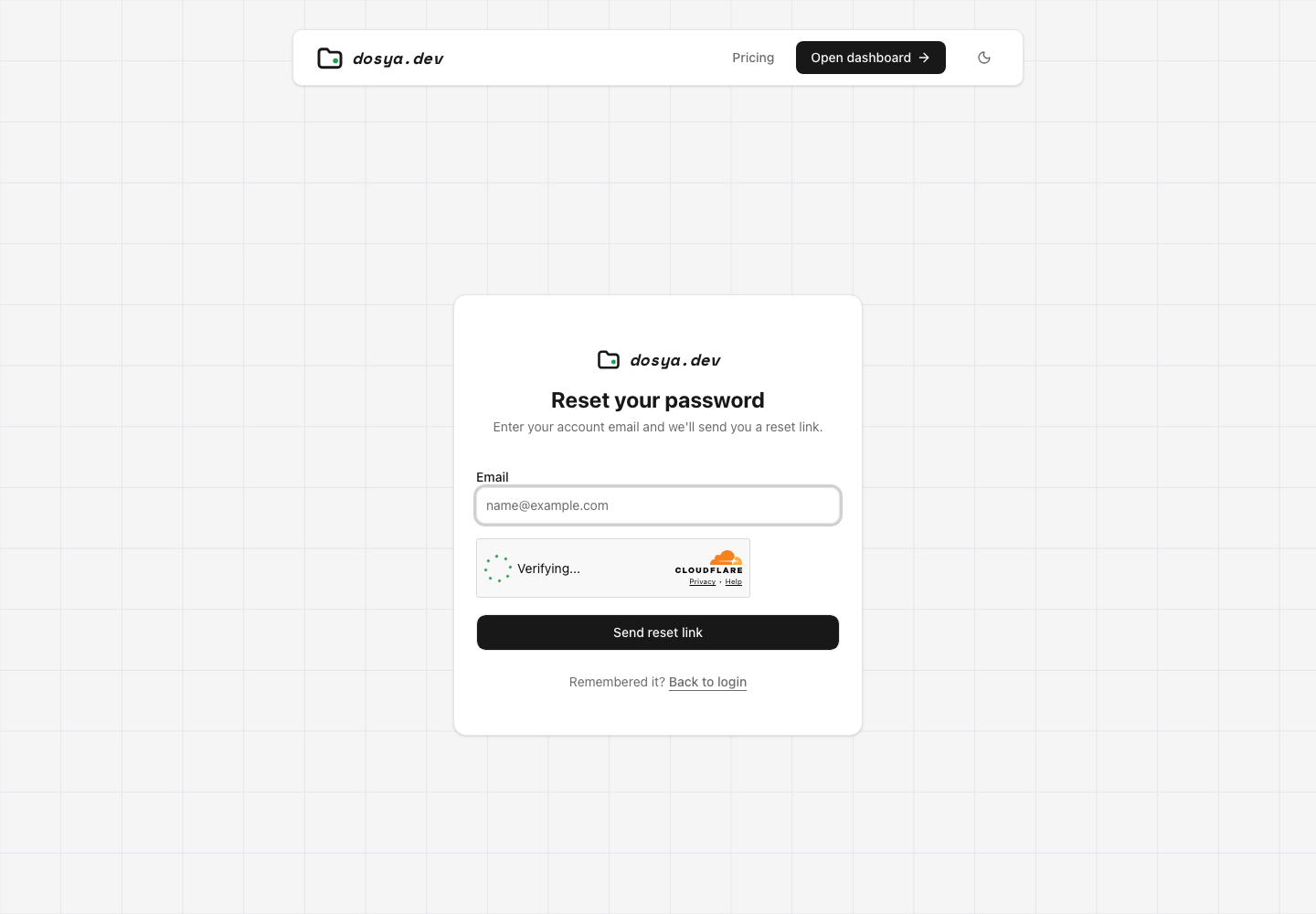
- Open the Dosya sign-in page and select Forgot password?.
- Enter the account email and complete the anti-abuse check.
- Select Send reset link.
- Check the inbox and spam folder. The confirmation intentionally does not reveal whether an account exists for that address.
- Open the newest reset email and follow its link.
- Enter and confirm a new password that meets the displayed requirements.
- Submit the reset. Older reset links become unusable after a successful change.
- If prompted, enter the authenticator, email or recovery code. A password reset does not bypass two-factor authentication.
- After sign-in, review active sessions and revoke anything unfamiliar.
Expected result
The newest valid link opens the reset form. After the new password is accepted, accounts without 2FA sign in through the normal completion flow; accounts with 2FA continue to a second-factor challenge before receiving a session.
Limits and security behavior
- Reset links expire and are single-purpose. Request a fresh one when the page says it is invalid or expired.
- Repeated requests can trigger a cooldown or rate limit.
- The form does not confirm whether an email address belongs to an account.
- Changing the password does not revoke API keys. Review them separately after suspected compromise.
- Social-login-only accounts should use their provider or set a password from Profile while signed in.
Troubleshooting
No email arrives. Confirm spelling, check spam and wait for normal delivery. Use only the newest email after requesting more than once.
The link is expired or already used. Return to Forgot password? and request a new link.
The new password works but 2FA blocks sign-in. Use a saved recovery code for authenticator-based 2FA. See the recovery guide below.
The account uses social login. Try the original provider. If you are signed in elsewhere, open Profile → Password & 2FA to set a password.
You did not request the reset. Do not open the link. Review sessions, password, two-factor settings and API keys from a trusted signed-in device.
Related guides
Was this helpful?
Loading helpfulness results…
Voting saves a necessary ballot cookie for up to 180 days so you can change your answer.
Questions and replies
Ask about the steps in this guide. Questions are reviewed before publication.
Keep account details, credentials and private files out of public questions. Use private support for those.
Loading questions…
Sign in to your Dosya account to ask a question.