Secure Dosya after losing a signed-in device
Secure Dosya from a trusted device after a phone or computer is lost by changing the password, revoking credentials, and checking 2FA right away.
Last reviewed
Use a device you still control. A password change keeps the caller credential and its directly linked same-device credentials, revokes the other browser and mobile credentials, and starts cache invalidation. Another worker isolate or edge cache can briefly retain cached authorization. From the trusted device, refresh Profile → Sessions and confirm the lost device’s credential is absent. If a separate device you still control was also revoked, test a fresh authenticated request there after invalidation settles; do not assume you can access the lost hardware to test it.

Steps
- Sign in on a trusted browser. If the lost device held your authenticator, use one unused recovery code.
- Open Profile → Password & 2FA → Change password. Enter the current password and a new password of at least 8 characters; it must differ from the current one.
- Confirm Password changed — Your password has been updated. Dosya deletes other web sessions, revokes other mobile credentials, and starts invalidating their caches while preserving the caller and its linked local credentials.
- Open Profile → Sessions. If more than one credential remains, select Revoke all other sessions and wait for Sessions revoked — You are now signed out everywhere else.
- For a lost authenticator phone, re-enroll on the replacement and regenerate recovery codes after confirming access.
- Check security notifications for password, session, sign-in, or email changes. Contact support if an identity change was not yours.
- Use the device vendor’s remote-lock and erase tools for local files; Dosya cannot wipe the hardware.
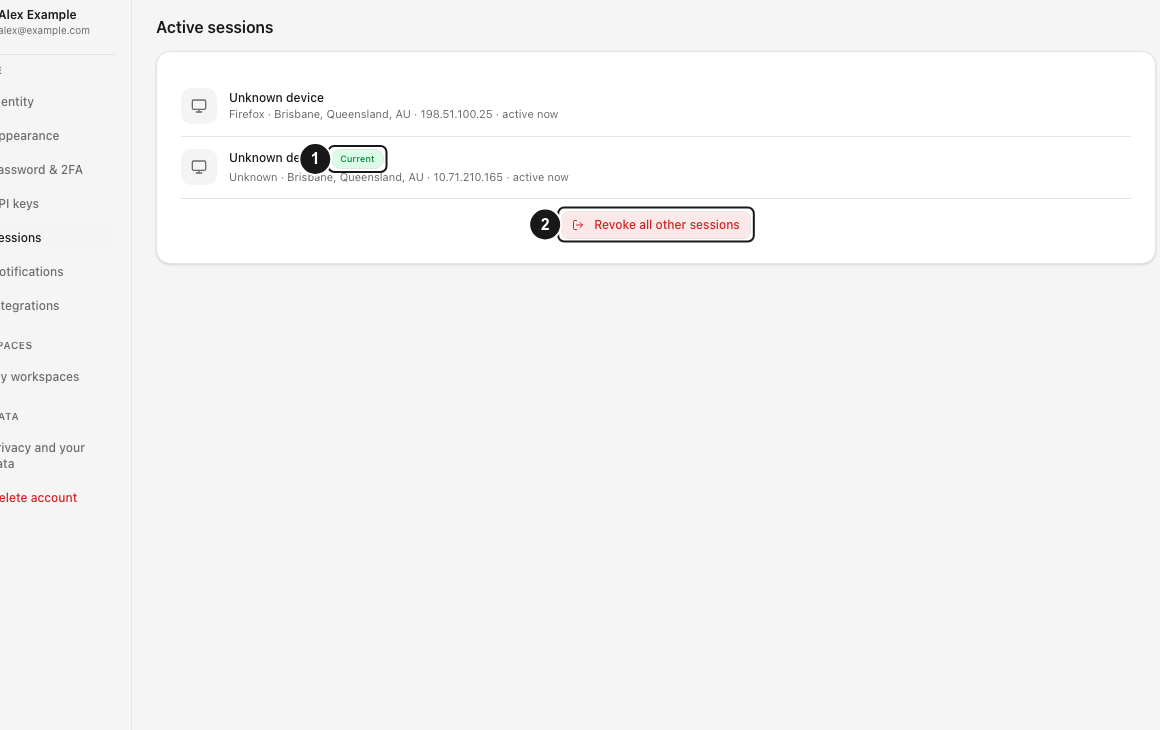
Revocation cannot retract files already downloaded to the lost device. After cache invalidation settles, the deleted cookie or revoked token cannot authorize a fresh authenticated request.
Expected result
The trusted caller and its directly linked local credentials stay signed in. Other browser and mobile credentials are revoked and absent from a refreshed sessions list on the trusted device. After cache invalidation settles, their old credentials cannot authorize fresh requests; testing the lost hardware is not required. Replacement 2FA works and old recovery codes no longer grant access after regeneration.
Related guides
Was this helpful?
Loading helpfulness results…
Voting saves a necessary ballot cookie for up to 180 days so you can change your answer.
Questions and replies
Ask about the steps in this guide. Questions are reviewed before publication.
Keep account details, credentials and private files out of public questions. Use private support for those.
Loading questions…
Sign in to your Dosya account to ask a question.