Review account identity and sign-in methods
Confirm the account email, determine whether a password exists, and add email-and-password sign-in safely to an OAuth-created account without lockout.
Last reviewed
Dosya supports email and password plus Continue with Google, Continue with GitHub, and Continue with Apple on the sign-in page. The profile does not provide a connected-provider list or a disconnect button. It exposes the verified account email and whether the account currently has a usable password.
An account created through Google, GitHub, or Apple can show Password — Not set. In that state, Set a password adds email-and-password sign-in to the same account; it does not remove the provider sign-in. The password must contain 8 to 256 characters.

Steps
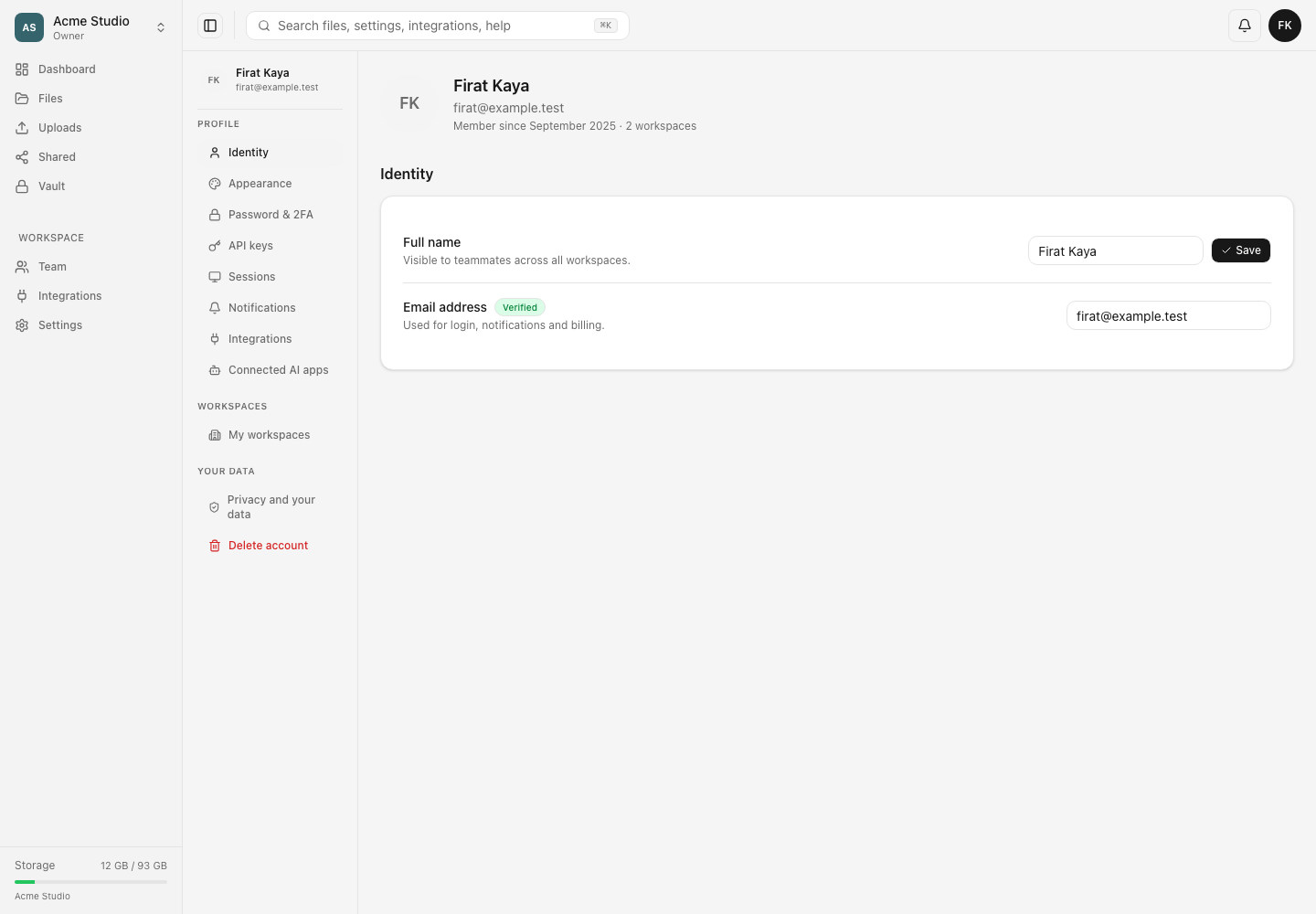
- Open Profile → Identity and read Email address. A Verified badge means the stored address has completed verification; Unverified means it has not.
- Open Profile → Password & 2FA.
- If the Password row offers Change password, the account already supports email-and-password sign-in.
- If it shows Not set, select Set a password. Enter New password and Confirm new password, using at least 8 and no more than 256 characters.
- Select Set a password in the dialog. The success message says Password set — You can now sign in with your email and password too.
- Keep the current session open and use a private browser window to sign in with the email from Identity and the new password.
Rules and effects
OAuth-created accounts do not need a current password when setting their first one. Accounts that already have a password must use Change password and provide Current password. A successful password update keeps the requesting credential and revokes other browser and mobile sessions, so be prepared to sign in again on those devices.
Two-factor authentication cannot be enabled from a no-password state in the web profile, because disabling it later requires password verification. Set the password first, then configure email or authenticator-app 2FA.
The last-used badge on the sign-in page is stored in that browser and is only a convenience hint. It is not an authoritative inventory of identity providers attached to the account.
Troubleshooting
Passwords do not match means the two new values differ. Password too short is shown below 8 characters. If a private-window test fails, keep the original session open, confirm the email again, and use Reset a password rather than repeatedly guessing.
Expected result
You know the account’s verified email and password status, and any new password signs into that same account without removing Google, GitHub, or Apple access.
Related guides
Was this helpful?
Loading helpfulness results…
Voting saves a necessary ballot cookie for up to 180 days so you can change your answer.
Questions and replies
Ask about the steps in this guide. Questions are reviewed before publication.
Keep account details, credentials and private files out of public questions. Use private support for those.
Loading questions…
Sign in to your Dosya account to ask a question.