Reviewing active sessions
Find signed-in devices in Profile, identify your current session, and revoke other sessions when you no longer need them.
Last reviewed
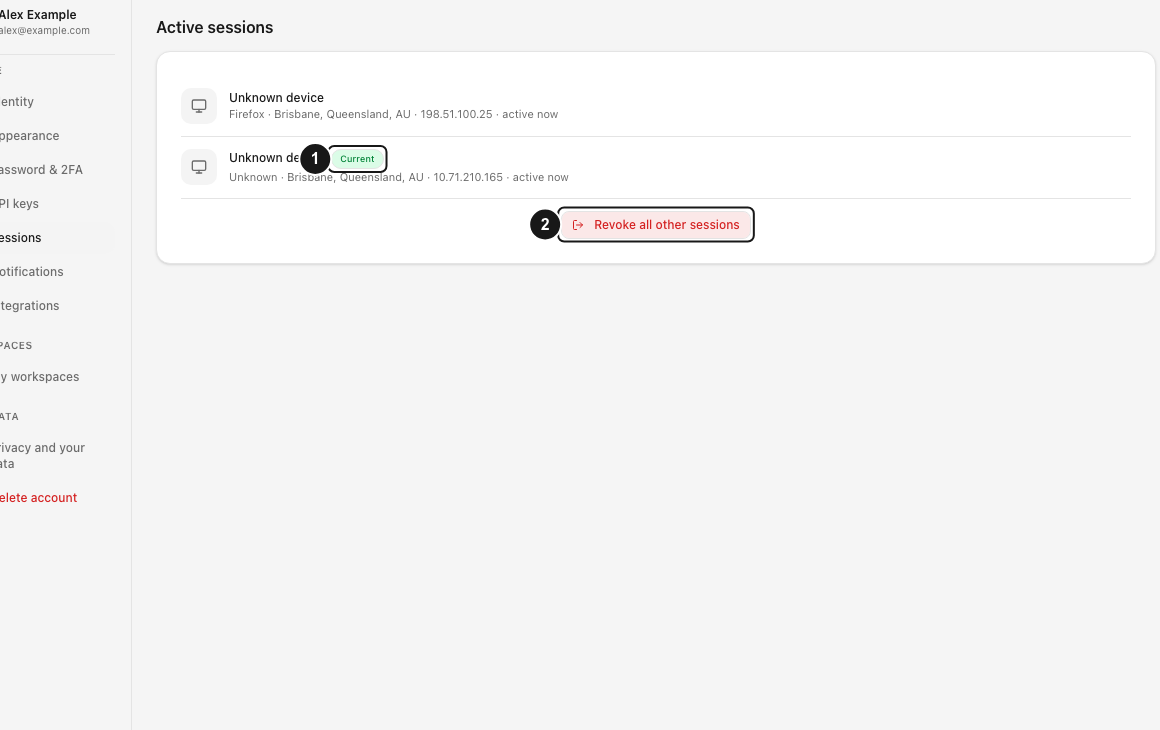
Open Profile → Sessions to review the devices signed in to your account. The Current badge marks the session you are using. Select Revoke all other sessions to sign out other sessions while keeping this one available.
Before you start
- Sign in on a device you intend to keep using. The revoke action preserves the caller’s session.
- Tell anyone using your account on another device that they may need to sign in again. Affected desktop or mobile clients may need a new sign-in before they can continue authenticated work.
- Finish any work you need from another signed-in device before revoking it.
- If your concern is a connected script or integration, also review Profile → API keys. API keys are managed separately from signed-in sessions.
Steps: review your devices
- Open Profile. Select the avatar’s Account menu in the top bar, then select Profile.
- Find Sessions. Select Sessions in the profile navigation, or open the Sessions page. Look for the Active sessions heading.
- Identify this session. Find the row with the Current badge. Use it as your reference before ending any other sessions.
- Review the other rows. Check the device labels and the details beneath them. Browser-session details can include the browser, location, IP address and a relative time when that information is available. Mobile-app rows identify the Dosya app.
- Decide whether to keep the other sessions. Separate browser sign-ins can create separate rows even when they belong to the same physical device. Treat unfamiliar labels as a reason to investigate, rather than proof of a particular person’s identity.
Steps: sign out other sessions
- Stay on the device you want to keep. Confirm that you can see Current beside its row.
- Select Revoke all other sessions. The button appears beneath the list when more than one session is listed. In the current web interface, selecting it starts revocation directly; there is no additional confirmation dialog.
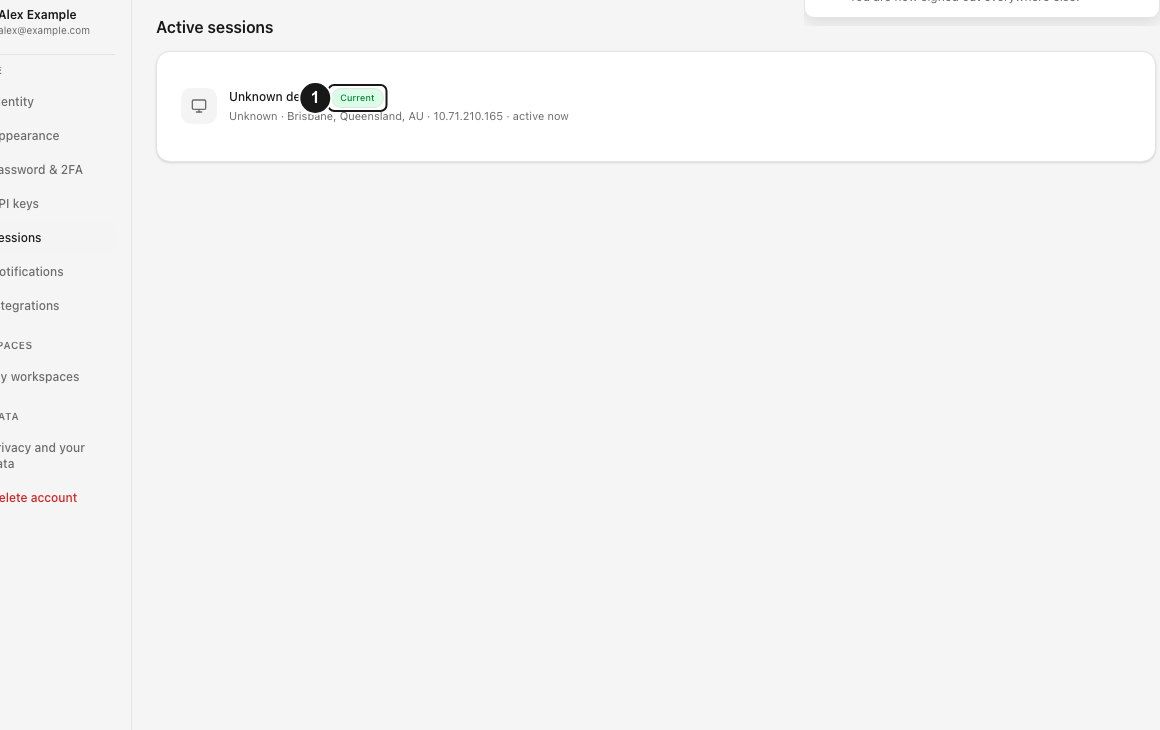
- Wait for the result. A successful request displays Sessions revoked and You are now signed out everywhere else. The list reloads.
- Check the remaining access. Your current session remains available. Other revoked devices need to authenticate again to make authenticated requests. A linked system extension belonging to the current device can also be preserved.
To sign out the current browser instead, open Account menu and select Log out.
Expected result
You have reviewed the active-session list and, if requested, ended the other sign-ins. Revocation affects other browser sessions and mobile-app credentials handled by this account action. It does not delete your account or your stored files.
Limitations
- The current web page provides Revoke all other sessions. It does not provide an individual Revoke control beside each device.
- Device labels are inferred from client information. A row may say Unknown device or Mobile app when the available information does not identify it more precisely.
- The list is not a complete historical login or activity log. For browser rows, the relative time for a non-current session is based on when that session was created; do not read it as proof of the device’s most recent action.
- The action preserves the current session and may preserve its linked extensions. It should not be interpreted as a requirement that exactly one row will remain.
- Revoking a session does not erase files already downloaded onto that device. API keys and share links have their own access controls.
Troubleshooting
If the revoke button is missing, check whether only one session is listed. That is expected: there are no other listed sessions for the button to revoke.
If you see Revoke failed, read the accompanying message and check your connection. If the current sign-in has expired, sign in again, return to Sessions, and review the list before retrying.
If the page unexpectedly shows No sessions, reload it after checking connectivity. Do not assume that an empty display alone proves every other device has been signed out: confirm the result after the page has loaded successfully.
Use private support if a device remains unexplained or revocation repeatedly fails. Share the device label and error message privately. Redact IP addresses or other personal details from screenshots you post publicly.
Frequently asked questions
Will Revoke all other sessions sign me out here?
The action is designed to keep the caller’s session. Use Log out in Account menu if you want to end your current browser sign-in.
Why do I see several rows for the same kind of device?
Rows represent sessions or app credentials, rather than a unique inventory of physical hardware. Multiple sign-ins on a Mac, for example, can produce multiple Mac rows.
Does this also stop a tool using an API key?
API keys have a separate management page. Go to Profile → API keys, find the relevant key, and use its Revoke action if that credential should stop working. See Creating and managing an API key.
Related guides
Was this helpful?
Loading helpfulness results…
Voting saves a necessary ballot cookie for up to 180 days so you can change your answer.
Questions and replies
Ask about the steps in this guide. Questions are reviewed before publication.
Keep account details, credentials and private files out of public questions. Use private support for those.
Loading questions…
Sign in to your Dosya account to ask a question.