Save a shared file into your own dosya
Copy a file, folder or set of files someone shared with you into a workspace you own, and learn why Save to dosya can be missing or refused.
Last reviewed
When someone sends you a dosya share link, you can keep your own copy without downloading it first. Save to dosya copies what the link holds straight into one of your workspaces. It works for a single file, a shared folder, and a link with several files.
Where the button is
Open the share link. If it asks for a password or an email code, finish that first. The guide to opening a share link walks through those gates.
Once the content shows, look at the bar along the bottom of the page. Save to dosya sits next to Download and Copy link.
The button does not appear in two cases:
- The sender made the link View only. Saving needs the original bytes, so a view-only link cannot be saved.
- The sender’s workspace uses its own share-page branding and has chosen to hide the button.
Steps: save the share
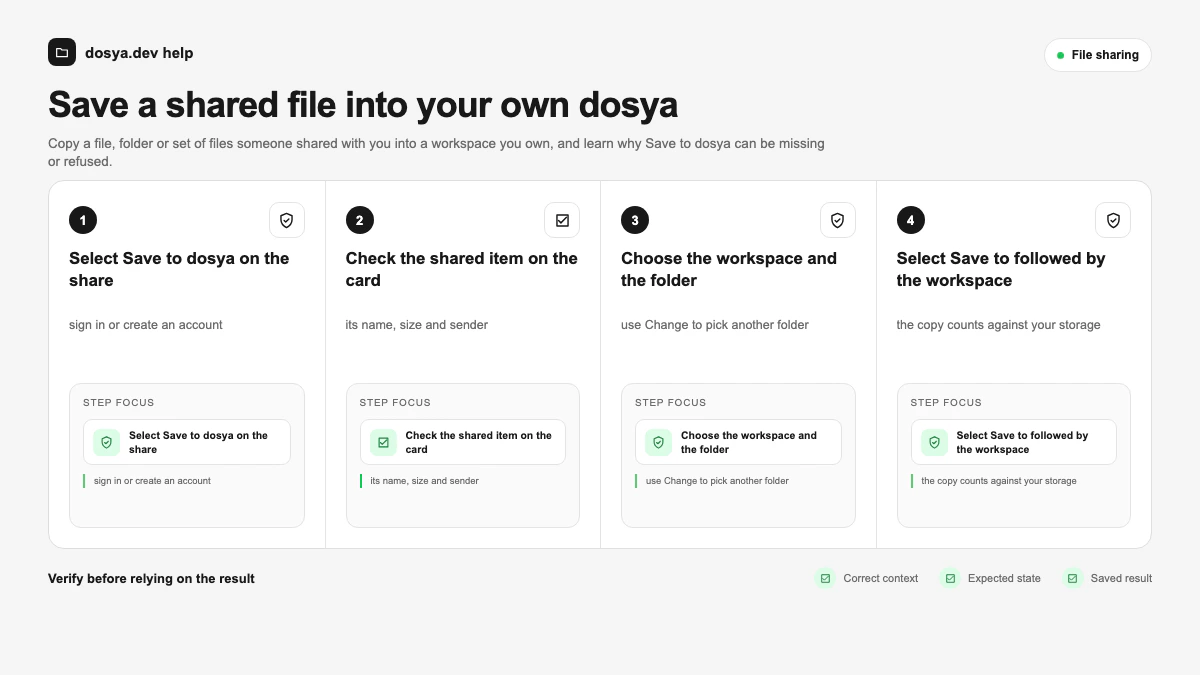
- Select Save to dosya. The dosya web app opens.
- If you are not signed in, log in or create a free account. After sign-in, dosya brings you back to the save page.
- Check the card at the top. It shows the file or folder name, its size or contents, and Shared by with the sender’s name. A title or note from the sender appears below it.
- Under Workspace, pick the workspace that should receive the copy.
- Under Folder, the starting point is Root (top level). Select Change, open the folder you want, then select Use this folder.
- Select Save to followed by the workspace name. The button reads Saving to while the copy runs.
For a shared folder, dosya creates a new folder with the same name inside the folder you chose. Its subfolders come across too. The page tells you this before you save.
Expected result
A message says Saved to and your workspace name, with how many files were saved. dosya then opens Files at the place the copy landed.
If some files could not come across, the same message names the first one and the reason. The rest are saved normally.
What a save does
- It is a full copy. The files now live in your workspace. Changes the sender makes later, or a revoked link, do not touch your copy.
- It uses your storage. The copied size counts against the workspace you saved into, just like an upload.
- It counts as one download. The sender sees a download on their link, but not where you saved it. On a link with a download limit, one save uses one slot, however many files it holds.
- Photo details may be removed. If the sender chose to strip photo metadata, saved photos arrive without location, camera and capture-time details.
When saving is refused
Open the link and unlock it first. The link needs a password or an invited email, and this browser has not passed that gate yet. Select Open the share page, unlock it, then select Save to dosya again. The password guide has tips for that step.
The sender turned off downloads. The link is view-only. You can still look at it on the share page, but you cannot save it.
This link has no downloads left. Saving counts as a download, and the sender’s limit is used up. Ask them to raise it or send a fresh link.
This link cannot be opened. The link has expired or was removed. Only the sender can give you a working one.
Your role cannot add files. You picked a workspace where you are not allowed to upload. Choose a different workspace, or ask an admin of that workspace for upload access. Saving a shared folder also needs permission to create folders.
You have no workspace to save into. Create a workspace, then open the link again.
The workspace is out of space. dosya refuses the whole save before copying anything. Free up room, or pick a workspace with more space left.
The owner’s daily share allowance is used up. A link from a free plan has a daily transfer allowance. Try again later.
Size limits for one save
| Limit | Value |
|---|---|
| Files in one save | 200 |
| Total size of one save | 10 GiB |
| Folders recreated from a shared folder | 1,000 |
| Saves per account | 30 per hour |
When a link goes over one of these, ask the sender to split it into smaller links. You can also download the files and upload them yourself, as explained in the download guide.
Files that are skipped
A save can succeed while leaving some files out. Each skipped file comes with a reason, such as:
- The sender turned off downloads for that one file.
- Photo metadata had to be removed, but that format does not allow it, or the photo is too large for it.
- Your workspace blocks that file type, or the file is bigger than your plan allows for one file.
- The file is no longer in the sender’s storage.
If every file is skipped, nothing is saved and the page explains why in red.
Related guides
Was this helpful?
Loading helpfulness results…
Voting saves a necessary ballot cookie for up to 180 days so you can change your answer.
Questions and replies
Ask about the steps in this guide. Questions are reviewed before publication.
Keep account details, credentials and private files out of public questions. Use private support for those.
Loading questions…
Sign in to your Dosya account to ask a question.