Troubleshooting an unavailable sharing link
Identify expired, revoked, deleted, locked, restricted and incomplete sharing links, then choose the correct owner or recipient action.
Last reviewed
Start with the exact message on the public page, then ask the link owner to check the same URL in Shared. An expired or revoked link needs a new link. A password, named-recipient or region gate needs its own access step. A missing or deleted target must be restored or shared again.
Before you start
- Copy the complete URL again. Sharing URLs are long and can break across lines in email or chat.
- Test in a fresh private browser window. A tab that already loaded a preview or a device that already downloaded the file does not prove the URL still works.
- Confirm the intended workspace, item and recipient with the sender without posting the private URL publicly.
- If you are the owner, open Shared → By me and find the row for that item.
Steps: identify the link state
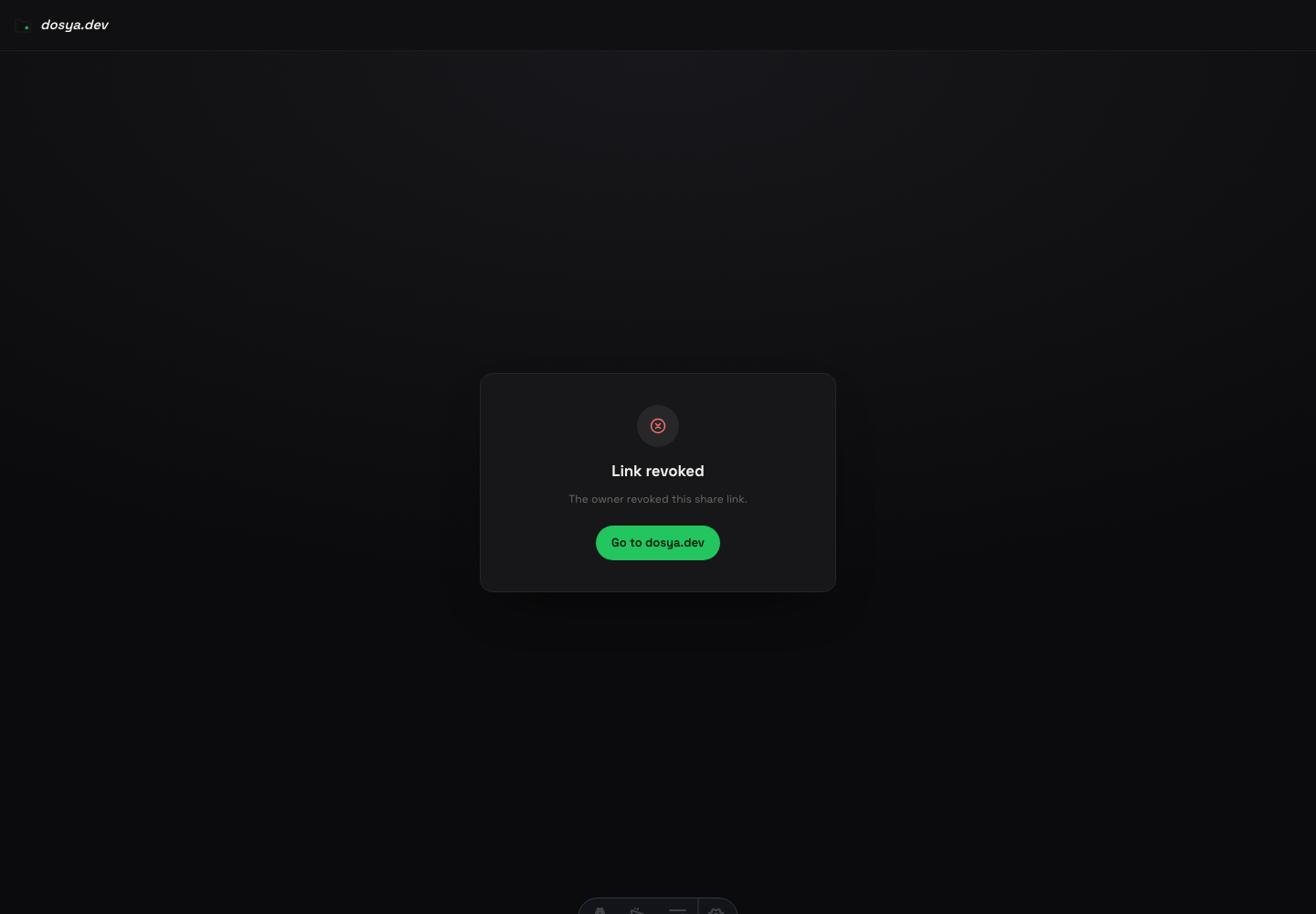
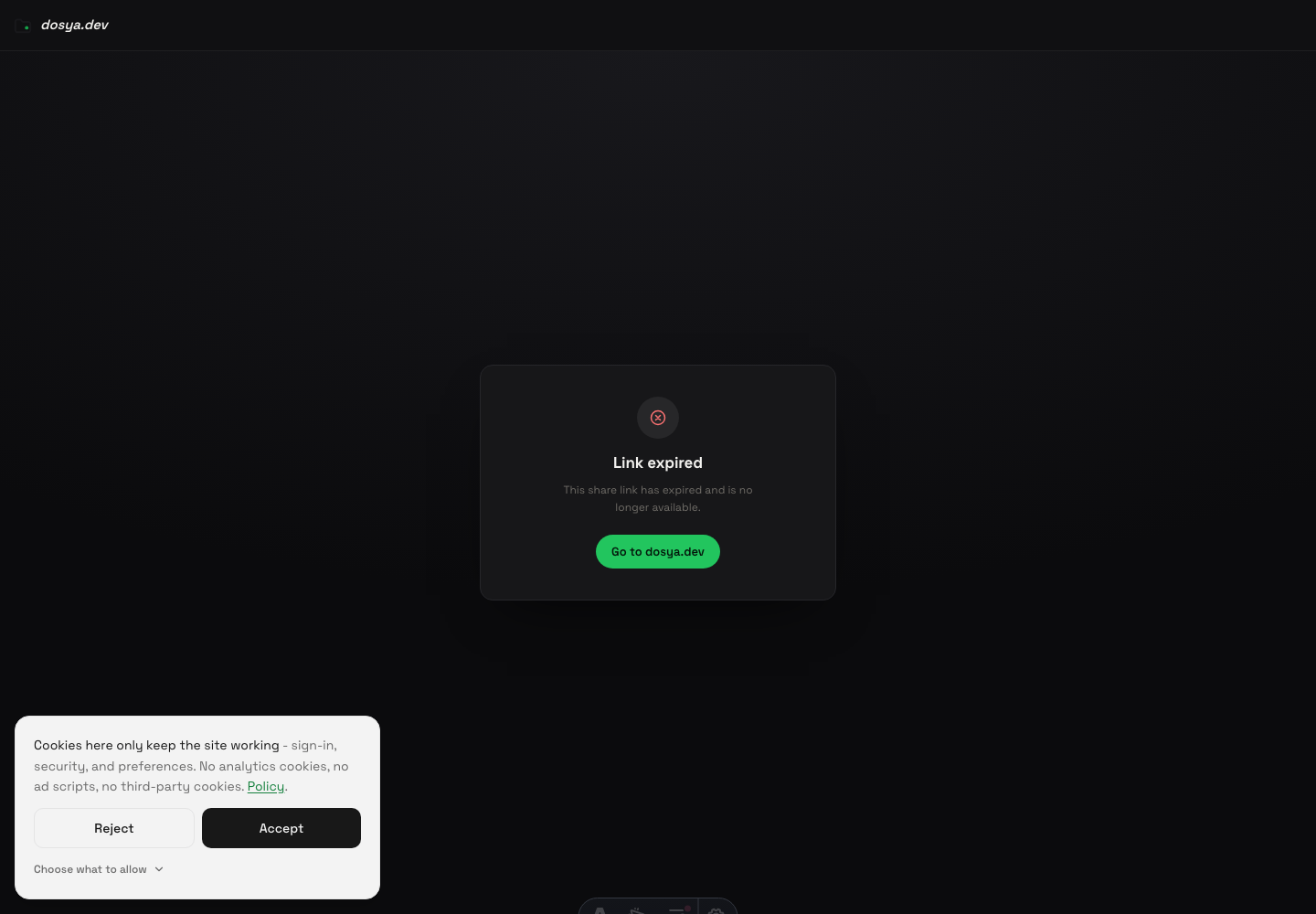
- Open the exact URL in a private window and record the page heading and message.
- If it says Link expired, ask the owner to create a new link with a later permitted expiry. The old URL cannot be extended after it has expired.
- If it says Link revoked, ask the owner for a new URL. Revocation is final for that particular link.
- If it says File deleted, the owner must restore the workspace item when recovery is still available, then test or create a new link.
- If it says Region restricted, the owner must review the workspace country allowlist or blocklist. Changing browser language does not change the request’s country.
- If it asks for an email code, enter the exact invited address. A forwarded restricted URL does not add a new recipient.
- If it asks for a password, use the link password supplied by the sender. This is separate from a Dosya account password and from email verification.
- If the page says Something went wrong, reload once, check service status and try another connection before asking the owner to replace the link.
Steps: check the owner side
- Open Shared and select By me.
- Search for the shared file or folder and choose All so expired and revoked rows remain visible.
- Compare the URL you sent with Copy share link on the active row. Several links can target the same item.
- Check Status, Expiry, password protection, named recipients and any download limit.
- Open the item in Files. Confirm it still exists and is not fully locked. A full lock stops its sharing links until the item is unlocked.
- For a named-recipient link, open its details and confirm the address was invited. Resend access instructions only to the intended person.
- Create a new link when the old one is expired or revoked. Send the new URL and test it privately before replacing the old message.
Expected result
The owner and recipient agree on the exact URL and its state. A valid active link reaches its required email or password gate and then serves the available item. A terminal link is replaced with a newly tested URL.
Limits and access behavior
- Expiry and revocation affect one link. They do not delete the original item or disable another active link to it.
- Dosya deliberately gives a generic unavailable or not-found result in some cases. A visitor cannot use error details to discover a hidden item, a banned owner’s account or a token that never existed.
- A download limit or daily transfer allowance can stop a download even when the page itself opens. Read the displayed download error and have the owner check the link’s counters and plan allowance.
- Revoking or expiring a link cannot recall a copy already downloaded or captured.
Troubleshooting
The owner sees an active link, but I see an email gate. The link is restricted to named recipients. Use an invited address or ask the owner to add the correct address.
Email verification succeeds, then a password page appears. The owner enabled both controls. Complete them in order: named-recipient verification first, then the link password.
The URL works for the owner but not the recipient. Test from a private window rather than an authenticated owner session. Then check the recipient list, country policy, password and exact URL.
A folder link opens but one item is missing. Hidden or fully locked descendants are excluded from the shared folder. The owner must review that item’s workspace access instead of repeatedly recreating the same folder link.
Frequently asked questions
Can an expired or revoked URL be turned back on?
No. Create a new link and send its new URL.
Does Link unavailable mean the file was deleted?
Not necessarily. The deliberately limited message can cover several access states. The owner should inspect the item and link from the correct workspace.
Should I send the private URL to support?
Use private support only when needed. Include the time, workspace, page heading and browser, and avoid posting the URL in public comments.
Related guides
Was this helpful?
Loading helpfulness results…
Voting saves a necessary ballot cookie for up to 180 days so you can change your answer.
Questions and replies
Ask about the steps in this guide. Questions are reviewed before publication.
Keep account details, credentials and private files out of public questions. Use private support for those.
Loading questions…
Sign in to your Dosya account to ask a question.