Buy or restore a storage plan in the mobile app
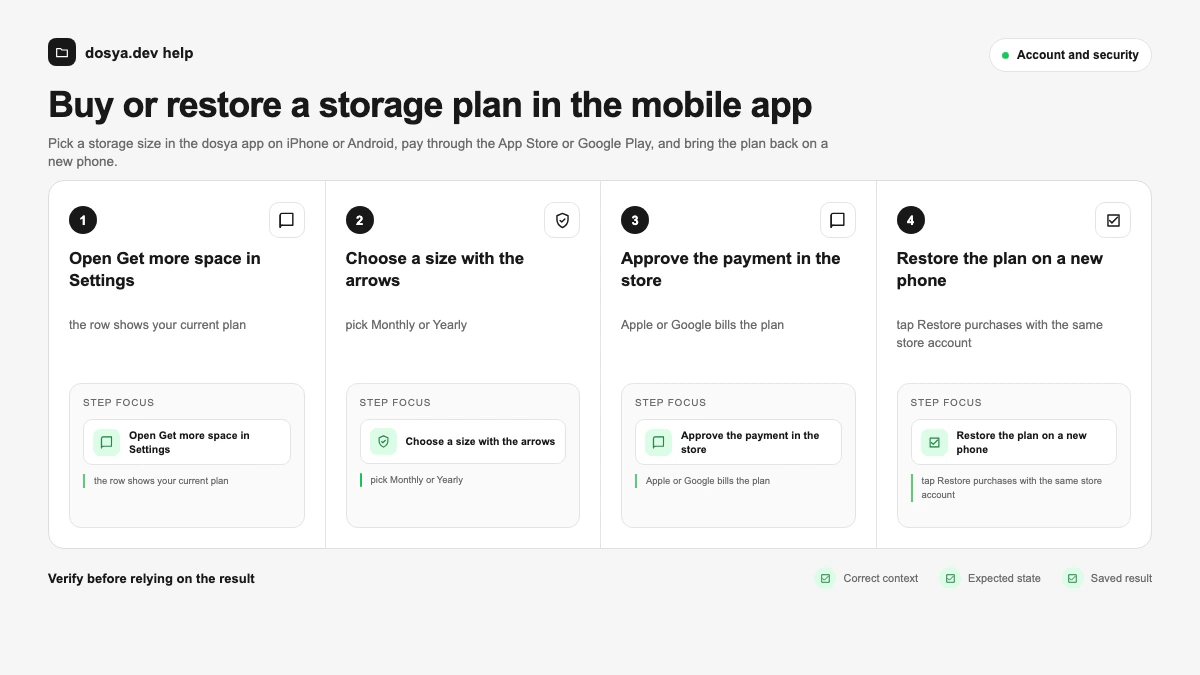
Pick a storage size in the dosya app on iPhone or Android, pay through the App Store or Google Play, and bring the plan back on a new phone.
Last reviewed
The dosya app for iPhone, iPad, and Android can sell you a storage plan directly. You pay Apple or Google, and the space lands on your dosya account. It then works everywhere you sign in: web, desktop, phone, and TV.
The sizes match the web plans: 100 GB, 500 GB, 1 TB, 2 TB, 4 TB, 6 TB, 8 TB, 10 TB, and 20 TB. Each one can renew monthly or yearly. The store shows the price in your local currency, so it can differ from the web price. See how to choose a plan for help picking a size.
Before you start
- Sign in to the dosya account that should get the space. A purchase is tied to that account.
- In-app plans are only in the versions from the App Store and Google Play. The Android app downloaded from our website does not show them. Use Billing on the web there instead.
- The space counts for the workspaces you own. In someone else’s workspace, uploads use the owner’s space.
Steps: buy a plan
- Open the Settings tab and tap Get more space. The row also shows your current plan name.
- Use Less space and More space to move between sizes. The top of the screen shows the size and its price.
- Pick Monthly or Yearly. A yearly price shows how much it saves with Save {pct}% vs monthly.
- Check What you get for the storage and features of that size.
- Tap Continue to App Store or Continue to Google Play, then approve the payment in the store sheet.
You can also reach this screen from an upload. When a file may not fit, the warning offers Get more space.
Expected result
The app shows Activating your plan… for a few seconds, then You’re on {plan}. Tap Done. Your new limit shows in Settings and on the web Billing page.
Other messages you may see:
- Your purchase is waiting for approval. A parent has to approve it, for example with Ask to Buy. The plan turns on once they do.
- Your purchase went through. We’re still activating it; check again in a moment or contact us. The store took the payment, but our confirmation is slow. Wait a minute and open the screen again, or tap Contact us.
- This purchase belongs to another dosya account. Sign in to that account to use it. The Apple or Google account already pays for a different dosya account.
Steps: restore a plan on a new phone
Use this after you reinstall the app or move to another phone, if Get more space still shows your old plan.
- Sign in with the same dosya account you used when you bought.
- Check that the phone uses the Apple Account or Google account that paid.
- Open Settings, tap Get more space, then tap Restore purchases.
If the store has nothing for that account, the app says We found no purchases to restore for this App Store account. (or Google Play account). Check both sign-ins and try again. Your files themselves never depend on this step. They stay in your account. The phone change guide covers the rest of a move.
When the app will not sell you a plan
The app checks your account first, so nobody pays twice. Instead of a price, you may see:
- Your plan is managed on the web. You already pay on the web. Change it under Billing in a browser.
- Your plan comes from a family plan. A family member pays for your space.
- Your family plan is managed on the web. You pay for a Family plan on the web.
- Your plan is managed through App Store. (or Google Play) You subscribed on your other kind of phone. Manage it there.
If you already subscribe in this store, the screen shows Manage subscription instead. The store plan management guide explains what to do next.
Have a code?
Tap Have a code? to enter a promotion code. On iPhone, we copy a working code and open Apple’s redeem screen. Paste it there. Some codes only work on the web, and the app tells you so with This code can’t be used in the app.
Related guides
Was this helpful?
Loading helpfulness results…
Voting saves a necessary ballot cookie for up to 180 days so you can change your answer.
Questions and replies
Ask about the steps in this guide. Questions are reviewed before publication.
Keep account details, credentials and private files out of public questions. Use private support for those.
Loading questions…
Sign in to your Dosya account to ask a question.