Manage a plan bought in the App Store or Google Play
Change, cancel, or get a refund for a dosya storage plan billed by Apple or Google, and see how it shows on the web Billing page.
Last reviewed
A plan you bought inside the dosya mobile app is billed by Apple or Google, not by us. That store holds the payment, the renewal, and the refund. This guide shows where each task happens. For a plan you pay for in a browser, use the cancel or downgrade guide instead.
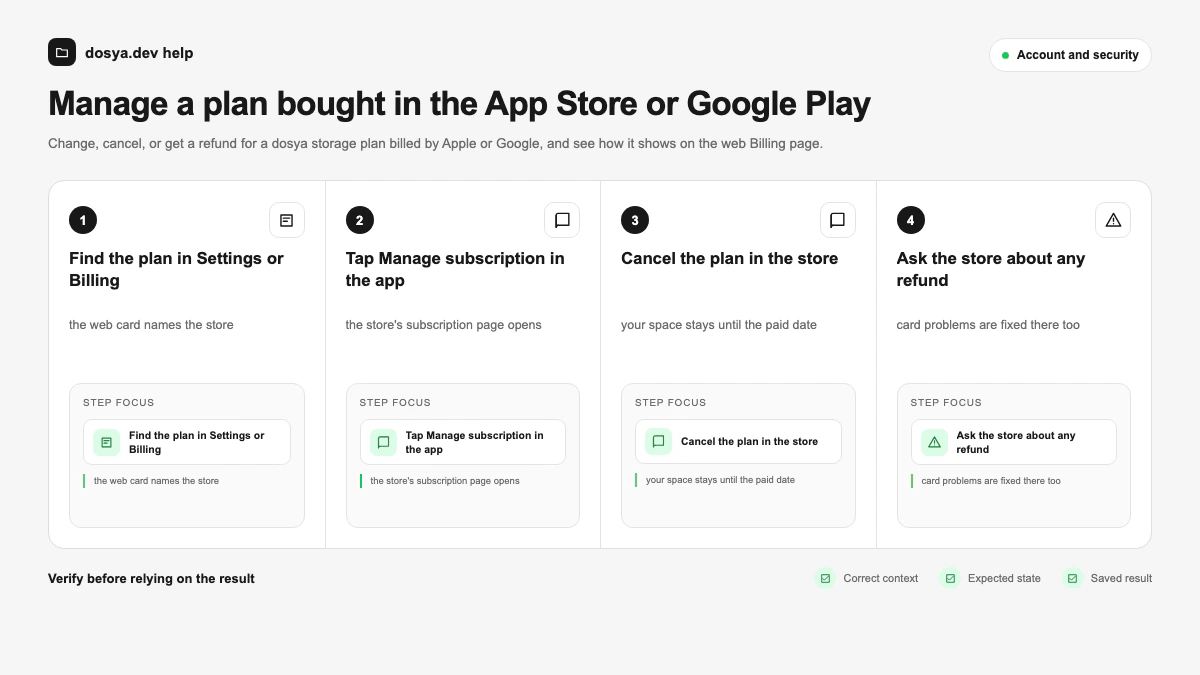
Where to find your plan
In the app. Open the Settings tab. A Manage subscription row appears when the store bills your plan. It opens the store’s subscription page.
On the web. Open Billing. The plan card is headed Managed in App Store or Managed in Google Play. It shows:
- the plan name and its storage size
- Renews on with the next charge date, or Ends on if renewal is off
- a Manage in App Store or Manage in Google Play link
Below the card you still see your storage ledger and usage bar. Prices, invoices, Change plan, Cancel subscription, and Request refund are hidden. The store handles all of those.
Steps: cancel on iPhone or iPad
- In dosya, open Settings and tap Manage subscription. You can also go to the iPhone Settings app, tap your name, then Subscriptions.
- Choose the dosya subscription and tap Cancel Subscription.
Steps: cancel on Android
- In dosya, open Settings and tap Manage subscription. Google Play opens on the dosya subscription.
- Tap Cancel subscription and follow Google’s prompts.
Expected result
Your space stays until the date you already paid for. The web Billing card then reads Ends on with that date. When it passes, the account goes back to the Free plan with 5 GB.
Nothing is deleted when a plan ends. If you store more than 5 GB, uploads pause until you free space or buy space again. Read how to prepare an over-quota account before the end date.
Removing the app does not stop the charges. Deleting your dosya account does not either. The delete screen warns you: Cancel your App Store subscription first, or it keeps renewing after the account is gone.
Change to a bigger or smaller size
The app does not swap sizes while a store subscription runs. If you already subscribe in this store, Get more space shows Manage subscription in place of the sizes.
- On iPhone or iPad, open Apple’s subscription page from Manage subscription. Apple lists the other dosya storage sizes there. Apple decides when the switch starts and how the price difference is handled.
- On Android, Google Play has no switch between dosya sizes. Contact us and we will help you move to the size you need.
Refunds
Our own 14-day refund on the web does not cover store purchases. Ask the store that charged you:
- Apple: go to reportaproblem.apple.com and pick the dosya charge.
- Google: open your Google Play order history, or Google’s refund help page.
If Apple or Google refunds the purchase, your plan ends once the store tells us about the refund.
Payment problems
If the store cannot charge your card, it keeps trying for a short while. During that time, Billing on the web shows Payment problem: update your payment method in App Store by a date (or Google Play). Your space keeps working until then. Fix the card in your Apple or Google account, not with us.
Move from store billing to web billing
You cannot pay both ways at once. While a store plan is active, Billing on the web does not let you start a web plan. To switch:
- Cancel the store subscription as shown above.
- Wait until its Ends on date has passed.
- Open Billing on the web and select Choose a plan.
The same rule works the other way. If you pay on the web, the app says Your plan is managed on the web. and offers no prices.
If you are charged twice
In rare cases one account ends up with a web plan and a store plan together. Billing then shows Two subscriptions on this account or Two subscriptions are active, with both plans side by side. The web plan provides your space while both run, and its card keeps Cancel subscription.
- If the web plan came second, we cancel it and refund its latest payment. You get an email about it.
- If the store plan came second, we email you how to cancel it. Only Apple or Google can refund it.
Family plans
A Family plan is a web plan. When the store bills your plan, Billing does not show the Family plan card. To share space with family, move to web billing first, then follow the Family plan guide.
Related guides
Was this helpful?
Loading helpfulness results…
Voting saves a necessary ballot cookie for up to 180 days so you can change your answer.
Questions and replies
Ask about the steps in this guide. Questions are reviewed before publication.
Keep account details, credentials and private files out of public questions. Use private support for those.
Loading questions…
Sign in to your Dosya account to ask a question.