Read photos for Personas on a computer
Compare the desktop app and a browser for Personas reading, keep it running, pause one device, and see how your devices share the photos already read.
Last reviewed
Personas can read your photos in the dosya desktop app or in a browser at app.dosya.dev. Both read on the computer in front of you. They differ in how fast they go and in when they stop.
Choose where to read
Desktop app. This is the quickest place to read. On a computer with spare processor cores, the app works on several photos side by side. It keeps going while the app is open, even when its window is not in view. The phone app says the same thing on its first screen: Reading is faster on the desktop app.
Browser. Reading runs only while the dosya tab is visible. Switch to another tab or minimise the window and it stops, then starts again when you come back. On a phone or tablet browser, it reads one photo at a time to save memory.
Phone app. Your phone can also read, including in the background. See Read photos for Personas on your phone.
You do not have to choose only one. Photos that one of your devices has read are recorded in your encrypted people index, and your other devices skip them.
Steps: read in the desktop app
- Install the app and sign in. See Installing and signing in to the desktop app.
- Select the workspace, then open Personas in the sidebar under Files. If it is missing, update the app.
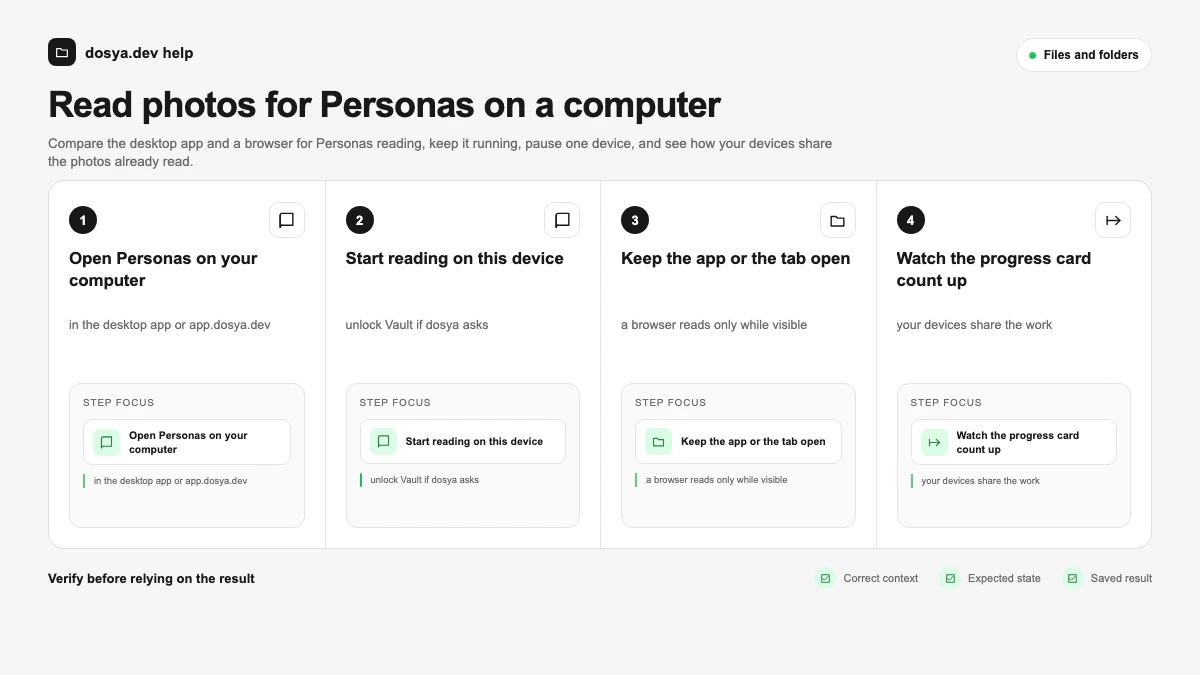
- Select Start reading on this device, then set up or unlock Vault if asked.
- Leave the app open. The progress card counts the photos read on this device.
Steps: read in a browser
- Open app.dosya.dev in a recent browser and select the workspace.
- Open Personas in the Files sidebar and select Start reading on this device.
- Keep the dosya tab in front while it reads. On first use, the browser downloads about 35 MB of files it needs to read faces.
If the card says This browser can’t read photos. Your other devices can., this browser lacks something the reader needs. Update it or try another browser, or read in the desktop app instead.
Pause one device
- Select Pause on the progress card, then Resume when you want it to continue.
- Or open Personas settings and switch Read on this device off or on.
Pausing affects only the computer you pause. Your phone and other computers carry on with their own settings.
Expected result
The count on the progress card rises while the desktop app is open or the browser tab is visible. The newest photos come first. People appear on every device you sign in to once their face has been found in at least 3 photos.
Related guides
Was this helpful?
Loading helpfulness results…
Voting saves a necessary ballot cookie for up to 180 days so you can change your answer.
Questions and replies
Ask about the steps in this guide. Questions are reviewed before publication.
Keep account details, credentials and private files out of public questions. Use private support for those.
Loading questions…
Sign in to your Dosya account to ask a question.