Installing and signing in to the desktop app
Download the desktop app for your operating system, sign in to your existing account, and check the workspace before setting up folder sync.
Last reviewed
Download Dosya from the official desktop download page, install the package for your operating system, and sign in with your Dosya account. After signing in, check the workspace selector at the top of the sidebar before uploading files or adding a sync folder.
Before you start
- Have a Dosya account and the sign-in method you normally use. If two-factor authentication is enabled, keep your authenticator or other required factor available.
- Check the current requirements on the download page. Installer versions, supported systems and store availability can change; use the options shown there.
- Choose a small sample folder for your first sync. Installing and signing in do not automatically pair every folder on your computer.
- If your organization controls software installation, use its approved installation process.
Steps: download and install
- Open the official download section. Go to Get the app. The page selects an operating system based on your browser; use Windows, macOS or Linux if it selected the wrong one.
- Choose the package for this computer. Use the download or store option shown for your system. Check the architecture and system requirements rather than choosing a package from its filename alone.
- Install the app. On Windows, run the downloaded installer and follow its prompts. On macOS, open the disk image and copy the app to Applications, then open it there. On Linux, follow the package instructions on the download page: an AppImage needs executable permission, while a Debian package uses the system package installer. A store installation follows that store’s prompts.
- Check an unexpected installer warning. Confirm the source and compare the SHA-512 checksum using the page’s Checksum and requirements instructions. If verification fails, download a fresh copy from the official page and stop using the mismatched package.
- Open Dosya. Follow the introductory screens or select Skip onboarding to reach sign-in.
Steps: sign in and check the workspace
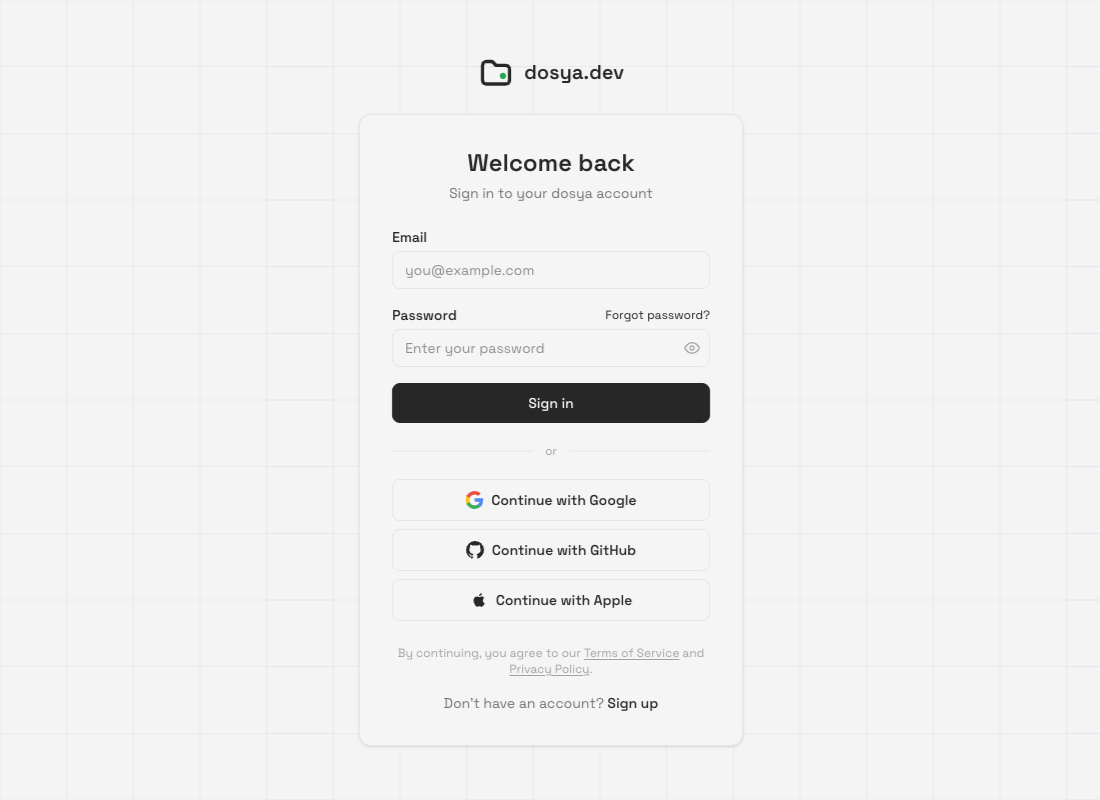
- Use your existing account. On Welcome back, enter Email and Password, then select Sign in. If you use a provider, select the corresponding Continue with Google, Continue with GitHub or Continue with Apple button and complete its browser flow.
- Complete any additional verification. Follow the account’s two-factor prompt if shown. Do not create another account to work around a missing factor; use your configured recovery method or contact support.
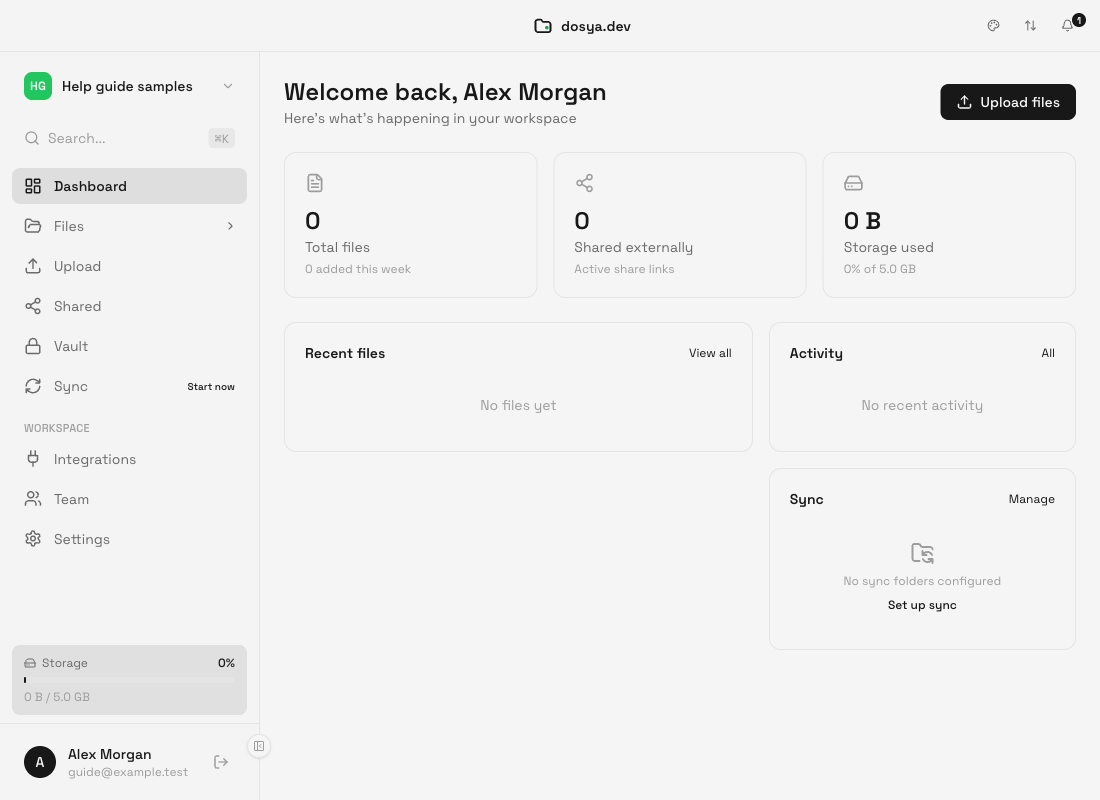
- Check the account. Your name and email appear at the bottom of the sidebar after sign-in. Make sure they belong to the account whose files you want to use.
- Check the destination workspace. Open the workspace name at the top of the sidebar to select the intended workspace. A team workspace may have different permissions and storage limits from your personal workspace.
- Choose the next task. Use Files to browse, Upload for a manual transfer or Sync to pair a local folder. Follow the sync setup guide before adding an important working folder.
Expected result
The dashboard opens, the sidebar shows the correct account, and the workspace selector shows your intended destination. Open Files and confirm that you recognize that workspace’s folders. If this is a new account, an empty file list is expected.
A successful sign-in is the starting point for sync. Add and verify a folder pairing separately; no local folder is selected by these sign-in steps.
Limitations
The screenshots show the current macOS app with a disposable sample account. System installer dialogs and permission prompts differ across platforms and installation sources. Provider sign-in and every operating system’s installer were not exercised for this guide.
The app needs network access for account sign-in and cloud operations. Sync transfers also depend on the selected workspace’s access and available storage. Ordinary desktop folder sync and Vault are separate workflows; choosing a sync folder does not make it a Vault folder.
Troubleshooting
The download is for the wrong system. Select the correct platform in Get the app and check its architecture requirements before downloading again.
Sign-in is refused. Confirm the email and normal sign-in method. Use Forgot password? for a password account. If the account uses a provider, try that provider’s button. Follow the displayed two-factor instructions when applicable.
Sign-in reports a connection error. Confirm that the computer is online and that a VPN, proxy or firewall permits Dosya connections. Check service status and retry after connectivity returns.
The dashboard has the wrong files. Check both the account email and workspace selector. If a team workspace is missing, ask its owner to confirm your membership and permissions.
The provider browser flow completes but the app remains signed out. Return to Dosya, check whether the browser offered to reopen the app, and retry from the app’s sign-in button. Share the displayed error and operating system with support, without passwords, verification codes or session tokens.
Frequently asked questions
Do I need a new account for desktop?
No. Use the account you already use in the web app.
Will signing in upload my computer’s folders?
No. Choose files for manual upload or create a sync pairing for a specific local folder.
Can I switch between personal and team files?
Use the workspace selector. Check it again before setting up each sync pairing.
Related guides
Was this helpful?
Loading helpfulness results…
Voting saves a necessary ballot cookie for up to 180 days so you can change your answer.
Questions and replies
Ask about the steps in this guide. Questions are reviewed before publication.
Keep account details, credentials and private files out of public questions. Use private support for those.
Loading questions…
Sign in to your Dosya account to ask a question.