Choose the correct workspace and folder before uploading
Switch to the intended Dosya workspace, select a writable cloud folder, and verify a completed test upload before transferring important files.
Last reviewed
Every upload is tied to the workspace that was active when its queue item was created. Choose the workspace before you select files, then set the Folder under Upload options. A matching folder name in another workspace is a different destination.
Before you start
- Sign in with the account that belongs to the receiving workspace.
- Ask the workspace owner for the exact workspace and folder path when someone else assigned the destination.
- Prepare one small, non-confidential file with a distinctive name, such as
destination-check-2026-10-14.txt. - Confirm your role can open Uploads and add bytes. These are separate capabilities:
access_uploadexposes the page, whileupload_filespermits the transfer.
Steps
Switch to the intended workspace
- Read the workspace name in the upper part of the left sidebar.
- Open the workspace switcher and choose the intended workspace.
- Dosya displays Switching workspace… for at least two seconds and then lands on that workspace’s dashboard.
- Read the sidebar name again. The data shown by Files, Uploads, Shared, Team and workspace settings now belongs to that active workspace.
- If the workspace is missing, check the signed-in email and whether its invitation was accepted. Ask the owner to confirm membership instead of uploading to a similarly named workspace.
The switch deliberately navigates away from the previous workspace page. Reopen Uploads after the transition rather than trusting an older destination control left in another tab.
Select the destination folder
- Choose Uploads in the sidebar. The page heading is Upload files.
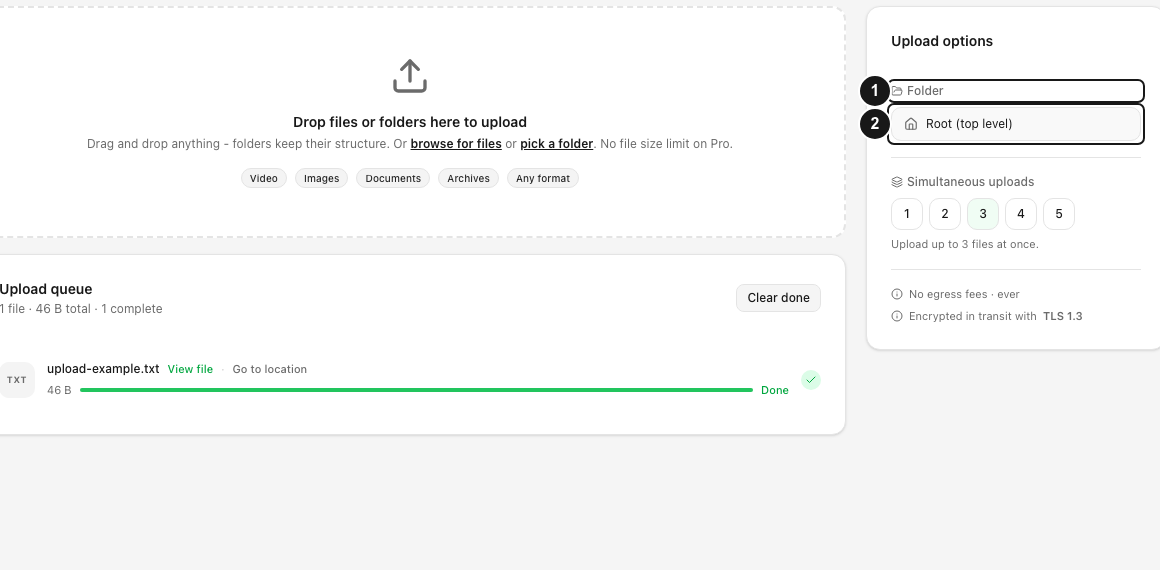
- In Upload options, find the Folder control before adding any files.
- Root (top level) means the top level available to this member in the active workspace. A folder-confined member is resolved to the assigned anchor and cannot write to the unrestricted workspace root.
- Open the folder control. The dialog title and confirmation action are Select folder.
- Browse the folder tree or use Search folders…. Search results include their path, which helps distinguish repeated names.
- Select the intended folder and choose Select folder. Dosya reports Uploading here and says that new files will go to the selected name.
- If you are authorized to create folders, use New folder at root or New folder in “name”, enter the name and choose Create. A successful result says Folder created.
Prove the destination with one file
- With the workspace and folder visible, choose Select files and add the harmless test file.
- Watch its row in Upload queue. Queued or a percentage is not proof of a stored copy.
- Wait for Done.
- Choose View file to open that result, or Go to location to open its containing folder.
- Compare the file’s exact name and size, then return to Uploads and reselect the same destination for the important transfer.
Files chosen from a group view still land in a real folder. When the header says files will land at the top level and be added to a group, verify both the cloud location and group membership.
Permission and folder rules
- A role without
access_uploaddoes not receive the Uploads route or sidebar item. - A role that reaches the page but lacks
upload_filessees Your role can’t upload files and Ask a workspace owner or admin if you need to add files here. - The server can return You don’t have access to the upload page or You don’t have upload permission in this workspace if the role changed after the interface loaded.
- A folder-confined member receives This folder is outside the folder you’re confined to when a request names a destination beyond the assigned subtree.
- A hidden, deleted or foreign folder is not a usable target. A full lock returns the folder’s locked state rather than writing underneath it.
- Workspace storage, file-size, extension, member-storage and simultaneous-upload policies remain active after the destination is chosen.
If you selected the wrong place
Do not start another copy until you know whether the first one completed. Use the queue row’s View file or Go to location, or search Files in the workspace recorded on that row. Move the completed item when your role permits it; otherwise ask an owner or admin to move it. Deleting the first copy before verifying the correction can remove the only successful transfer.
Expected result
The test row reaches Done and appears once in the intended folder of the intended workspace. The important transfer is then started with the same confirmed destination, and each completed row can be opened from its recorded location.
Troubleshooting
The active workspace is wrong after switching. Wait for Switching workspace… to finish, then read the sidebar name. Close stale tabs if two workspaces are easy to confuse.
The folder search returns no match. Confirm the active workspace and spelling. Your role may be confined to another subtree, or the folder may have been hidden, moved or deleted.
New folder fails. Your role may lack folder-creation permission, the parent may be locked, or the name may conflict with an existing child. Choose an existing writable destination or ask an administrator to create it.
The completed file is not where expected. Check Root (top level), the queue row’s workspace, and Go to location before uploading again. The first copy may be valid in a different folder.
Related guides
Was this helpful?
Loading helpfulness results…
Voting saves a necessary ballot cookie for up to 180 days so you can change your answer.
Questions and replies
Ask about the steps in this guide. Questions are reviewed before publication.
Keep account details, credentials and private files out of public questions. Use private support for those.
Loading questions…
Sign in to your Dosya account to ask a question.