Switch between workspaces safely
Change the active Dosya workspace, confirm its name and role, and avoid uploading, sharing or changing settings in the wrong workspace.
Last reviewed
The active workspace controls which files, uploads, members, integrations, policies and storage figure the web app shows. Switching changes that context; it does not move or combine files.
Before you start
- Finish any action whose destination is already fixed, especially an upload or settings form.
- Know the name of the workspace you intend to use.
- If you have similar workspace names, identify a known file, member or storage figure you can check after switching.
- Remember that your role can differ between workspaces, so their menus may not match.
Steps: switch to another workspace
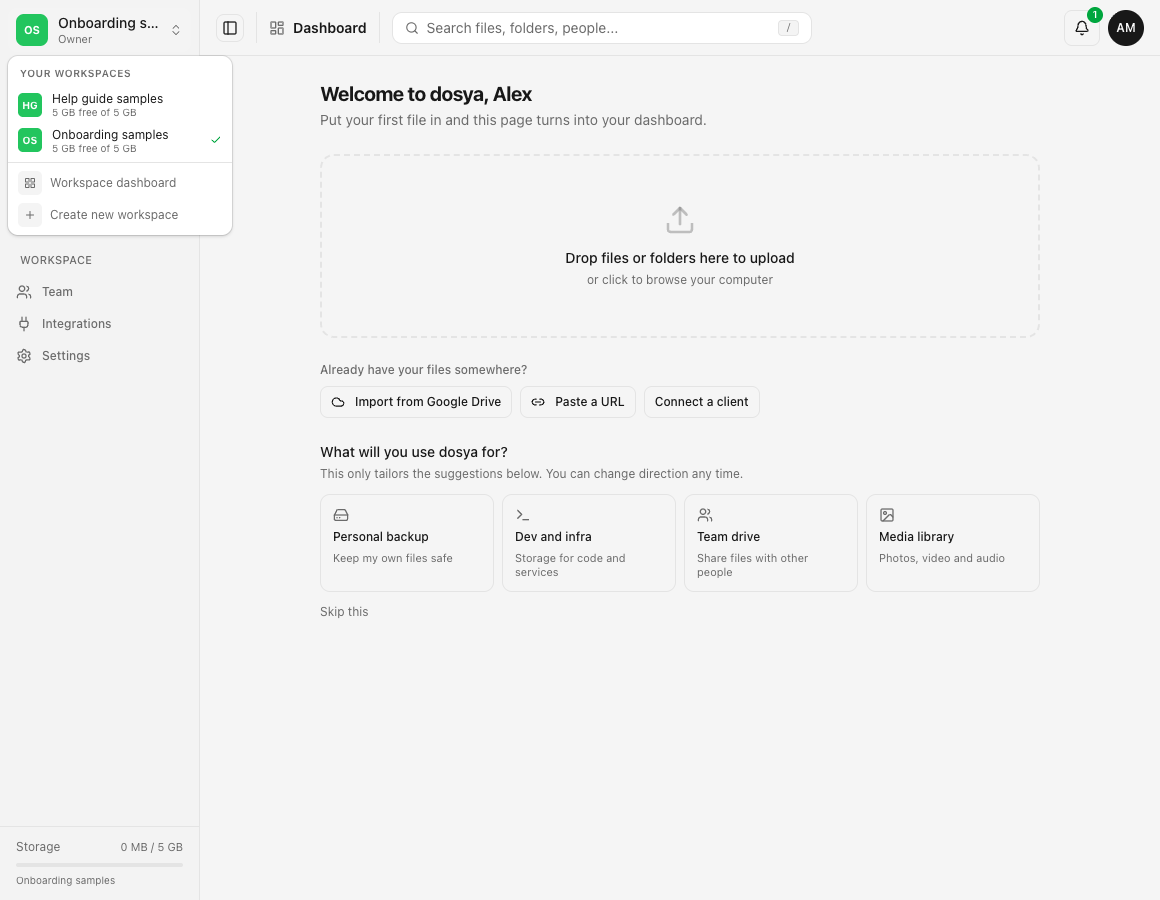
- Select the current workspace name at the top of the left sidebar.
- Under Your workspaces, find the intended name. A check marks the workspace currently active.
- Select the intended workspace.
- Wait for the workspace transition to finish and the dashboard to load.
- Confirm the new workspace name above the sidebar.
- Before uploading or sharing, open Files and check a known folder or file. Before changing policies, open Settings and confirm the workspace name there too.
Expected result
The selected workspace name appears above the sidebar, its dashboard loads and workspace pages show only the data your membership can reach there. Returning to the previous workspace shows its files again.
Limits and workspace boundaries
- Switching does not copy, move or delete a file.
- Search, storage usage, Files, Shared, Team, Integrations and workspace Settings follow the active workspace.
- A role or folder restriction can hide menu entries and files in one workspace even when you can see them in another.
- Account-wide profile and security settings continue to apply to your signed-in account.
- A transfer already queued for a destination does not become a safe cross-workspace move merely because you switch the visible workspace.
Troubleshooting
Files appear to be missing. Read the workspace name above the sidebar. Switch back to the workspace where the files were uploaded and check Files there.
A menu entry disappeared. Compare your role in the two workspaces. The new workspace may grant fewer page or folder permissions.
The switcher does not list a workspace. Confirm that you are still a member and signed in to the expected account. An owner may have removed the membership or an invitation may still be pending.
The page keeps showing old data. Wait for the workspace transition, then open the destination from the sidebar. If the name changes but the page remains stale, reload once and check service status.
You uploaded to the wrong workspace. Keep the source file, verify the completed copy, and upload it to the correct workspace. Do not assume switching will relocate the existing copy; remove the mistaken copy only when you have permission and have confirmed the correct result.
Related guides
Was this helpful?
Loading helpfulness results…
Voting saves a necessary ballot cookie for up to 180 days so you can change your answer.
Questions and replies
Ask about the steps in this guide. Questions are reviewed before publication.
Keep account details, credentials and private files out of public questions. Use private support for those.
Loading questions…
Sign in to your Dosya account to ask a question.