Run a one-file upload preflight
Send one uniquely named sample to the final folder, wait for Done, then use View file and File details to verify destination, name, and size.
Last reviewed
A one-file preflight checks the actual workspace, folder, role, storage gate, extension policy, transfer path, and completion receipt before a large upload. Use a small representative file with a unique name; an exact name collision in the destination can create a new version of the existing item.
The Uploads route requires access_upload, and the upload area requires upload_files. Workspace settings can also restrict the extension, size, per-member storage, concurrent uploads, or destination folder. Files over 50 MiB use resumable 10 MiB parts, so a small test does not exercise that multipart path.

Steps
- Create or choose a small source file whose extension matches the larger batch and whose name does not already exist in the destination.
- Open Uploads, confirm the active workspace, and set Folder under Upload options to the exact final location.
- Choose Select files, add only the sample, and confirm the Upload queue shows one file with the expected name and size.
- Keep the tab open as the row changes from Queued to percentage progress and finally Done; investigate an Error before adding more sources.
- Choose View file on the completed row, open File details, and compare the stored name and displayed size with the local sample.
- Choose Go to location and confirm the file sits in the final folder; download and open it when the preflight must also test byte retrieval.
Expected result
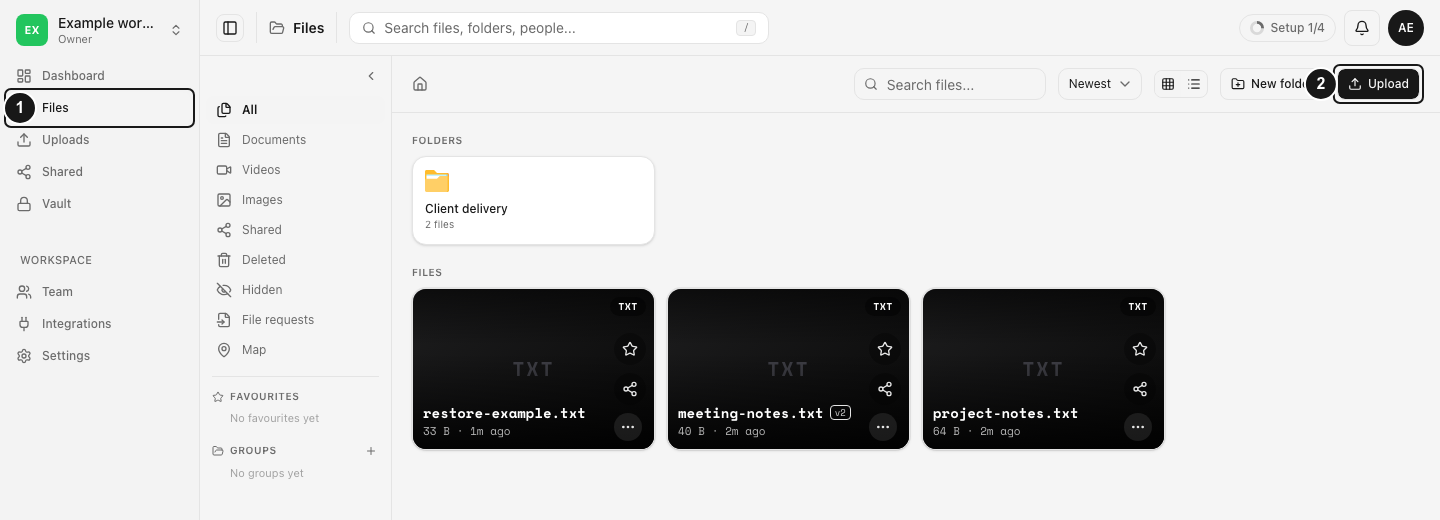
The sample reaches Done, opens from its completed row, and appears in the chosen workspace folder with the expected name and size. The local source remains unchanged.
Your role can’t upload files means the page is visible but upload_files is absent; ask an owner or admin. A workspace file-size or extension refusal names the exact setting. A successful small preflight proves the ordinary one-file path, destination, and permissions, but a production batch above 50 MiB per file should also include one large multipart sample before unattended transfer.
Related guides
Was this helpful?
Loading helpfulness results…
Voting saves a necessary ballot cookie for up to 180 days so you can change your answer.
Questions and replies
Ask about the steps in this guide. Questions are reviewed before publication.
Keep account details, credentials and private files out of public questions. Use private support for those.
Loading questions…
Sign in to your Dosya account to ask a question.