Choose a direct download or ZIP archive
Download one cloud file directly, or package folders and selected items as one or more streamed ZIP archives within Dosya's archive limits.
Last reviewed
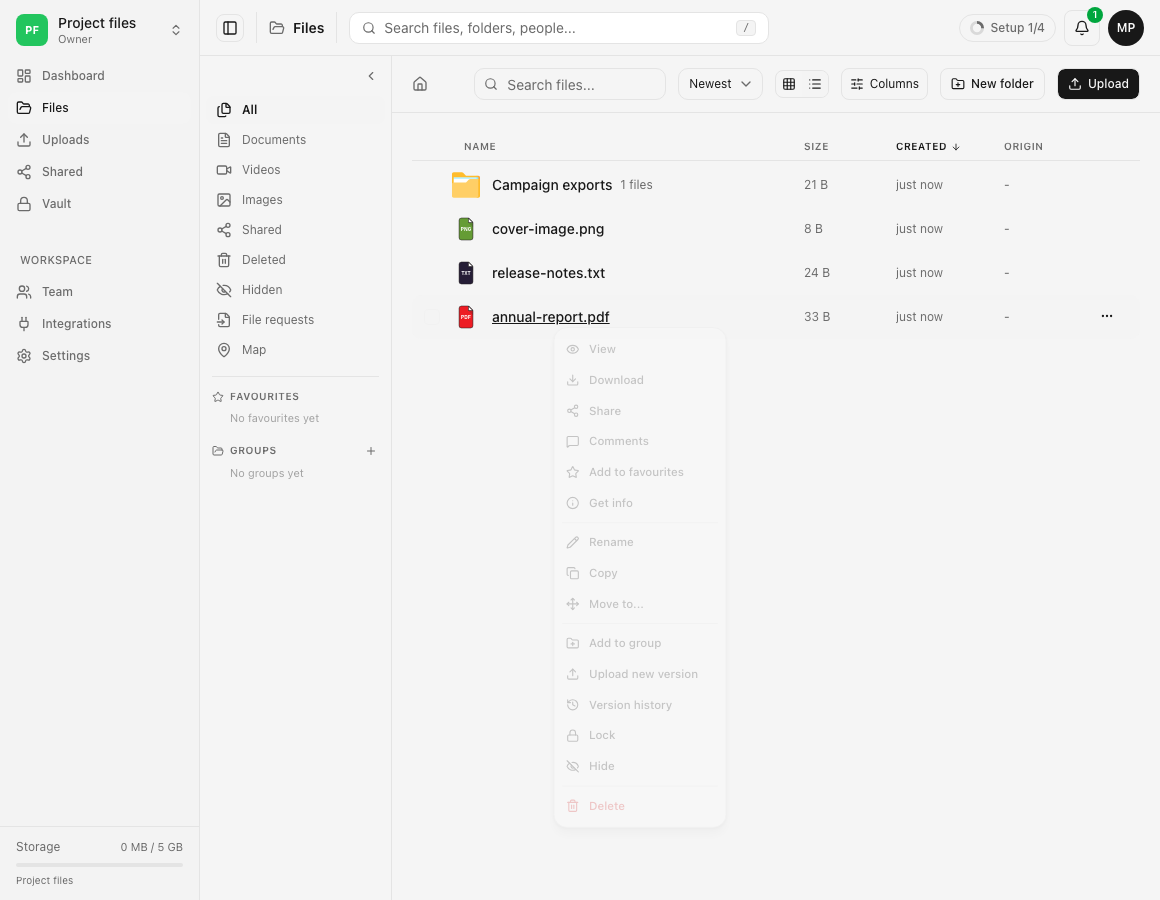
Use Download on a file when you want its current bytes and filename without an archive wrapper. Use a folder’s download action or select several items and choose Download ZIP when you need one package that preserves folder structure. A large selection can arrive as several ZIP files.
Steps
Choose the right method
| What you need | Action | What arrives |
|---|---|---|
| One current file | Open the file menu and choose Download | The file itself, with its current name |
| One folder | Open the folder menu and choose its download action | A ZIP containing the reachable folder contents |
| Several selected files or folders | Select their checkboxes and choose Download ZIP | One or more streamed ZIP archives |
| One older file version | Open version history and download that version | The chosen historical version, outside this Files-page workflow |
Selecting one file with its checkbox and choosing Download ZIP still asks for an archive. Open that file’s three-dot or right-click menu when you want the original file directly.
Before downloading
- Open Files in the workspace that owns the content.
- Confirm your role includes download permission. Dosya hides ordinary download controls when
download_filesis absent. - Check the device’s free storage and the browser’s configured download location.
- Review a multi-item selection before starting. A folder expands to its downloadable descendants on the server, so one selected row can represent thousands of files.
- Keep cloud files in place until you verify the local result. Downloading creates a local copy; it does not remove the stored item.
Download one file directly
- Find the file in Files and verify the active workspace and breadcrumb.
- Open the file row’s three-dot or right-click menu and locate Download.
- Choose Download for that named file.
- Follow the browser’s save behavior. It may ask for a location or save to its configured Downloads folder.
- Open the result and compare its filename and byte size with the cloud item.
A direct download avoids ZIP extraction and is the clearest choice for one file. The browser controls the final local location; Dosya does not save the result into another cloud folder.
Download a folder or selection as ZIP
- Under Files, tick each intended row and confirm the selection bar’s top-level item count before choosing Download ZIP.
- Choose Download ZIP.
- For one archive request, Dosya reports Your ZIP is being prepared by the browser.
- If the selection must be split, Dosya reports Too many items for one file - arriving as N ZIPs. Allow multiple downloads only when that count matches your action.
- Wait for every announced archive, then open each ZIP and compare its tree with the selection.
Archive limits and split behavior
- The web app places no more than 300 selected IDs in one archive request.
- One click can start at most 20 separate downloads. If the proposed selection needs more, the page says how many parts it would require and asks you to select fewer items.
- Each server-built ZIP can contain at most 10,000 entries and 5 GiB of source data. A folder can exceed either ceiling after its descendants are counted.
- ZIPs are streamed to the browser. Preparation does not create a second stored copy in your Dosya workspace.
- Archive entries use storage mode rather than recompressing media. Do not assume the ZIP will be much smaller than its source files.
If one split part fails, retry a smaller group instead of starting the complete selection again. A single selected folder can still exceed the per-archive ceiling, so open that folder and download smaller subfolders or file groups.
Expected result
For a direct file, confirm the local name, size and opening application. For an archive, check every ZIP part, extract it into a temporary folder and compare its entry list and folder paths with every intended item you are permitted to download.
A MISSING - text entry means an item passed access filtering but its object could not be read from storage while the ZIP streamed. Hidden, locked or otherwise inaccessible items are filtered before archive entries are built, so they can be absent from a successful ZIP without a MISSING - note. Preserve an archive containing that note and try the named file as a direct download; contact support if the direct download also fails.
Troubleshooting
Download is absent from the menu. Confirm that the role has download permission and that you are in the live Files view. A visible Download action is not proof that the request will pass the item’s lock, hidden, role and ancestor checks; a view-only file can show the action and then refuse the download. Ask an owner or admin to check the role and item state.
The ZIP request says Too many files to archive at once (max 10000). Divide the folder or selection into groups with fewer expanded entries.
The browser shows Archive too large (max 5 GiB). Select a smaller source-data total. The limit applies to each ZIP request, not to the size after compression.
The request returns No items found. No downloadable item remained after current access checks, or the selected IDs are stale. Verify the workspace and selection, then ask an owner to inspect hidden and configured lock states. A selection containing only inaccessible items normally uses this 404 response without disclosing which state blocked it.
Only some of the announced ZIPs arrived. Check the browser’s automatic-download permission and download shelf. Then retry only the missing group with fewer selections.
A ZIP opens but an intended item is absent. Compare the archive entry list with the selection. An inaccessible item can be filtered while permitted files still produce a successful ZIP and no MISSING - note. A visible MISSING - note instead identifies an object-read failure after access checks.
Related guides
Was this helpful?
Loading helpfulness results…
Voting saves a necessary ballot cookie for up to 180 days so you can change your answer.
Questions and replies
Ask about the steps in this guide. Questions are reviewed before publication.
Keep account details, credentials and private files out of public questions. Use private support for those.
Loading questions…
Sign in to your Dosya account to ask a question.