Remove a downloaded file from a shared computer
Delete downloaded files, extracted copies and browser traces from a shared computer while preserving the Dosya cloud original.
Last reviewed
Downloading a cloud file creates a separate copy on the computer. Removing that local copy does not delete the original stored in Dosya. On a shared or public computer, check for the downloaded file, any extracted archive contents, and the signed-in browser session before you leave.
Before you start
- Prefer a trusted personal device for confidential files. A public computer may be managed or monitored in ways you cannot inspect.
- Note the browser’s download destination. Most browsers use Downloads, but a browser can ask for another folder or remember a different location.
- Download only the item you need. Selecting several Dosya files can create a ZIP archive and may leave both the archive and extracted copies on the computer.
- If the computer belongs to another person or organization, follow its retention and secure-deletion policy.
Steps: download and identify the local copy
- In Dosya, open Files in the correct workspace.
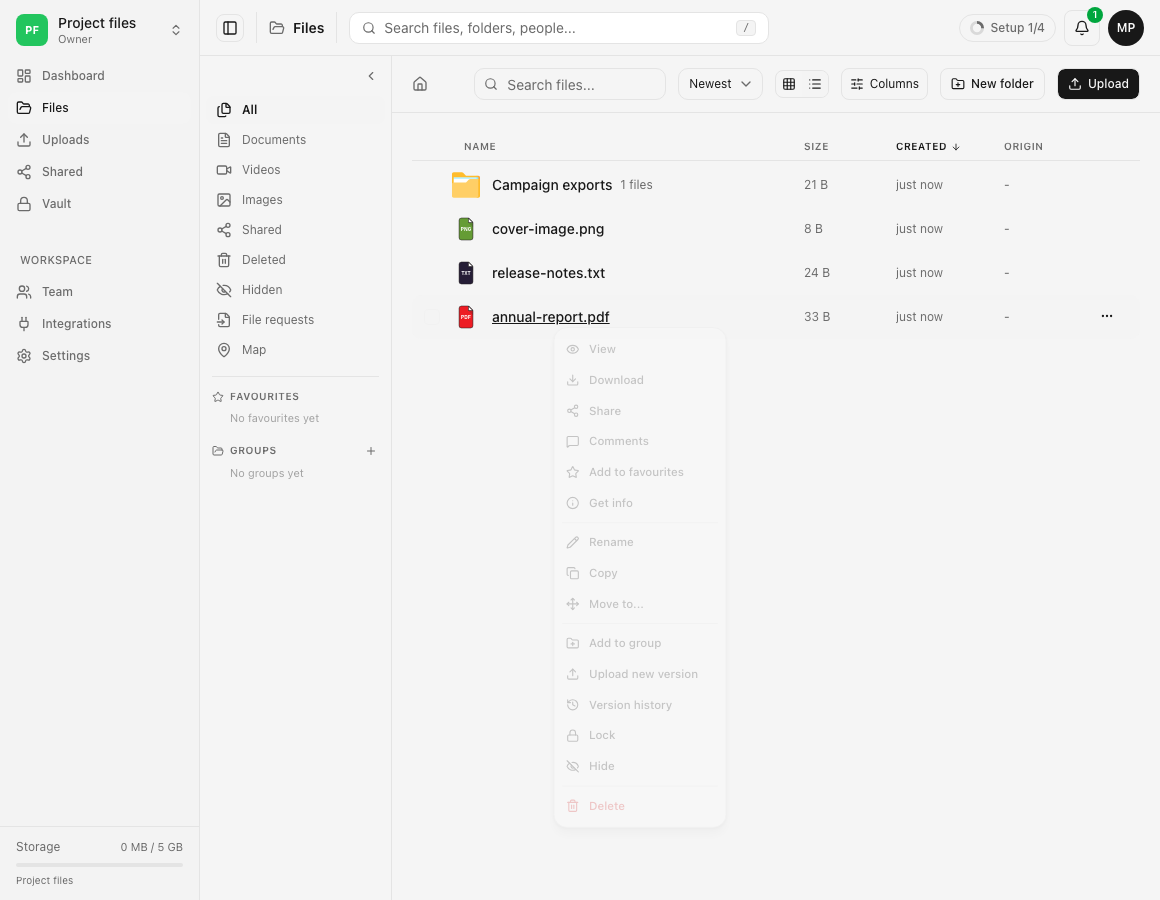
- Open the file’s three-dot menu or right-click the file, then select Download.
- Wait for the browser to report that the download finished. A filename in the browser’s download list is not proof that the complete file is available until the transfer finishes.
- Open the containing folder from the browser’s download list. Confirm the filename, extension, size and modified time so you know exactly which local item must be removed.
- If the download is a ZIP, note both the ZIP filename and the folder where you extract it.
Remove the downloaded data
- Close the downloaded file in the browser, preview app, document editor or media player. An open application can keep the file locked.
- Delete the downloaded file from its actual folder. If you extracted an archive, delete the original ZIP and the extracted folder unless you are authorized to keep either one.
- Check every download destination you deliberately used, such as Desktop, Documents, a USB drive or a temporary working folder.
- Empty Trash on macOS or Recycle Bin on Windows if the device policy permits it. Moving an item there is reversible and does not free the local copy immediately.
- Remove the entry from the browser’s download list if you do not want the filename visible to the next user. This clears a browser record only; it does not touch the disk copy.
- Open the account menu and choose Log out. Close every Dosya tab so the next user cannot return to an authenticated page through browser history.
- If you used a normal browser profile on a device you do not control, clear Dosya cookies and site data through that browser’s privacy settings. This signs the profile out but does not erase downloaded files.
Expected result
Reopen the folder that contained the download and search the computer for the exact filename. Confirm the file, its ZIP archive and any extracted folder are absent. Check Trash or Recycle Bin as well. Then open Dosya from a trusted device and confirm the cloud original is still present in the intended workspace.
A private window can discard its session when every private window closes, depending on the browser. It does not automatically remove files written to Downloads, another folder or an attached drive.
Limits and important details
- Clearing the browser’s download history is different from deleting the downloaded file.
- Signing out of Dosya ends access in that browser, but it does not remove files already saved to the computer.
- Emptying Trash or Recycle Bin is irreversible through the normal restore action. Managed-device backups, snapshots or monitoring systems may retain other copies beyond your control.
- If you downloaded a file into a synced local folder, another storage service may already have copied it. Remove it through that service’s approved workflow too.
- Do not use the Dosya Delete action for this task. That action changes the cloud item and may affect collaborators.
Troubleshooting
The file will not delete. Close every app or browser tab using it, wait for any extraction or virus scan to finish, and retry. If the device reports that another process owns the file, ask its administrator rather than installing cleanup software.
You cannot find the downloaded file. Open the browser’s downloads panel and use Show in folder or its equivalent. Also check the browser’s configured download location and search for the exact filename.
You removed the browser entry but the file still opens. The history entry and disk file are separate. Locate the file in Finder or File Explorer, delete it there, then empty Trash or Recycle Bin if required.
The filename still appears in recent items. Close the application that opened the file and clear that application’s recent-file entry if policy permits. A recent-item shortcut is separate from the downloaded bytes.
The file was saved in a synced folder. Follow that service’s removal and retention workflow on the account that received the copy. Deleting only the shared computer’s local placeholder may leave its remote copy intact.
You accidentally deleted the Dosya original. Stop changing the local copies and use the Dosya Trash recovery workflow as soon as possible.
Related guides
Was this helpful?
Loading helpfulness results…
Voting saves a necessary ballot cookie for up to 180 days so you can change your answer.
Questions and replies
Ask about the steps in this guide. Questions are reviewed before publication.
Keep account details, credentials and private files out of public questions. Use private support for those.
Loading questions…
Sign in to your Dosya account to ask a question.