Downloading one file or several files
Download one file with its original name, or select files and folders to receive one or more streamed ZIP archives.
Last reviewed
Open Files in the correct workspace. Use Download for one file or folder. To download several items, select their checkboxes and choose Download ZIP from the selection bar.
A single file keeps its filename. A folder or multi-item selection is prepared as a streamed ZIP. Very large selections can arrive as several ZIPs, so read the message Dosya shows instead of assuming every selection produces exactly one archive.
Before you start
- Select the workspace that contains the files. Files search, folders and selection apply to the active workspace.
- Confirm your role has download files permission. An owner or admin can review role and folder access when the action is missing.
- Make sure the device has enough local disk space. Dosya storage capacity controls uploads; your browser and device control where a download can be saved.
- Check the files and versions you intend to keep. Downloading an older version from version history is a separate action from downloading the current file in Files.
- Use harmless samples when testing a browser’s prompts, especially on a shared device.
Steps: download one file
- Open Files and browse or search for the file.
- Check the active workspace and folder in the sidebar and breadcrumb.
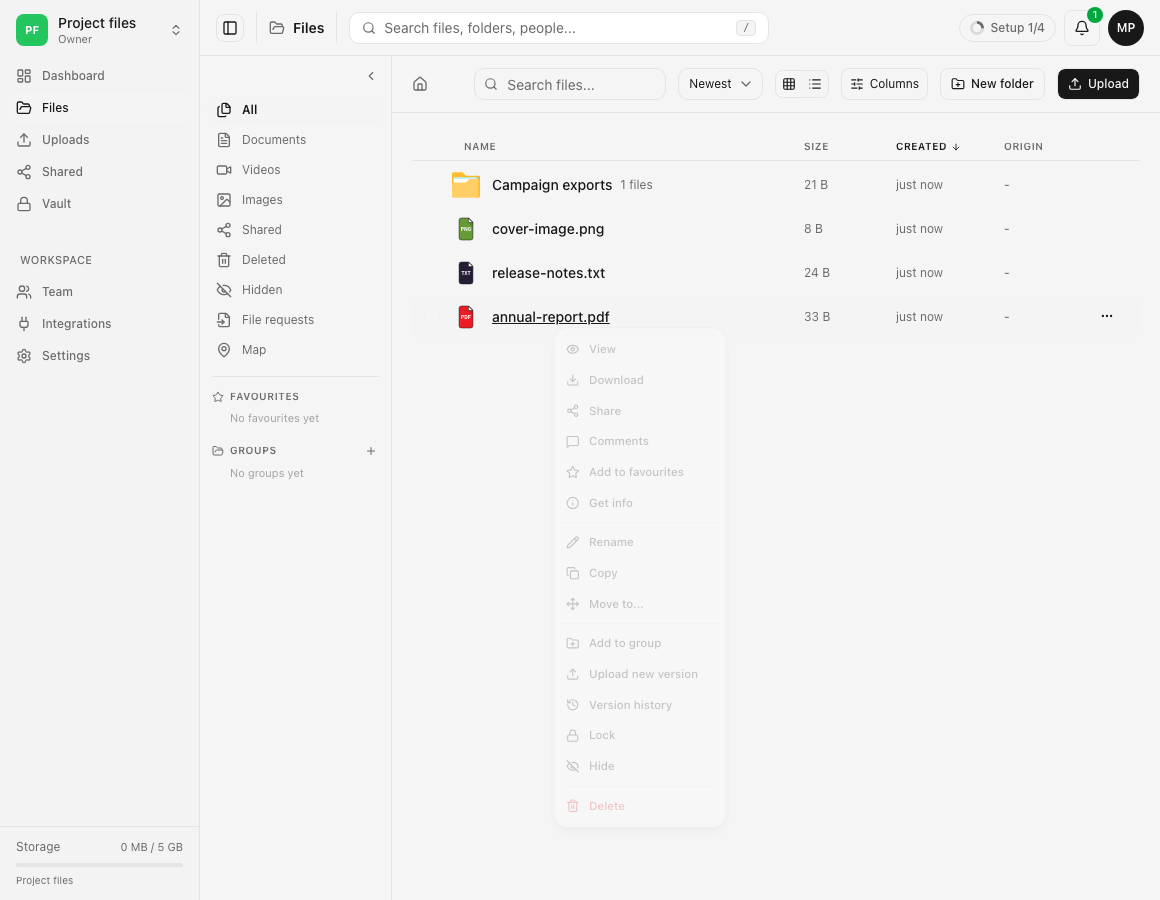
- Open the file’s three-dot menu or right-click its row.
- Choose Download. You can also find Download in the file detail or viewer when your permission and the file’s lock mode allow it.
- Follow the browser’s download prompt. Depending on browser settings, it may ask for a destination or save directly to the configured Downloads folder.
- Open the local result and compare its filename and size with the item in Dosya. For important data, use a published checksum or your own integrity check.
Steps: download several files or folders
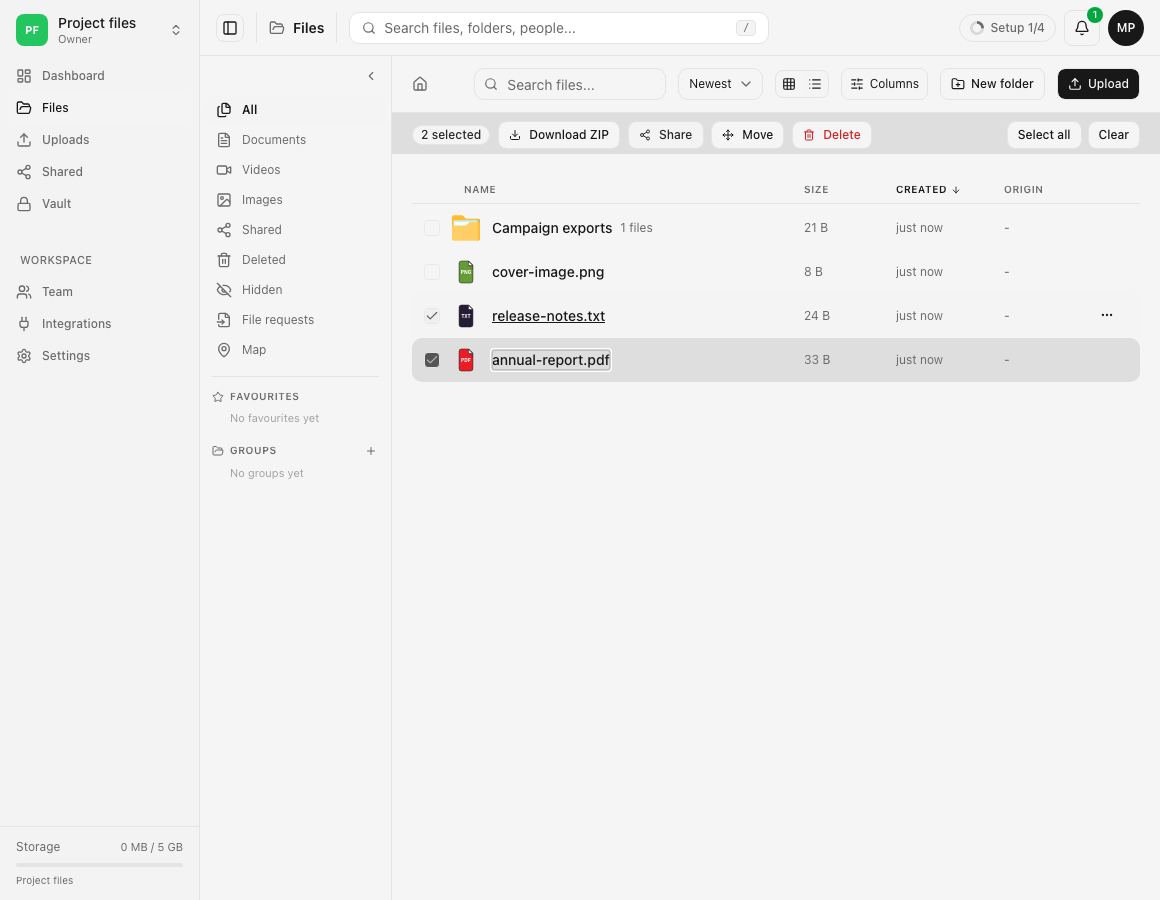
- In Files, select the checkbox beside each required file or folder. The selection bar shows the item count.
- Review the names before continuing. A folder selection includes the downloadable files inside that folder.
- Choose Download ZIP.
- Read the confirmation. One ordinary selection says a ZIP is being prepared. A larger selection can say that several ZIPs are arriving.
- Allow multiple downloads if the browser asks and you intended the large selection. Do not disable browser protections for an unfamiliar page.
- Wait for every announced archive, then open the ZIP or ZIPs and compare the contents with the selected items.
Expected result
One file downloads with its current filename, or the selected files and folders arrive in one or more ZIP archives. The local files open successfully and match the names and sizes you expected.
The browser’s save location is not a Dosya folder. Moving or deleting the downloaded local copy does not change the cloud file, and downloading does not remove the original from Dosya.
Limits and permission behavior
- The current web workflow limits each prepared archive to 10,000 entries and 5 GiB. Select fewer items when a folder or selection exceeds an archive limit.
- A long selection can be split into several streamed ZIPs so the tab does not buffer a multi-gigabyte archive in memory. If the selection would require too many separate downloads, Dosya asks you to select fewer items.
- The browser can ask whether to allow multiple downloads. Blocking that prompt can leave only part of a multi-ZIP selection on your device.
- A role without download permission does not receive the Download action. A file set to view only can be previewable while its download is refused.
- Hidden, inaccessible or locked items are subject to their own access rules. Verify archive contents instead of assuming every item visible to another user was included.
- Files in Deleted are handled through restore or permanent deletion controls rather than the ordinary live-file Download menu.
Troubleshooting
Download is missing. Confirm the file is in the live Files view and that your role has download permission. Ask an owner or admin to review the role and any folder-level restriction. View-only access deliberately removes downloading while preserving preview where supported.
Nothing appears after Download. Check the browser’s download indicator, popup or automatic-download permission, configured save location and device free space. Search the Downloads folder for the exact filename before starting another copy.
Only one ZIP arrived. Read the Dosya confirmation and browser prompts. If several ZIPs were announced, allow the intended multiple downloads and wait for each part. Retry only the missing smaller selection.
The archive says it is too large or has too many entries. Select fewer files, or download a smaller folder at a time. A folder can contain far more entries than its single row suggests.
The local file will not open. Compare its size with Dosya and download it once more on a stable connection. Preserve both copies until you know whether the problem is an incomplete download or the source format itself.
The browser saves without asking. Change the browser’s download-location setting if you want a prompt. Dosya sends the file; the browser chooses the local save behavior.
Frequently asked questions
Can I download several files together?
Yes. Select their checkboxes and choose Download ZIP. A very large selection can produce several ZIPs or ask you to select fewer items.
Can I download a whole folder?
Yes. Open the folder’s menu and choose Download, or include it in a multi-selection. The result is a ZIP containing the downloadable folder contents.
Why is my browser not saving the download?
Check its download indicator, popup and multiple-download permissions, save location and available device storage. A missing Download action points to Dosya access rules; a clicked action with no saved file usually needs a browser-side check.
Related guides
Was this helpful?
Loading helpfulness results…
Voting saves a necessary ballot cookie for up to 180 days so you can change your answer.
Questions and replies
Ask about the steps in this guide. Questions are reviewed before publication.
Keep account details, credentials and private files out of public questions. Use private support for those.
Loading questions…
Sign in to your Dosya account to ask a question.