Review file download events for a share
Filter the newest 25 access rows for downloads, compare the selected-range chart with Shared-list counts, and interpret anonymous evidence accurately.
Last reviewed
The Downloads event filter shows downloads among the newest 25 access rows for one link. It cannot filter by file or recipient, and a row never names the person who downloaded.

Steps
- In the web app, choose Shared → By me and locate the exact link. Its Views cell shows lifetime views and a download count underneath; record the download count before opening analytics. For a bundle, the row uses the first file as its display name, so keep the link URL or ID in your review note.
- Check Link controls → Downloads. Allowed means recipients can download under the link’s current policy, while View only means the recipient interface does not provide that action. An expired or revoked URL cannot serve a new download even if the historical policy says Allowed.
- Note that the analytics detail does not render the lifetime download count, a maximum-download setting or
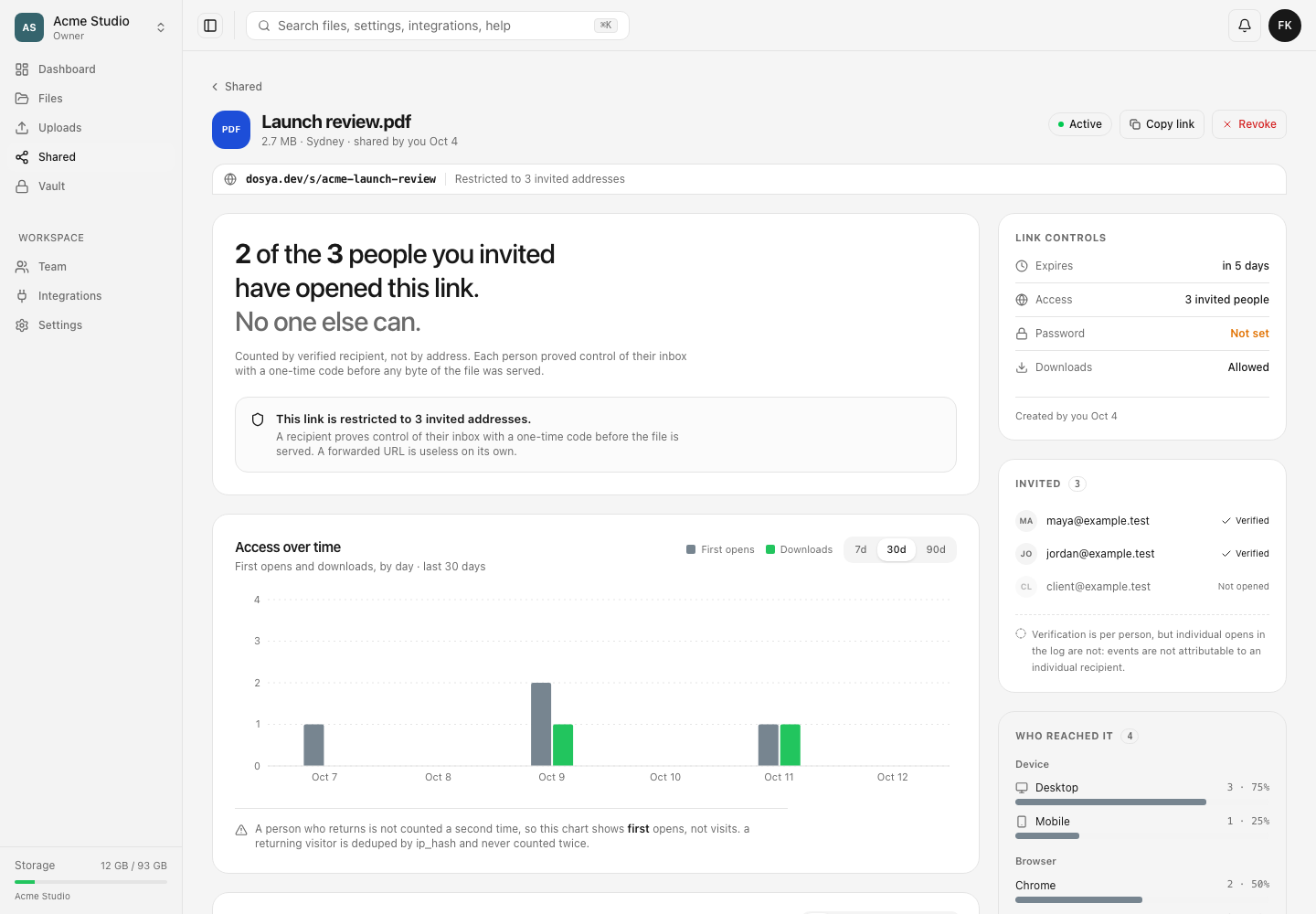
downloads_left. Return to the selected Shared row whenever you need to recheck its lifetime count. - Under Access over time, choose 7d, 30d or 90d. The Downloads bars report download events within that period; unlike first opens, downloads are not deduplicated by visitor. They can differ from the list-row lifetime count when older events exist.
- Go to Access log and select Downloads. The browser filters only the newest 25 rows fetched for the page. It has no server request for “all downloads” and no next-page control, so Showing X of Y events can reveal that relevant older downloads are off-screen.
- Read each visible row across When, Event, Visitor, Country and Device. Event should be Downloaded. Visitor is an eight-character prefix of a non-reversible IP hash or
unknown; country is the edge code when available; device is parsed from user-agent data. - Do not assign the event to an invited email. On restricted shares, Invited → Verified confirms which addresses completed a one-time code, but access-log storage does not connect an event with that address. There is no supported recipient filter or per-recipient download report.
- If no row remains after choosing Downloads, distinguish “none among the 25 loaded rows” from “none ever.” Compare the selected timeline and the download count back on Shared. Older download rows may have fallen beyond the current access-log page.
- For an unexpected download, compare its time and approximate device/country context with the link’s expiry, password, audience mode and Allowed or View only policy. Revoke the link if future access must end, while remembering that revocation cannot delete a copy already downloaded.
Access and errors
Your workspace role needs view_own_shares for a link you made or view_all_shares for another creator’s link. Folder-confined members can inspect only targets inside their subtree, and hidden targets return the same missing result as unknown links.
If analytics cannot load, the page says This share link is not available and may show Share link not found, Associated resource not found, You don’t have permission to view share links, or You don’t have permission to view this share link. Use Back to Shared to select a visible row again.
Expected result
You can identify the visible download rows for the chosen share and explain how they differ from the selected-range bars and the lifetime count on Shared. The review remains anonymous and may be incomplete once total events exceed 25.
Related guides
Was this helpful?
Loading helpfulness results…
Voting saves a necessary ballot cookie for up to 180 days so you can change your answer.
Questions and replies
Ask about the steps in this guide. Questions are reviewed before publication.
Keep account details, credentials and private files out of public questions. Use private support for those.
Loading questions…
Sign in to your Dosya account to ask a question.