Change a sharing-link password
Replace a protected link from the web app for immediate access cutoff, or understand the existing-recipient effect of an in-place API password rotation.
Last reviewed
The current Dosya web app does not expose an editor for an existing sharing-link password. For a web user, changing the password means revoking the old URL and creating a replacement link. This immediately ends service through the old token and gives you a clean recipient cutoff.
The API can update a live link’s password in place while keeping the same URL. That path has a different access result: recipients with an existing unlock grant can remain authorized until that 30-minute grant expires. Choose the workflow that matches the reason for the change.
Steps
Choose the correct rotation method
- Use revoke and replace after accidental disclosure, recipient removal or any event that requires immediate cutoff through the old URL.
- Use an in-place API update only when keeping the same URL matters and a possible remaining 30-minute browser grant is acceptable.
- Neither method recalls files that recipients already downloaded, exported or captured.
Before replacing the link in the web app
- Open the link detail and confirm the target name, URL, status, Access, Password, expiry and download setting.
- Tell active recipients that the old URL will stop working as soon as you confirm revocation.
- Choose a new password of at least eight characters. Keep it different from the old link value and from your Dosya account password.
- Record every control that the replacement must preserve: named recipients, expiry, view-only state, metadata removal, download limit and title.
- Plan to send the replacement URL and password through separate channels when practical.
Revoke the old URL
- Open Shared → By me and find the correct row.
- Open its detail page and verify Password: Set.
- Choose Revoke or Revoke link.
- Read the confirmation: anyone holding this URL loses access the moment you confirm, the access log is kept, and the action cannot be undone.
- In Revoke this link, choose Revoke link; the dialog states that access ends immediately and cannot be undone.
- Open the old URL in a private window and verify that it shows Link revoked.
Revocation ends that token even for a browser that previously unlocked it. An old password grant cannot revive a revoked link because link state is checked again before content or downloads are served.
Create the replacement password-protected link
- Open Files and find the same file, folder or selected bundle.
- Open the sharing action and choose By email for named recipients or By link for anyone who receives the URL.
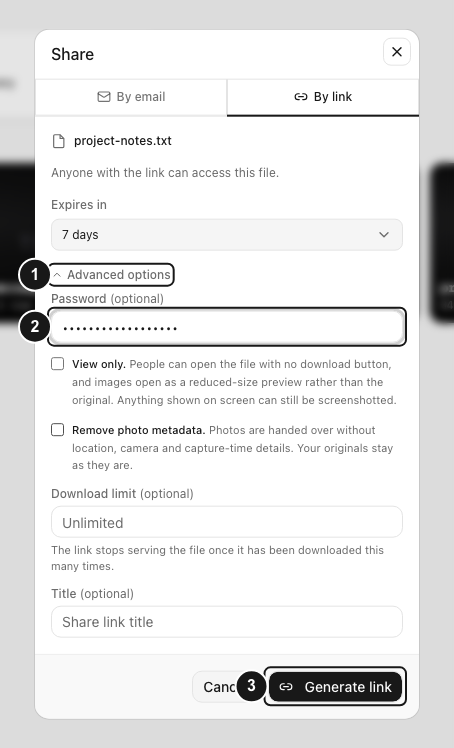
- Set the required expiry, then open Advanced options.
- Enter the new value under Password (optional). The field placeholder says Min 8 characters.
- Reapply View only, Remove photo metadata, Download limit, Title and the recipient list as required.
- Choose Generate link or Send.
- Open the new URL in a fresh private window. Confirm the old password returns Incorrect password and the new password unlocks the item.
- Send the new URL and password to the intended recipients, and update any message, document or automation that held the revoked address.
For a bundle replacement, the current creation endpoint applies the password, expiry, recipients, title and message but ignores the dialog’s view-only, metadata-removal and download-limit fields. Set and verify any required view-only or download cap through the mobile link editor before delivering that bundle; do not assume the creation checkboxes applied those controls.
Existing recipient access after replacement
The revoked URL stops immediately, including for recipients who still have its password cookie. The replacement has a different token, so old recipient-verification and password grants do not carry across. Named recipients must verify their invited address on the new restricted URL, then enter its new password when both gates are enabled.
The new password does not alter permissions inside the workspace. It controls access through the replacement public link only. A recipient who already saved a local copy retains that copy.
In-place password changes through the API
PATCH /api/shares/:id can set a new password while preserving the same token and URL. The caller must be allowed to manage that link: a member with view_all_shares, or the creator when their role includes view_own_shares.
An in-place update:
- hashes the replacement value and never stores it as plaintext;
- resets the link’s failed-unlock counter and temporary lockout;
- requires at least eight characters for a non-empty password;
- keeps the URL, download count, recipients and untouched controls;
- makes new unlock attempts require the new password;
- does not invalidate an existing unlock cookie, because that signed grant is bound to the link token rather than the password hash.
A password unlock grant lasts 30 minutes. Therefore, a browser that unlocked shortly before an in-place rotation can continue until its existing grant expires. Revoke and replace when that window is unacceptable.
Workspace and lock rules
- A workspace can require every sharing link to keep a password. Removing it then returns the
share_password_requiredrefusal. - A full-lock link must remain password protected. Clearing its password returns
share_lock_mode_needs_passwordunless the same update first changes the lock mode. - A revoked link returns This link has been revoked and can no longer be changed. Create another link.
- Password failures are throttled. The public unlock path allows five attempts per token and IP in 15 minutes and also applies a consecutive-failure lockout to the link.
- Recipient email verification remains independent. Changing a password does not add or remove invited addresses.
Expected result
For web replacement, confirm the old URL is revoked and the new URL requires the new password in a private window. Check Shared → By me for the replacement row and its password indicator.
For an API rotation, test the same URL from a browser that has no existing share cookies. Verify the old password fails and the new value succeeds. Then account for the 30-minute lifetime of any grants issued before the update.
Troubleshooting
There is no Change password button. That is expected in the current web interface. Revoke the link and create a replacement.
The old URL still displays content after an API rotation. The browser may hold an existing unlock grant. Wait for its 30-minute expiry or revoke the link when access must end immediately.
The old password appears to open the replacement URL. Confirm you copied the new token and use a new private window. An already unlocked browser session can make a same-URL API test misleading.
The replacement opens without a password. Check the password indicator under Shared → By me. If absent, revoke that replacement and create another with the Password field completed before submission.
A named recipient cannot open the new link. Confirm the address appears on the replacement’s invited list. They must verify that email first and then enter the link password.
Related guides
Was this helpful?
Loading helpfulness results…
Voting saves a necessary ballot cookie for up to 180 days so you can change your answer.
Questions and replies
Ask about the steps in this guide. Questions are reviewed before publication.
Keep account details, credentials and private files out of public questions. Use private support for those.
Loading questions…
Sign in to your Dosya account to ask a question.