Sharing with named email recipients
Send a private link to specific addresses, test the one-time-code gate, and understand what happens when someone forwards the URL.
Last reviewed
Use Share → By email and keep Only these people can open it selected. Dosya creates one restricted link for the listed addresses. Each recipient must enter an invited address and verify a six-digit code before the file is served.
Emailing an ordinary public URL does not create this restriction. The checkbox is the setting that changes the link from public to named-recipient access.
Before you start
- Complete the file upload and confirm you can create sharing links.
- Collect the exact recipient addresses. A restricted link can contain up to 50 distinct addresses.
- Use fictional or disposable addresses when testing. Do not publish the final URL or recipient list.
- Decide whether to add a password as a second, independent gate. A recipient-restricted and password-protected link requires both checks.
Steps: send a private link
- Open the file’s Share action.
- Select By email.
- Enter an address and press Enter, comma or Space to add it. You can paste several addresses separated by commas, semicolons, spaces or new lines.
- Review every address chip. Duplicate addresses are ignored after they are normalized to lowercase.
- Keep Only these people can open it selected. The explanation beneath it confirms that recipients use a one-time code and that forwarding the link alone gives no one else access.
- Choose Expires in and any Advanced options. Add an optional message if the recipient needs context.
- Choose Send. Read the completion message, especially when it reports that some email deliveries failed.
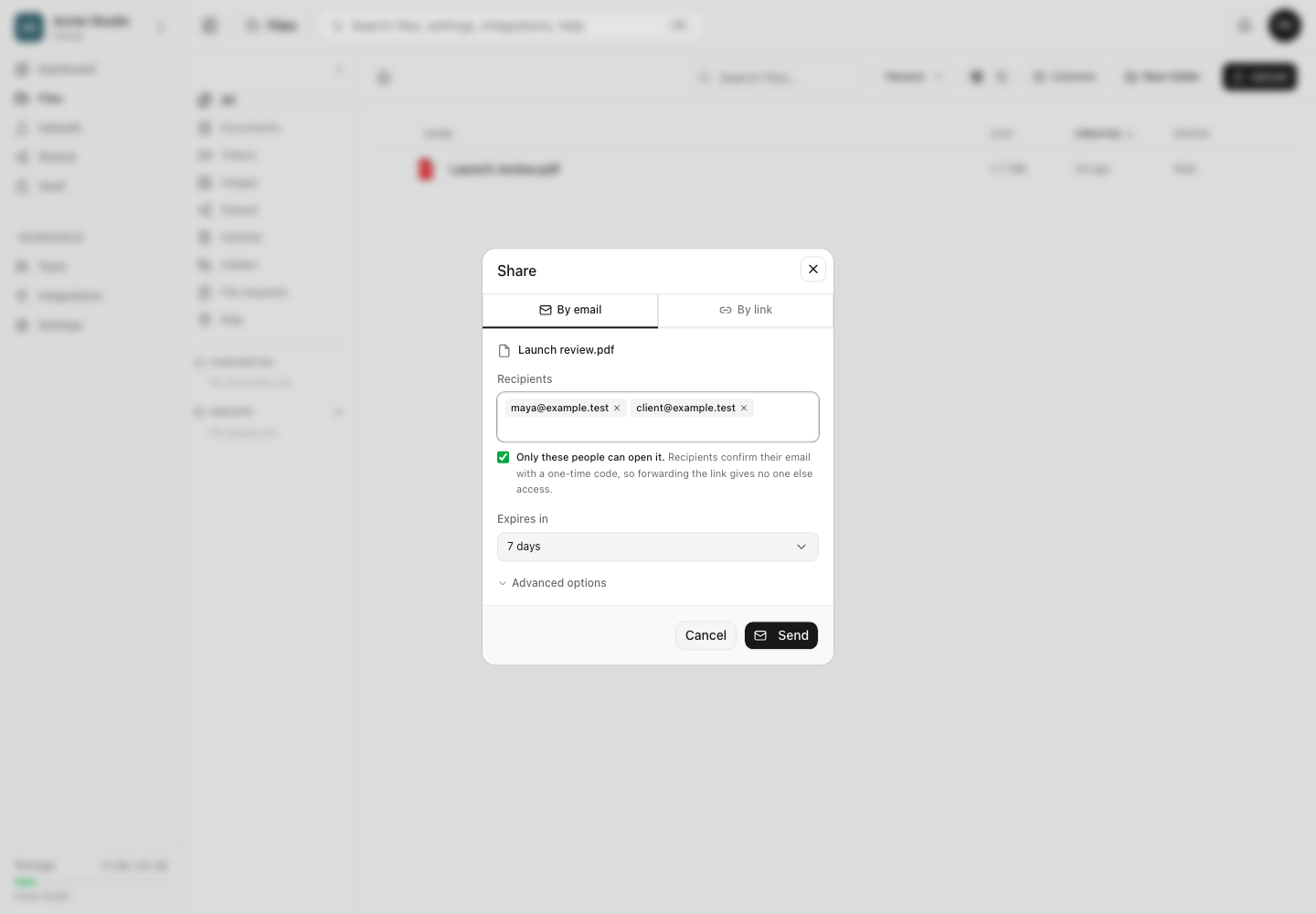
If you clear the restriction, Dosya still emails the listed people, but the resulting link is public. Anyone who receives or is forwarded that URL can open it subject to its other settings.
Recipient verification
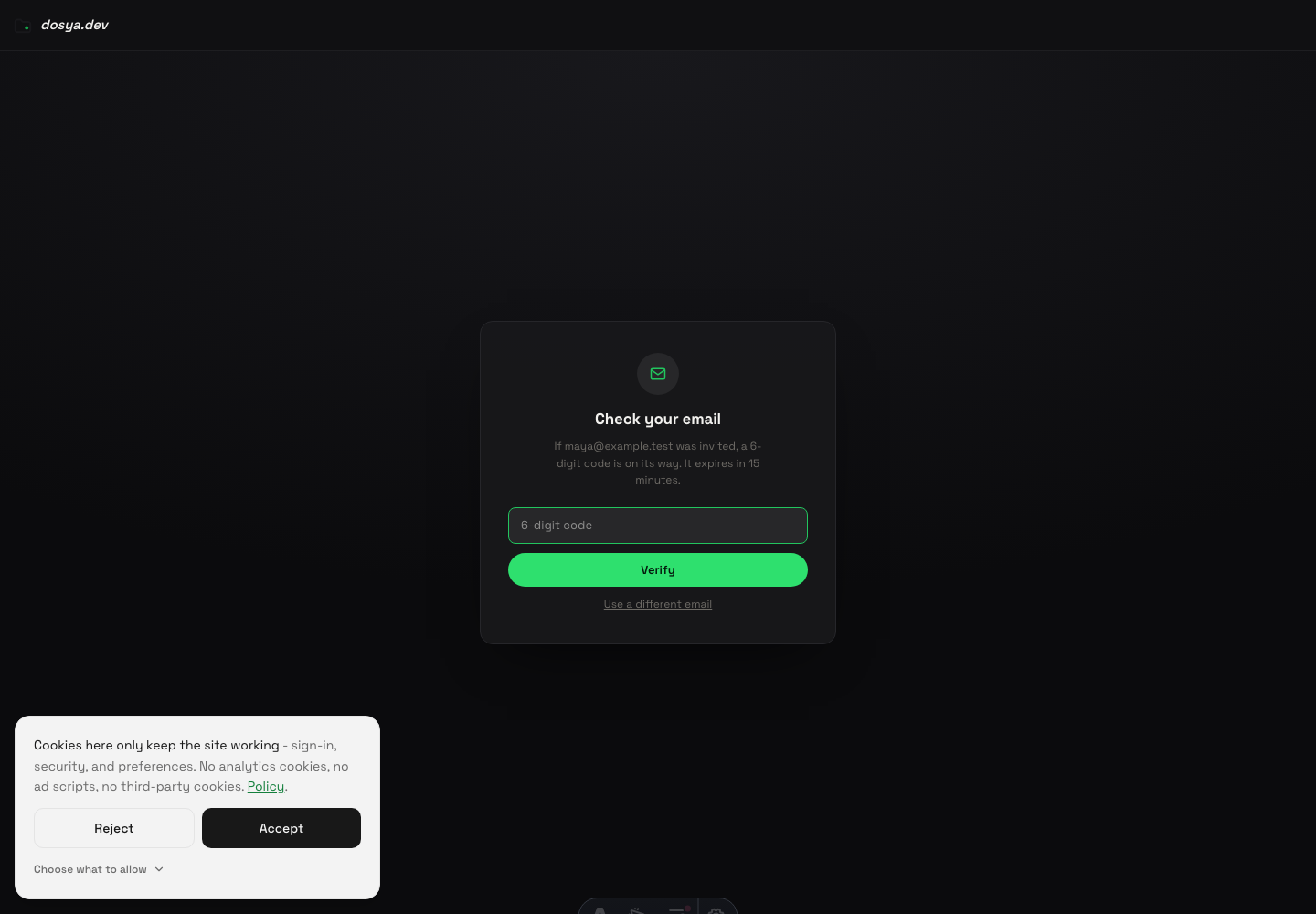
- The recipient opens the emailed URL. The page says This file was shared privately without exposing the file itself.
- They enter the same address that was invited and choose Send code.
- The page always gives a neutral response. This prevents someone holding the URL from testing which addresses were invited.
- The recipient checks that inbox for the six-digit code, returns to the same page and enters it within 15 minutes.
- They choose Verify. A valid code creates a recipient grant for that browser, and the page reloads the share.
- If the link also has a password, the password gate appears after email verification.
Recipient limits and forwarded links
The forwarded URL opens the same private gate. An unlisted person can request a code, but the page does not reveal whether their address is on the list and no usable code is delivered to an uninvited inbox. Possessing the URL alone is insufficient.
An invited recipient can still choose to share material after legitimate access, including by downloading it when downloads are allowed or capturing what appears on screen. Recipient restriction controls admission to the Dosya link; it is not digital-rights management.
Expected result
An invited address can complete verification and open the item. An unlisted address and a person who only received a forwarded URL cannot pass the recipient gate. Shared identifies the link as restricted and its analytics page shows invited and verified addresses without attaching individual access-log events to a named recipient.
Troubleshooting
The recipient did not receive a code. Confirm the exact invited address, check spam and mail filtering, and wait briefly before retrying. The neutral page response looks the same for invited and uninvited addresses, so recheck the sender’s recipient list rather than using the message as proof of delivery.
The code expired. Request a new one. Each code is valid for 15 minutes and replaces an earlier outstanding code for that recipient.
The code is repeatedly rejected. Check all six digits and use the latest message. Five wrong guesses exhaust an issued code; request a new one rather than continuing. Request and verification endpoints also apply IP-based throttling.
A forwarded link opened for someone else. Check whether Only these people can open it was cleared when the email was sent, or whether the browser already holds a grant for an invited address. Open a fresh private window to test the first-visit behavior.
The invited person passes email verification but then sees a password prompt. The sender enabled both recipient restriction and password protection. The recipient needs the separately shared password as well.
Frequently asked questions
What happens if someone forwards a private link?
The new person still has to verify an invited inbox. The URL alone does not grant access.
Why does a recipient not receive their verification code?
The address may not exactly match the recipient list, the message may be filtered, or delivery may have failed. Confirm the list in the sender’s link details, then request a new code after checking the inbox.
Does sending by email always make a link private?
No. Keep Only these people can open it selected. Clearing it sends a public link to those addresses.
Related guides
Was this helpful?
Loading helpfulness results…
Voting saves a necessary ballot cookie for up to 180 days so you can change your answer.
Questions and replies
Ask about the steps in this guide. Questions are reviewed before publication.
Keep account details, credentials and private files out of public questions. Use private support for those.
Loading questions…
Sign in to your Dosya account to ask a question.