Adding a password to a sharing link
Set a password before generating an ordinary share link and test the recipient's password prompt.
Last reviewed
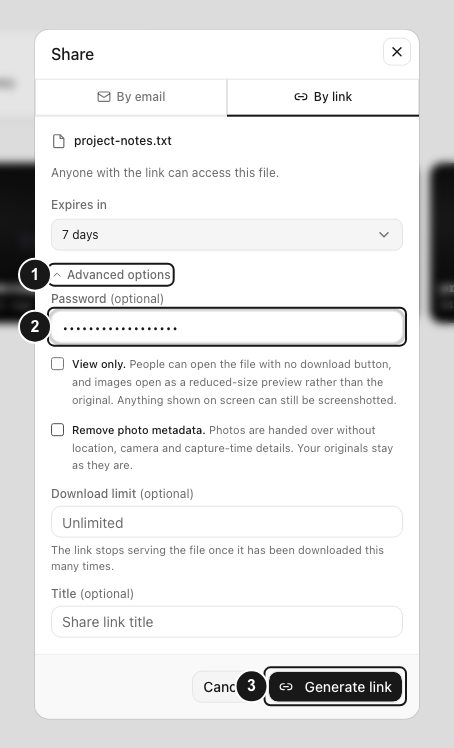
Open Share → By link → Advanced options, enter a password of at least eight characters, then select Generate link. Test the new URL in a private browser window and send the password separately from the URL when practical.
Use a distinct delivery password rather than your Dosya account password.
Before you start
- Upload the file and confirm that it is available in Files in the correct workspace.
- Your role needs permission to share the file, and the workspace must permit the settings you choose. A password does not override a policy or item lock that prevents sharing.
- Choose a password you can deliver privately to the intended recipient. The current minimum is eight characters after leading and trailing whitespace is trimmed.
- Review any earlier links to the same file. Creating a protected URL does not change an unprotected URL you have already distributed.
Steps: set the password before creating the link
- Find the file. Open Files, navigate to the containing folder, and check the file name.
- Open Share. Select the file’s Share action from its menu or share control. In the dialog, select By link and confirm the displayed target.
- Choose an expiry. Review Expires in and choose the duration for this delivery. If you select Custom date…, complete the date-and-time input with a valid future time. Password protection and expiry are separate settings.
- Reveal the password field. Select Advanced options beneath the expiry control. Find Password (optional), whose placeholder reads Min 8 characters.
- Enter the delivery password. Use at least eight characters. Do not count surrounding spaces toward the minimum: the app trims them before creating the link. A blank field creates a link without this password check.
- Review the other options. Set View only. or Download limit (optional) only if you need them. These change different aspects of access; they are not substitutes for entering a password.
- Generate and save the URL. Select Generate link. Resolve errors, then use the copy icon under Share link created. Save the URL and select Done.
Steps: test the recipient’s password prompt
- Open a fresh private window. Paste the full URL into a private browser window that has not already unlocked this share. An ordinary window used during an earlier test can retain an unlock cookie.
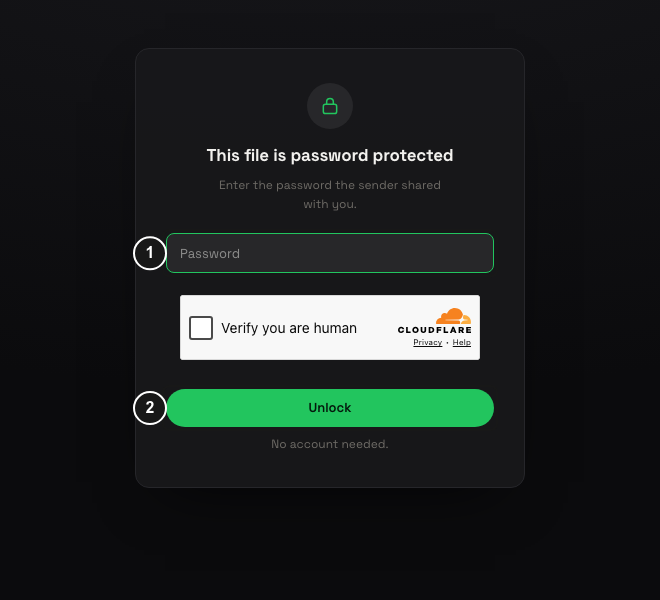
- Check the locked page. For a file share, the page displays This file is password protected and asks for the password the sender provided. Seeing the file immediately in a previously unlocked window does not prove that protection is missing.
- Unlock with the intended secret. Enter the password in Password and select Unlock.
- Check the result. Confirm that the correct file appears and the available preview or download controls match your chosen settings. If testing a download-limited link, remember that a test download can consume part of its allowance.
- Send the delivery details. Give the recipient the tested URL and the exact password through a private channel. Where practical, use different channels for the two pieces.
Expected result
A recipient without an existing unlock must pass the link’s password check before accessing the protected delivery. Successful unlock creates a temporary browser access cookie, so refreshing the page can continue without asking again while that access remains valid.
The file stays in its workspace. The password does not identify the recipient.
Review older or unwanted URLs
Open Shared and review the links you have sent for this file. Check expiry and status and revoke any earlier URL that should stop providing access. Select the link’s Revoke share link control, check the confirmation, then select Revoke. Revocation cannot be undone.
If you need a replacement password, this guide’s workflow is to create a new protected link and distribute its URL and password. Revoke the previous URL when appropriate. Do not assume that creating the replacement has changed the old link.
Troubleshooting and limits
If creation rejects the password, check its length after trimming surrounding whitespace. If a recipient sees Incorrect password, confirm the exact spelling and letter case privately and verify that they are opening the new protected URL.
If the password prompt does not appear, test in a fresh private window and check whether you sent an older unprotected link. An already unlocked browser is a poor reference for a first-time recipient.
If Unlock repeatedly fails, read the displayed message. Expiry, revocation, browser restrictions or repeated-attempt throttling can prevent access even with the correct password. Check the link’s status before retrying.
Anyone holding both the URL and password can forward them. Password protection cannot erase files already downloaded, and view-only access does not prevent screen captures. This is an access control for ordinary sharing, separate from the Vault’s encryption workflow.
Use private support for a persistent issue. Describe the failing step. Do not send the password, account credentials or confidential URL in public comments.
Frequently asked questions
Is the share password my account password?
No. You choose a separate password for the share in Advanced options. Keep your account password private.
Will protecting a new link protect every link to this file?
No. Links retain their own settings. Review earlier URLs in Shared and revoke ones that should no longer work.
Why can I reopen the file without entering the password again?
Successful unlock can remain valid in that browser through a temporary access cookie. Use a fresh private window when checking the password prompt a new recipient will encounter.
Related guides
- Creating a sharing link
- Uploading files and folders
- Password-protected file sharing explains when password protection is useful.
- Vault encryption explains the separate encryption model.
Was this helpful?
Loading helpfulness results…
Voting saves a necessary ballot cookie for up to 180 days so you can change your answer.
Questions and replies
Ask about the steps in this guide. Questions are reviewed before publication.
Keep account details, credentials and private files out of public questions. Use private support for those.
Loading questions…
Sign in to your Dosya account to ask a question.