Revoking a sharing link
Find a link in Shared, revoke it, and check that the old URL is no longer available to recipients.
Last reviewed
Open Shared, find the link under By me, and select its Revoke share link control. Confirm with Revoke. The link becomes revoked, and recipients can no longer use that URL for new access.
Before you start
- Sign in to the Dosya app and select the workspace that owns the link.
- You need permission to manage that link. A role allowed to view only its own shares can revoke links it created; a role allowed to view all shares can manage other links in the workspace, subject to its folder access.
- Identify the exact link you want to stop. A file or folder can have several links, and revoking one does not revoke the others.
- Revocation cannot be undone. If you intend to share the item again afterward, you will need a new link and must send the new URL to recipients.
Steps
- Open Shared in the main app navigation, or go to Shared. This is the link-management page. The Shared filter inside Files is a different view of your files.
- Select By me. With me lists shares received from others and does not provide the sender’s Revoke action.
- Use Active or Expiring soon to narrow the list, or use Filter by name or person… to find the item. Choose All if you are uncertain about the link’s status.
- Check the file or folder name and the link’s status and expiry. When several links target the same item, check which one corresponds to the URL you sent. The Copy share link control on a live row lets you compare that URL before revoking it.
- Hover over the row or move keyboard focus to its action controls. At the right edge, choose the X-shaped button with the accessible label Revoke share link. Clicking the item name instead opens its sharing details.
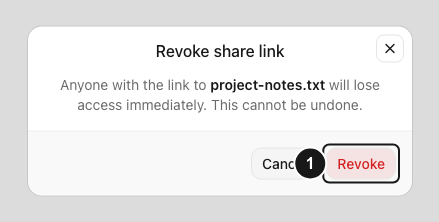
- In the Revoke share link dialog, check the displayed file or folder name. Select Revoke to confirm, or Cancel to leave the link working.
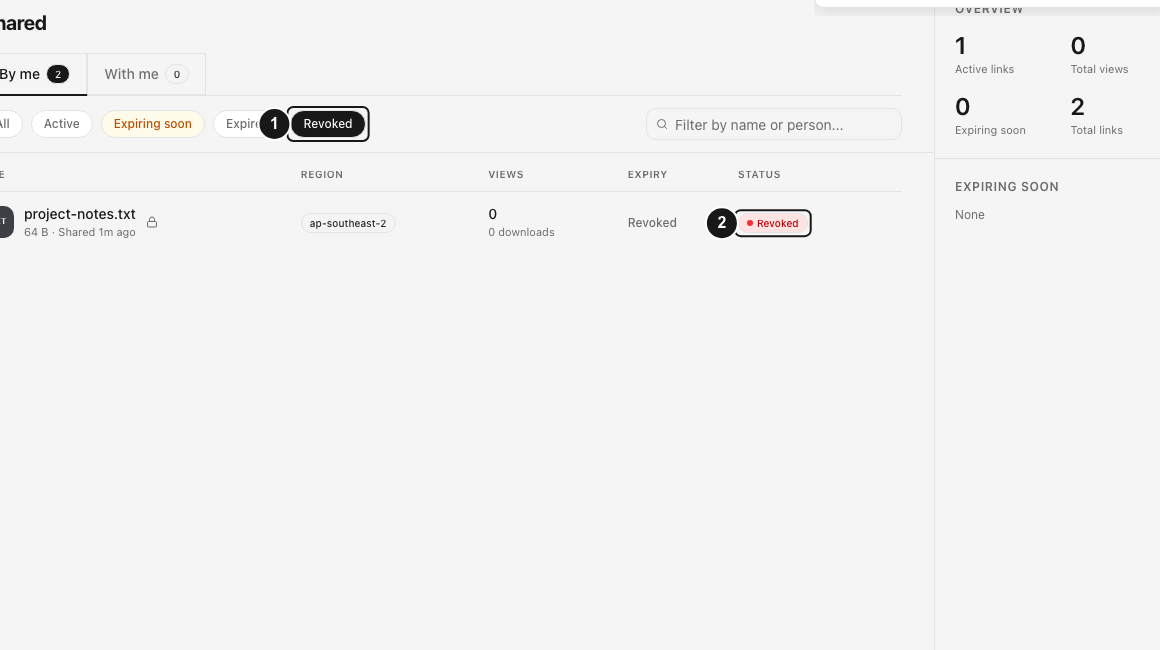
- Wait for Link revoked. Use the Revoked filter to find the row and confirm its status.
- Open the old URL in a fresh private browser window and confirm that it is unavailable. If your aim is to stop sharing the item completely, review and revoke its other active links as well.
Expected result
The selected link is marked Revoked and no longer grants new access through its old URL. The original file or folder remains in your workspace. You can still create another link if your role and workspace policy allow it.
Revocation affects access through that particular link. It does not remove workspace membership or recall copies a recipient already downloaded, saved or captured.
Limitations
- There is no undo or reactivate action for a revoked link. Changing settings or sending the old URL again does not restore it.
- The row’s Revoke control is shown for active and expiring links. Expired and revoked rows already have an unavailable status and do not show that control here.
- A recipient cannot revoke someone else’s link from With me. Contact its owner when you need that sharing access changed.
- Revocation does not promise to interrupt a download already in progress or remove a page or copy already on the recipient’s device. Verify the result with a fresh request.
Troubleshooting
I cannot find the link. Check the workspace, select By me, clear the search and use All. Your role may show only your own links. If you only received the share, contact its sender.
The Revoke button is missing. Hover over the row or focus its controls; the actions appear at the right. Check the status too: expired and revoked links do not offer Revoke in this list. Ask the workspace owner if your permissions or folder access changed.
The app shows Revoke failed. Refresh Shared and check the status before trying again. Another authorized person may already have revoked it, or the underlying resource may no longer be available. If the link is still active and the action keeps failing, contact private support with the workspace name, time and error. Share confidential URLs only through private support when needed.
Frequently asked questions
Does revoking a link delete the original file?
No. Revocation changes that link’s access. The file or folder remains in the workspace.
Can I make the same URL work again?
No. Create a new sharing link with the intended settings and send its new URL.
Why can someone still access the file after I revoked a link?
They may have a downloaded copy, another active sharing link or direct workspace access. Verify the exact old URL in a fresh private window, then review the other access routes relevant to that person.
Related guides
Was this helpful?
Loading helpfulness results…
Voting saves a necessary ballot cookie for up to 180 days so you can change your answer.
Questions and replies
Ask about the steps in this guide. Questions are reviewed before publication.
Keep account details, credentials and private files out of public questions. Use private support for those.
Loading questions…
Sign in to your Dosya account to ask a question.