Add folder access for a workspace member
Limit another workspace member to one live folder, understand the cross-surface scope, and verify the boundary after distributed caches refresh.
Last reviewed
Limit to a folder confines a member to that folder and its descendants across the web app, desktop sync, WebDAV, and S3. Their role permissions still decide which actions work inside the subtree.

Before you start
- The administrator needs Access Team, View team members, and Manage roles.
- The target cannot be the workspace owner or the acting account.
- Choose an existing, untrashed folder in the same workspace; moving or deleting it later can change what the member can reach.
Steps
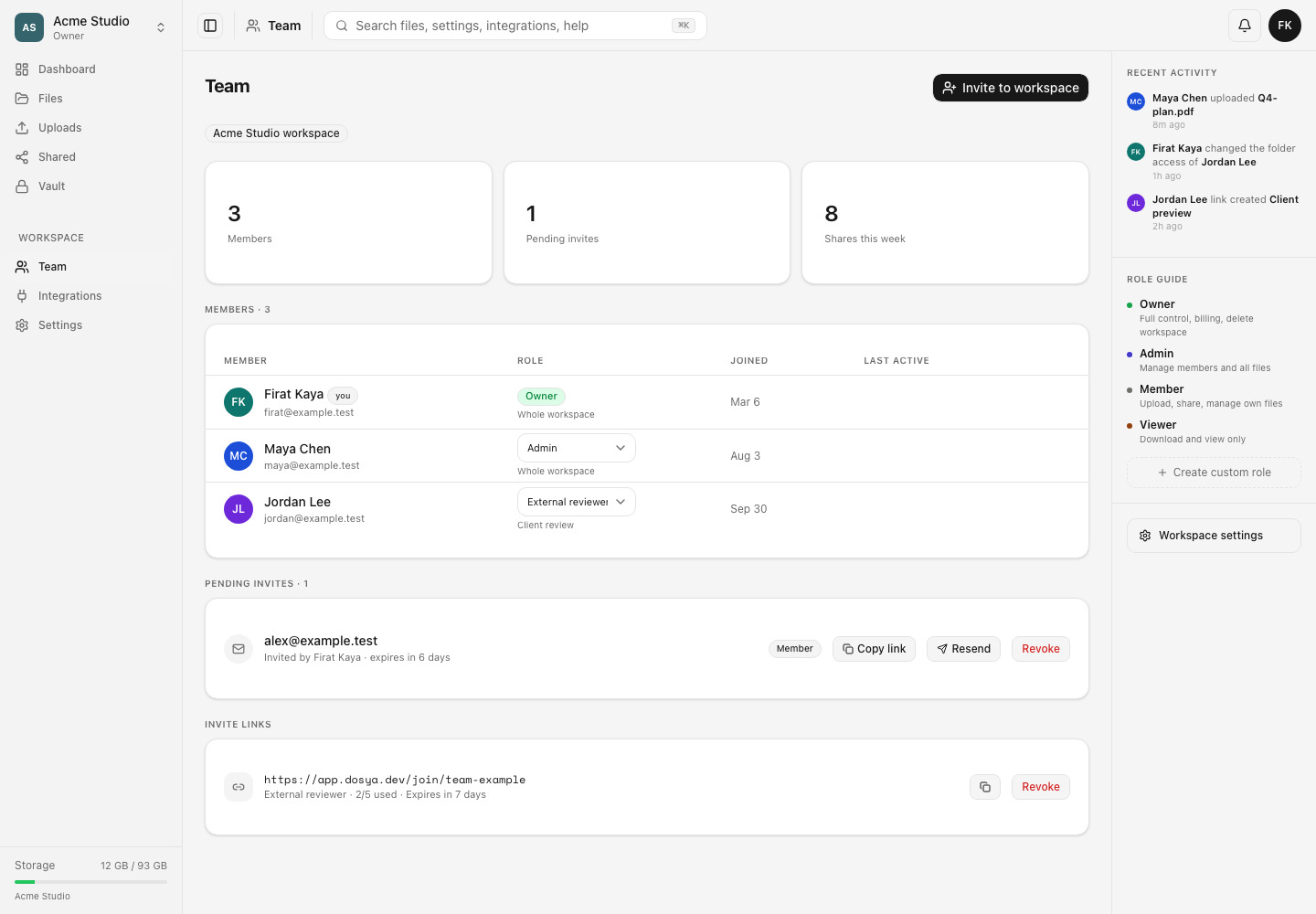
- Open Team, find the member by email, and confirm their current role and Whole workspace status.
- Select the folder button whose tooltip is Set folder access on that member’s row.
- In Folder access, select Choose folder…, navigate the current workspace, and choose the intended live folder.
- Read What this changes for them, then select Save and wait for Folder access updated.
- Ask the member to reload; distributed membership caches can take roughly 60 seconds to stop serving the old anchor.
- From the member session, open one item inside the subtree and attempt one known item outside it across every surface they use.
Scope and recovery
The server rejects a missing or foreign folder with Folder not found in this workspace. It also refuses The workspace owner cannot be confined to a folder and You cannot limit your own folder access.
A confined member sees scoped dashboard, search, share, file, WebDAV, S3, and desktop-sync results. Workspace settings, Team, and the full Activity log are unavailable. Selecting Clear and saving restores whole-workspace scope; the member cannot clear their own restriction from inside it.
Expected result
The Team row names the selected folder, content inside it follows the member’s role permissions, and known resources outside the subtree are absent or refused on each used surface.
Troubleshooting
Update failed. Reload Team and confirm the folder still exists and is not in Trash.
The member still sees an outside item. Wait about one minute, reload or reconnect that client, and repeat the exact check.
The member lost more access than expected. Verify both the folder anchor and role; confinement never grants missing file, page, or protocol permissions.
Related guides
Was this helpful?
Loading helpfulness results…
Voting saves a necessary ballot cookie for up to 180 days so you can change your answer.
Questions and replies
Ask about the steps in this guide. Questions are reviewed before publication.
Keep account details, credentials and private files out of public questions. Use private support for those.
Loading questions…
Sign in to your Dosya account to ask a question.