Removing a member, leaving or deleting a workspace
Choose the correct workspace departure action, remove another member, leave as a member, transfer ownership or complete the protected deletion flow.
Last reviewed
Use the action that matches who should leave and whether the workspace itself should continue. Removing a member keeps the workspace. Leaving removes your own access. Deleting the workspace permanently removes its files and related data after a protected confirmation flow.
If you own the workspace and only want to leave, transfer ownership to another member first.
Before you start
- Select the correct workspace and confirm its name.
- Review active uploads, integrations, shared links and file requests owned or operated by the departing person.
- Decide whether another member needs a different role, ownership or folder access before the departure.
- Export or move anything that must remain available before workspace deletion.
- Use the activity log to record the current context when the change is part of an access review.
Steps: remove another member
- Open Team and locate the person under Members.
- Confirm their email address, role and folder scope.
- Select the remove control at the right side of the row.
- In Remove member, check the person’s name and the immediate-loss warning.
- Select Remove.
- Confirm that the person no longer appears under Members.
- Review related integrations, API keys, pending file requests or ownership responsibilities that may need separate cleanup.
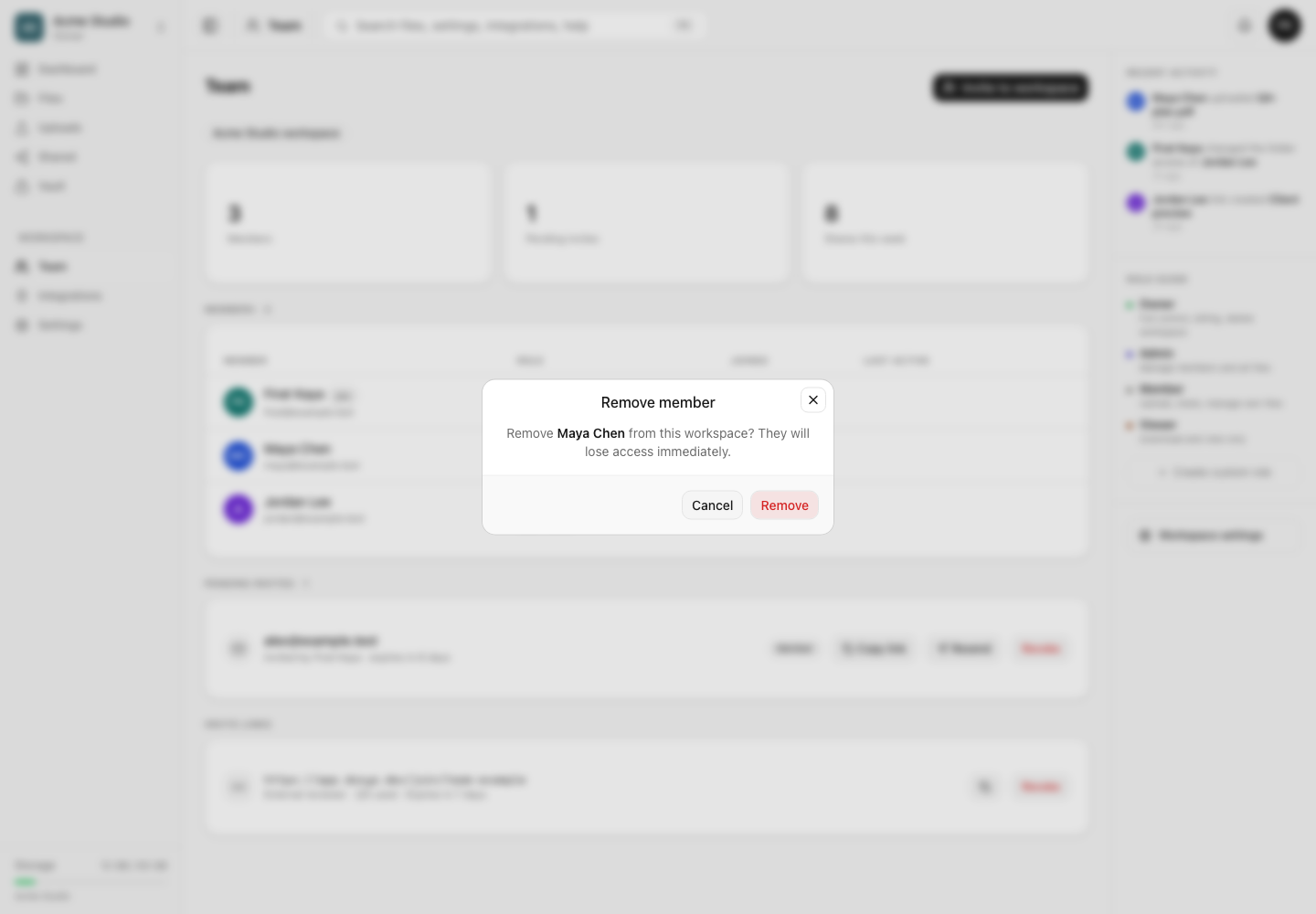
You need Manage roles to remove another non-owner member. The owner cannot be removed from Team.
Steps: leave a workspace
- Open Settings for the workspace.
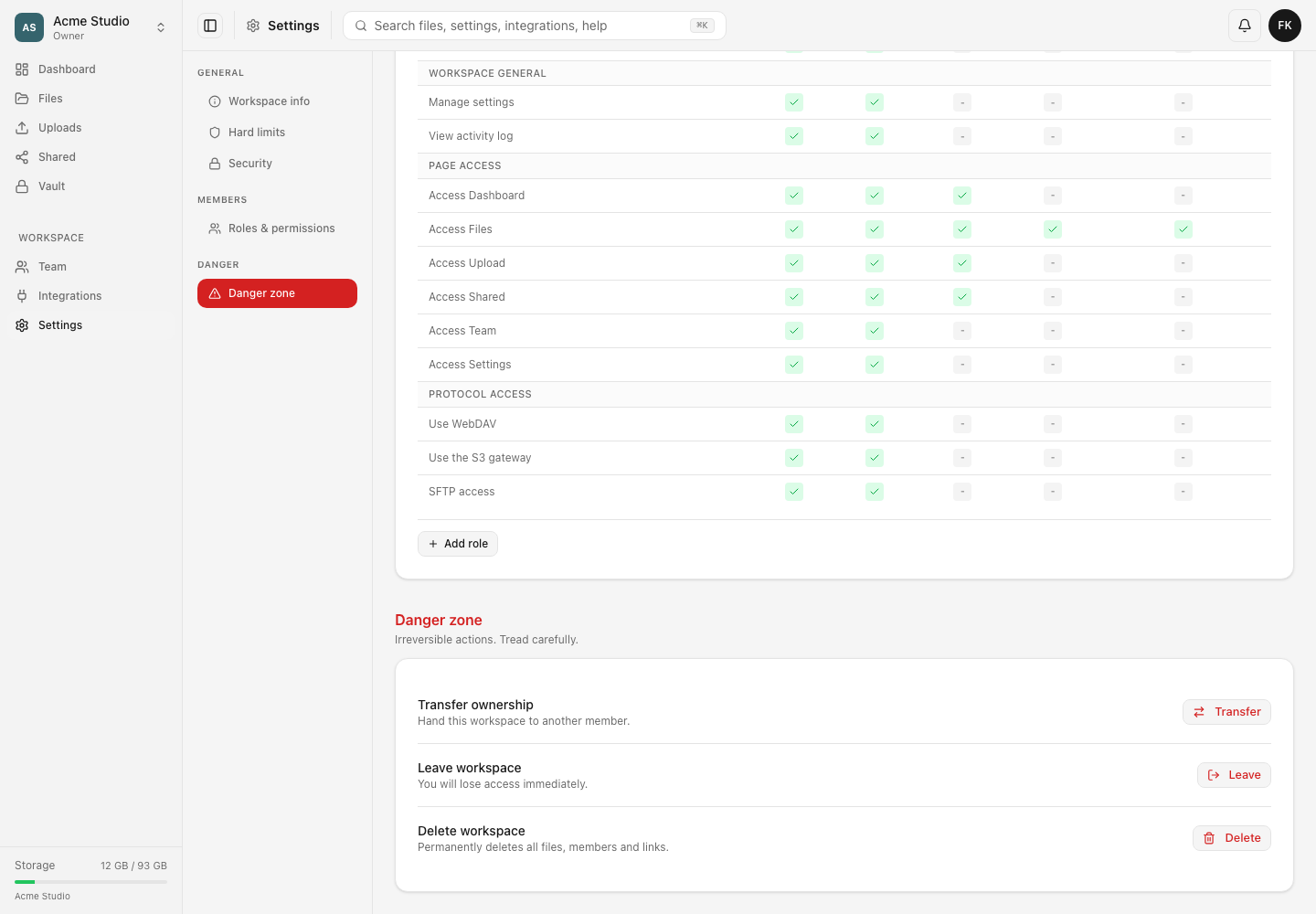
- In the settings navigation, select Danger zone.
- Find Leave workspace and select Leave.
- Read the confirmation that access to all workspace files will be lost immediately.
- Select Leave again to confirm.
An owner must transfer ownership before leaving. If the workspace should be retired instead, follow the deletion workflow only after reviewing its permanent effect.
Steps: transfer ownership
- Open Settings → Danger zone as the current owner.
- Select Transfer beside Transfer ownership.
- Choose an existing non-owner member.
- Confirm the transfer.
- Reload settings and verify that the selected person is the owner and your account is now a regular member.
- Leave the workspace only after the ownership change is confirmed.
Steps: delete a workspace
- Open Settings → Danger zone as the owner.
- Select Delete beside Delete workspace.
- Review the deletion preview. It lists the workspace name and counts of files, storage, folders and members affected.
- Resolve every blocker. A workspace with other members must have them removed or ownership handled, and an account must retain at least one workspace.
- Continue to request the six-digit email code.
- Enter the code sent to the owner’s email. The code expires after 15 minutes.
- Retype the workspace name exactly.
- Submit the final deletion action and wait for completion or the pending-cleanup confirmation.
Expected result
After member removal or leaving, the departing account can no longer open the workspace. The workspace and remaining members continue to exist.
After ownership transfer, the selected member becomes owner and the previous owner remains with a regular member role until they leave or are removed.
After accepted deletion, the workspace becomes unavailable and its physical cleanup may continue in the background. Files, folders, members, share links, file requests, comments and version history belonging to it are permanently removed.
Limits and irreversible effects
- Removing a member does not delete the workspace.
- A workspace owner cannot be removed or demoted through the Team member controls.
- An owner must transfer ownership before leaving.
- Workspace deletion is permanent and support cannot restore the deleted files.
- A workspace with other members blocks deletion until they are removed or ownership is transferred as appropriate.
- An account cannot delete its only workspace; create another workspace first.
- The deletion code is sent to the owner and expires after 15 minutes.
- The exact workspace name is case-sensitive in the final confirmation.
- Revoking an invitation is different from removing an accepted member.
Troubleshooting
The remove control is missing. Your role lacks Manage roles, the row is your own, or the target is the owner.
I am the owner and cannot leave. Transfer ownership to another current member first. If no suitable member exists and the data should be destroyed, review the deletion requirements.
Delete is blocked because members remain. Return to Team and remove the other members, or transfer ownership if another person should retain the workspace.
Delete is blocked because this is my only workspace. Create another workspace first. An account must always have at least one workspace.
The deletion email did not arrive. Confirm the owner’s account email, check filtered mail and request a fresh code after the current attempt. Never ask another person to share their code in a public channel.
The final name does not match. Copy the workspace name from the deletion preview and enter it exactly, including capitalization and spacing.
Frequently asked questions
Does removing a member delete files they uploaded?
Member removal is an access action, not a workspace deletion action. Review ownership and retention needs for their files and integrations before removing them.
Can I undo leaving a workspace?
There is no self-service undo. A member with invitation permission must invite you again, subject to the workspace’s policies and limits.
Can support restore a deleted workspace?
No. The deletion flow states that the files are not recoverable by the user or Dosya support.
Related guides
Was this helpful?
Loading helpfulness results…
Voting saves a necessary ballot cookie for up to 180 days so you can change your answer.
Questions and replies
Ask about the steps in this guide. Questions are reviewed before publication.
Keep account details, credentials and private files out of public questions. Use private support for those.
Loading questions…
Sign in to your Dosya account to ask a question.