Connect Cyberduck with WebDAV
Save a Cyberduck HTTPS bookmark with the exact Dosya mount fields, choose All or an anchored root, and verify both transfer directions.
Last reviewed
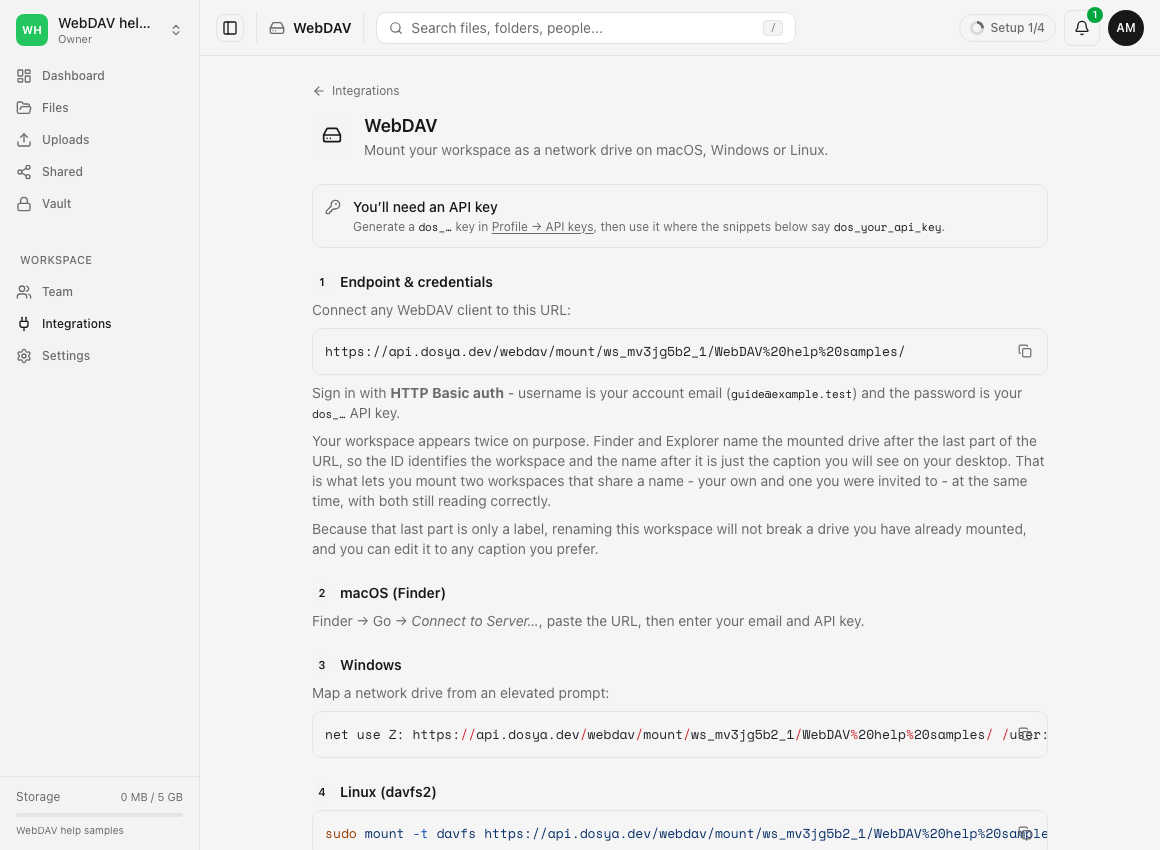
To connect Cyberduck to Dosya cloud storage, save a WebDAV HTTPS bookmark using the address from Integrations → WebDAV. The login is your Dosya email plus an API key. A normal mount opens a collection list; its All collection is the writable folder tree.
Prepare the key and address
Select the destination workspace in the Dosya web app before opening Integrations → WebDAV. Copy the full address under Endpoint & credentials, including its /webdav/mount/…/ path and trailing slash. The workspace ID identifies the storage; the final name segment labels the mount. A share URL is not a WebDAV endpoint.
In Profile → API keys → New API key, give this computer’s Cyberduck connection a recognizable label under What is it for?. Choose Read only for browsing/downloads or Full access for the upload check below. Upload only cannot list your folders. Under Restrictions and expiry → Where can it reach? → Protocols, choose Only the ones I pick, select WebDAV, and pin Workspace to the intended workspace. Select Generate key and copy the complete dos_… secret before Done: the saved prefix is insufficient and the secret cannot be shown again.
Your role must permit WebDAV and each requested file action. A Full access key cannot expand a viewer’s workspace permissions. Review expiry, allowed addresses, active hours and usage limits before saving the bookmark.
Steps: create the Cyberduck bookmark
- Open Cyberduck’s Bookmarks view and use Bookmark → New Bookmark. Choose the secure WebDAV (HTTPS) protocol; versions using WebDAV (HTTP/SSL) mean HTTPS. Do not select plain HTTP, FTP or SFTP for this address.
- Give Nickname a name that identifies the workspace and computer. Enter these connection values, with Path separate from Server.
| Bookmark field | Value |
|---|---|
| Server | api.dosya.dev |
| Port | 443 |
| Username | The key owner’s Dosya account email |
| Password, when prompted | The full API-key secret |
| Path | The entire path after the hostname in the copied endpoint |
| Anonymous Login | Off |
- Retain the copied path’s encoded characters and workspace label. If a version accepts the complete URL, check the resulting Server and Path before connecting. Do not put the key into a URL or bookmark nickname.
- Close the editor and open the bookmark. Enter the API key in the password prompt. Choose credential saving only for a computer whose user account you trust. Cyberduck stores saved passwords in macOS Keychain or Windows Credential Manager; deleting a bookmark should not be treated as revoking its secret.
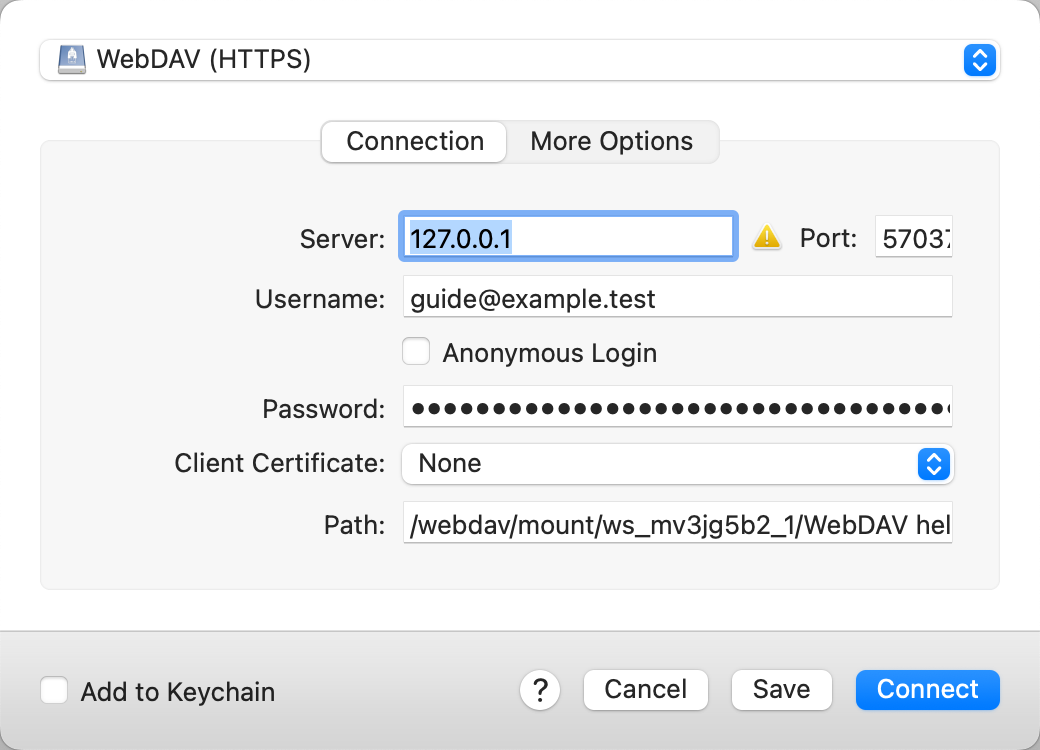
This connection capture is from Cyberduck 9.5.4 on macOS against an isolated current-source Dosya API. The same local check listed six collections and transferred a 58-byte sample; it did not certify a Windows client or production certificate behavior. A real connection must validate the certificate for api.dosya.dev; investigate certificate or hostname warnings before providing a key.
Choose the correct root
An ordinary workspace bookmark lists All, Documents, Videos, Images, Shared and Deleted. Open All, then the destination folder, before uploading. The mount root and the other five collections are read-only views, even with Full access. All represents the workspace’s actual tree, so it is not an extra folder inside Dosya Files.
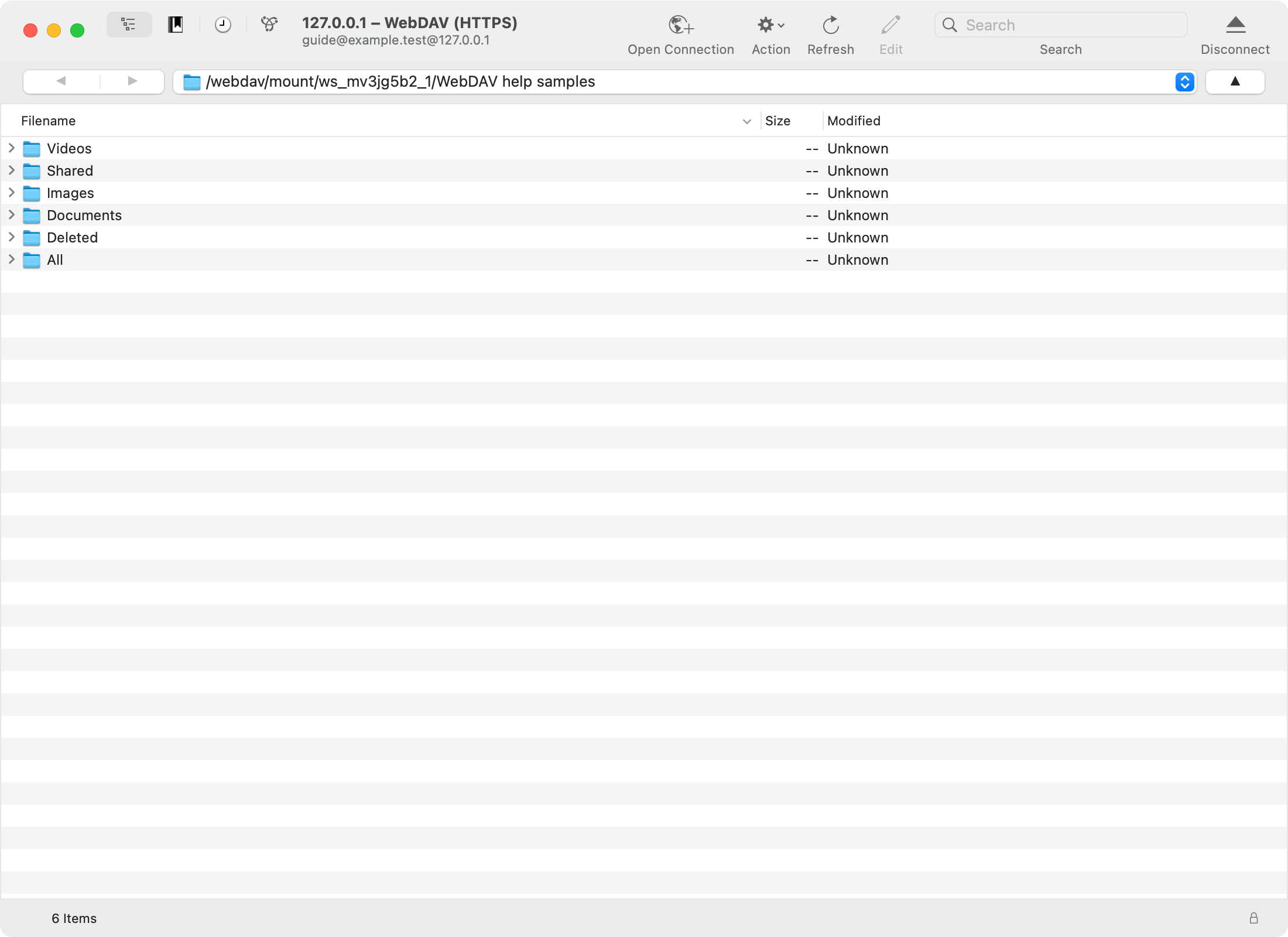
If the key also uses Choose folder…, that selected folder becomes the root and its children appear immediately. There is no All collection in this case. Use the same copied workspace mount URL; do not append the anchor’s name again. Trashing the anchor blocks the connection until it is restored. Workspace pinning alone does not imply a folder anchor.
Check an upload and download
- Make a small local text file with a unique name, such as
cyberduck-check-20261014.txt. Keep the original outside your download destination. - Open an allowed folder in All, or inside the anchored root. Use File → Upload…, select the sample, and wait for Cyberduck’s transfer completion. Stop at any overwrite prompt during this first test.
- Refresh the browser listing. In Dosya Files, open the same workspace/folder and compare the name and byte size. A completed client transfer alone does not identify the intended destination.
- Download the remote sample into another local directory. Compare its bytes with your original using a file comparison or SHA-256 tool. For read-only bookmarks, use a known existing file instead of uploading.
- Close the connection and reopen the saved bookmark to confirm its path. This is an online file connection, not an offline folder-sync setup.
Expected result
The bookmark reopens the intended root, and the test file downloaded through Cyberduck matches your original. Your cloud copy is available in the same Dosya workspace; saving the bookmark does not create an offline backup.
Limits and consequences
WebDAV is available to free and paid accounts. Storage capacity, workspace extension/size policy and explicit role/key limits still apply. Protocol plan ceilings do not count WebDAV requests or concurrency at the door, but daily download egress still matters. Separate throttles allow 600 requests/minute per user and 1,200 per IP. On 429, wait for Retry-After and reduce parallel transfers; repeated reconnects do not repair throttling.
An upload to a new path returns 201; replacing an existing path returns 204 and writes a new Dosya version. History defaults to 10 versions unless the workspace changes it; free-owner versions are also subject to the seven-day retention sweep. Keep an independent copy before an intentional overwrite. A client delete moves eligible items to Trash and revokes their share links. Trash consumes storage until purge; retention is seven days for free owners and 30 days for other plans. Permanent purge cannot be undone, and restore does not recreate a revoked share link.
Resolve the actual failure
| Response | Recovery |
|---|---|
| 401 Unauthorized or another password prompt | Check the full secret, owner email, expiry and revocation. A WordPress site key cannot authenticate WebDAV. |
| 500 Internal Server Error at login | Wait for the credential service; do not assume a valid secret changed. |
| 403 This API key is not permitted to use WebDAV | Select WebDAV in that key’s protocol restrictions or create a replacement for this client. |
| 403 This role is not permitted to use WebDAV | Ask the workspace owner/admin to permit this door. |
| 403 This API key is pinned to a different workspace | Match the bookmark path to the key’s pinned workspace. |
| 411 Content-Length header is required | The upload request needs its byte length; retry with a client mode that sends it. |
| 409 Parent folder does not exist | Refresh and open a real destination beneath All or the anchor. |
| 423 Locked | Resolve the file/folder lock in Dosya before retrying. |
| 413 or 507 | Check the displayed size refusal or storage availability; changing the bookmark cannot raise workspace limits. |
Cyberduck may wrap a server response in its own error dialog. Record the numeric response, filename and time, with the key redacted. Upload failures at the root require entering All; read-only smart views do not become writable by reconnecting.
Remove this computer’s access
Disconnect the Cyberduck session and remove its bookmark when no longer needed. Delete its saved credential separately from Keychain Access or Control Panel → User Accounts → Credential Manager → Windows Credentials as applicable. In Dosya Profile → API keys, revoke the dedicated Cyberduck key to prevent its reuse. Removing the bookmark or key leaves existing cloud files in place; deleting files is a separate cloud action.
Related guides
Was this helpful?
Loading helpfulness results…
Voting saves a necessary ballot cookie for up to 180 days so you can change your answer.
Questions and replies
Ask about the steps in this guide. Questions are reviewed before publication.
Keep account details, credentials and private files out of public questions. Use private support for those.
Loading questions…
Sign in to your Dosya account to ask a question.