Choose where the browser extension saves files
Pick an accessible workspace and folder, understand when a new folder is nested, and test the destination before capturing private content.
Last reviewed
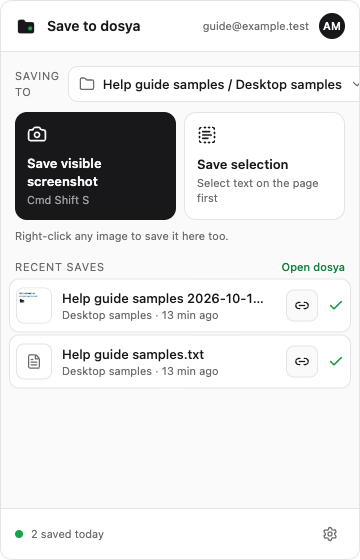
The Saving to row decides where each new browser capture is uploaded. Select the destination before capturing: changing it later does not move a queued or completed file.

What appears in the picker
The extension lists regular workspaces available to the connected account; Vault workspaces are excluded. When more than one regular workspace is available, the picker adds a workspace selector. A first-time connection defaults to the first available workspace at its root until you choose a folder.
Under Recent, the picker keeps as many as five previously chosen destinations, most recent first. Folders contains the current workspace tree, while Search folders matches a folder name without regard to letter case. Folder results may be cached for one hour, so a folder created elsewhere can take time to appear.
Steps: select an existing destination
- Open the Save to dosya toolbar popup and verify the account email.
- Select the folder button next to Saving to.
- Choose the intended workspace when the workspace selector is present.
- Enter part of the name in Search folders, or browse the list below Folders.
- Select the exact folder. The picker closes and the destination row changes to
Workspace / Folder. - Capture a harmless sample, wait for its green check under Recent saves, and select the finished row to open the stored file.
Create a folder from the extension
Enter a name in New folder here, then select the plus button. The account’s workspace role must include folder creation.
Placement depends on the workspace choice:
- While staying in the same workspace as the current destination, the new folder is created inside that destination folder.
- After switching to another workspace, the new folder is created at that workspace’s root.
The new folder becomes Saving to immediately, and its workspace cache is cleared so the refreshed list can include it. Creating the folder does not relocate earlier captures.
Destination rules for queued work
The extension records the workspace and folder at capture time. If you switch destinations while an upload is waiting, that existing row continues toward its original folder; only later captures use the replacement.
Completed items show their folder name beneath the filename. Up to 10 recent rows appear in the popup, so use Open dosya when you need the full file list rather than relying on this short activity view.
Expected result
The destination breadcrumb names the chosen workspace and folder. A new sample capture finishes in that exact location, while any item captured before the change continues toward its earlier recorded folder.
Fix a missing or unusable folder
A recently created folder is absent. If it was made through the picker, close and reopen the picker after the create completes. For a folder made in another client, the extension’s cached tree can remain current for up to one hour.
The plus button does not create the folder. Confirm that your role permits folder creation. The server refusal for a role without that capability is You don’t have permission to create folders; an owner or admin can grant it or create the destination for you.
The test row says You don’t have upload permission in this workspace. Folder visibility alone does not grant file uploads. Ask a workspace administrator for upload permission or select a workspace where your role already has it.
The upload reports Destination folder not found. The selected folder was deleted, hidden from your role or otherwise became unavailable. Return to Saving to, pick a live folder, and make a new capture. Retrying the old row still targets its recorded destination.
The list is empty after connecting. Check the account email and confirm that the account belongs to a regular workspace. A Vault-only account has no eligible extension destination.
Related guides
Was this helpful?
Loading helpfulness results…
Voting saves a necessary ballot cookie for up to 180 days so you can change your answer.
Questions and replies
Ask about the steps in this guide. Questions are reviewed before publication.
Keep account details, credentials and private files out of public questions. Use private support for those.
Loading questions…
Sign in to your Dosya account to ask a question.