Saving images, text and screenshots from your browser
Use Save to dosya to capture selected text, an image or the visible page area, then check progress and open the completed file.
Last reviewed
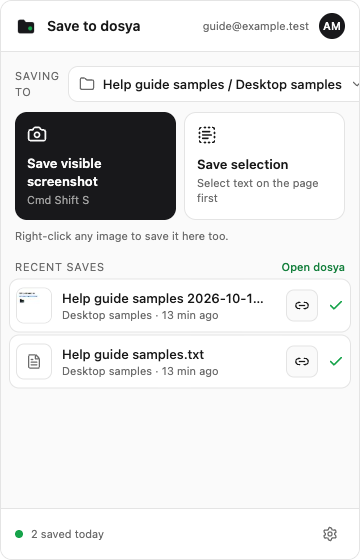
Open Save to dosya, check Saving to, then choose Save selection for highlighted text or Save visible screenshot for the current visible page area. To save an image, right-click it and select Save image to dosya. Check Recent saves before assuming the transfer finished.
Before you start
- Install and connect the extension. Check the account email and the workspace/folder under Saving to.
- Open an ordinary web page you are allowed to save from. Browser settings, store pages and some embedded or protected content cannot be captured.
- Keep a network connection available to complete the upload. A queued item is not yet a completed cloud copy.
- Use a harmless page for the first test. The visible screenshot includes everything currently visible in the page area, including any private text displayed there.
Steps: save selected text
- Highlight the text on the page. Select the passage you want before opening the extension.
- Check the destination. Open Save to dosya and check Saving to. Select that row if you need another workspace or folder.
- Save the selection. Select Save selection. You can also right-click selected text and use Save selection to dosya.
- Follow the result. Check Recent saves for a text-file row. The filename comes from the page title and ends in .txt.
- Open the completed file. When its green check appears, select the row. The text file contains the page title, source URL and the selected plain text.
Selected text is saved as text, without the page’s layout, images or rich formatting. If you need the visual arrangement, use a screenshot of the relevant area instead.
Steps: save a visible screenshot
- Show the area you need. Scroll the page to the relevant section and close menus or overlays you do not want in the capture.
- Open the popup. Check Saving to once more, then select Save visible screenshot.
- Check Recent saves. Wait for the completed PNG row. Its filename includes the page title and a timestamp.
- Open and check the image. Select the completed row to open it in Dosya. Confirm that the relevant section is visible and readable.
This captures the visible viewport of the active tab. It does not scroll through the page, capture the whole page or save an offline HTML copy. For a long page, scroll to another section and make a separate capture.
Steps: save an image
- Find the image on its page. Right-click the image itself, rather than an empty area of the page.
- Choose the extension command. Select Save image to dosya from the context menu. Some browsers group extension commands under the extension’s name.
- Review any site-permission request. A blocked image may require access to the image’s source site. Open the extension and use its permission banner when offered, then retry. If the site continues to block saving, the extension cannot override that restriction.
- Check the completed row. Open the popup, confirm the file in Recent saves, then open it in Dosya.
The destination chosen in Saving to also applies to this image command. Images are saved as separate files, rather than as a bookmark to the page.
Keyboard shortcut
Use Command + Shift + S on macOS or Ctrl + Shift + S on other systems. The shortcut saves selected text when there is a selection; otherwise it captures the visible screenshot. Clear a selection if you intended to capture the page area instead.
If another tool or the browser owns that shortcut, review the browser’s extension shortcut settings or use the popup buttons. Changing your shortcut does not change the save destination.
Expected result
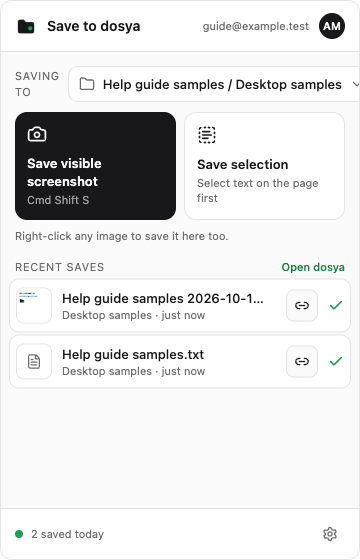
Recent saves shows the filename and destination with a green check for a completed item. Select its row to Open in dosya, or use Open dosya above the list and navigate to the same folder. Confirm the actual saved text or image before closing your source page.
The list contains recent extension activity rather than a full inventory of your storage. An animation or notification can accompany a save, but the completed file is the useful confirmation.
Sharing a completed save
The link icon beside a completed row opens a sharing dialog. Review its expiry and generate the link deliberately; this creates a recipient-accessible share link rather than just copying the signed-in file-view address. Follow the sharing guide for access and expiry decisions.
Limitations
The extension limits an individual capture to 50 MiB; its message labels this as 50 MB. Text selection is capped at one million characters. A larger selection is truncated, so choose a smaller passage when completeness matters.
Ordinary web pages generally work, but protected browser pages and some cross-origin images may not. The extension is for images, selected text and visible screenshots; it does not export a full web page as HTML or PDF. Saves go to regular storage, separately from Vault.
Troubleshooting
Select some text first. Highlight a passage on the active page, then try Save selection again. Opening the popup without a selection does not create one.
This page cannot be captured. Try an ordinary web page. Browser settings, extension stores and other protected pages can refuse access.
A save is waiting or failed. Check the message in Recent saves, network access, account sign-in, destination permissions and storage. Use Retry now beside the affected row after correcting the cause. Some temporary failures retry automatically.
An image is blocked. Review the permission banner for its source site and retry after granting the needed access. If the original image URL no longer works, return to its page and try a fresh capture.
The file is in the wrong folder. Check Saving to. Changing it affects new captures; it does not move already captured or queued items to the new destination. Move the finished file in Dosya if needed.
The screenshot misses part of the page. Scroll until that part is visible and capture again. Save visible screenshot covers one viewport.
Frequently asked questions
Does the shortcut always take a screenshot?
No. It saves selected text if a selection exists; otherwise it takes a visible screenshot.
Does text saving preserve formatting?
It creates a plain-text file with the page title, source URL and selected text.
Is a queued capture already stored in the cloud?
Wait for the completed row and confirm its file. A queued capture still needs a successful upload.
Related guides
Was this helpful?
Loading helpfulness results…
Voting saves a necessary ballot cookie for up to 180 days so you can change your answer.
Questions and replies
Ask about the steps in this guide. Questions are reviewed before publication.
Keep account details, credentials and private files out of public questions. Use private support for those.
Loading questions…
Sign in to your Dosya account to ask a question.