Installing and connecting Save to dosya
Install the browser extension from its official listing, approve its connection to your account, and choose where browser saves will go.
Last reviewed
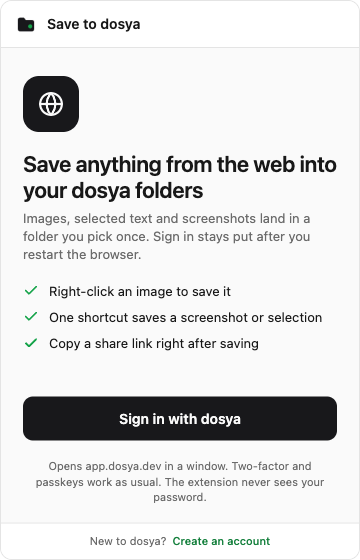
Install Save to dosya using the browser links on the official extension page, open its toolbar popup and select Sign in with dosya. Approve the connection on Dosya’s consent page, then check Saving to before your first save.
Before you start
- Have a Dosya account and access to its normal sign-in method and any two-factor authentication.
- Use the official browser-specific installation link. Check the current availability and requirements there; browser-store listings can change.
- Choose a regular workspace and folder where you can add files. The extension’s destination list excludes Vault workspaces.
- Prepare a harmless ordinary web page for your first test. Browser settings, extension stores and other protected pages may refuse capture.
Steps: install the extension
- Open the official extension page. Go to Save to dosya and choose Chrome, Firefox, Edge or Safari for the browser you are using.
- Follow that browser’s installation prompts. Confirm the extension’s name and source before adding it. Safari installation may also require enabling the extension in Safari’s Extensions settings after installing its companion app.
- Find the toolbar popup. Open the browser’s extensions menu and select Save to dosya. Pin it to the toolbar if your browser supports pinning and you want a visible shortcut.
- Start from the popup. Select Sign in with dosya. Keep the browser’s sign-in or consent window open until the connection finishes.
Steps: approve the account connection
- Sign in to Dosya when asked. Use the account that should receive your saves and complete its required factors. The extension opens Dosya’s account flow rather than collecting your account password in its popup.
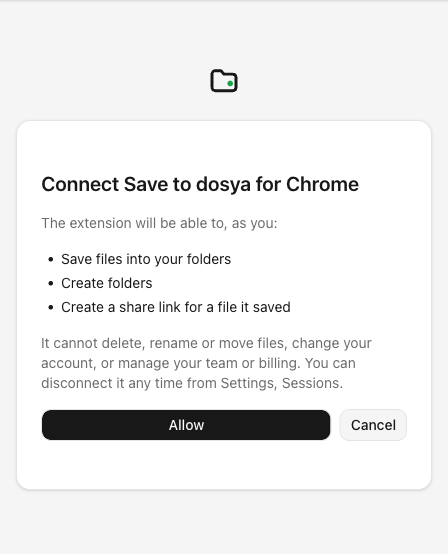
- Read the permission page. It is headed Connect Save to dosya for your browser. It explains that the extension can save files into your folders, create folders and create a share link for a file it saved.
- Approve deliberately. Select Allow to connect, or Cancel to leave without approving this request. The connection page also states that the extension cannot delete, rename or move files, or manage your account, team or billing.
- Return to the extension. Open its popup again after the browser completes the handoff. Check the email in the header and the destination under Saving to.
Steps: choose the save destination
- Open the destination row. Select the folder button under Saving to. Before choosing a specific folder, this may show the default workspace destination.
- Choose the workspace if available. The picker shows a workspace selector when there is more than one available workspace.
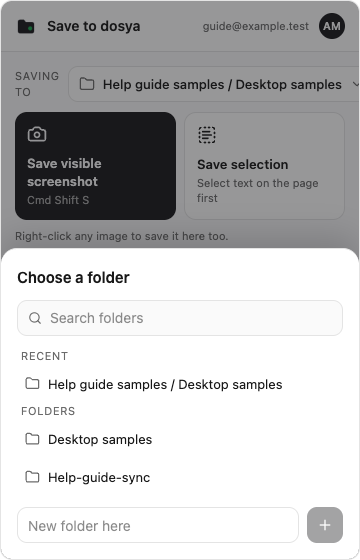
- Choose a folder. Use Search folders to find a name, then select it from Folders. A Recent section appears after you have chosen destinations.
- Create a folder if needed. Enter its name in New folder here, then select the plus button. The new folder becomes your destination. It is created under the current destination folder when you remain in that workspace, or at the workspace root after switching workspaces.
- Confirm the row. The popup should now show the intended workspace and folder. Changing it affects subsequent saves; it does not move files already saved elsewhere.
Expected result
The popup shows your account email, the intended Saving to destination and the Save visible screenshot and Save selection controls. Use the browser saving guide for a small test, then open its completed row to check the saved file in Dosya.
Disconnecting later
Open the Settings gear at the bottom right of the popup and choose Sign out when you want to disconnect this browser. Signing out clears its saved destination, recent-save list and pending captures from the extension. Finish or resolve pending saves first.
To revoke access from Dosya, open Profile → Sessions, find the session named for your browser extension and revoke it. Signing out of a web tab alone is not the same as revoking the extension’s separate session.
Limitations
Browser permissions and account consent are separate. Allow on the account page connects Dosya; the browser may separately ask for permission to save an image from a particular site. Grant only the site access needed for your task.
The extension saves into regular storage and does not select Vault workspaces. It is not a whole-browser backup, bookmark sync tool or full-page archive exporter. The captures here show Chrome; installation and permission prompts differ in other browsers.
Troubleshooting
The account page says This link is incomplete. Restart sign-in from the extension popup. Do not open a bookmarked or manually copied consent URL.
The connection was cancelled or did not match the request. Start again from Sign in with dosya and complete the newly opened window. Avoid reusing a previous callback tab.
Choose a folder does nothing on an older build. Update the extension. The current code initializes the destination after sign-in so the picker can open before the first capture; earlier builds could leave this row without a destination.
There are no workspaces or the folder is missing. Check the account email and access to a regular workspace. Vault workspaces are excluded. The picker can cache a folder list for up to an hour. If a new folder is missing, wait for the cache to refresh or create the needed folder through the picker.
The popup shows the wrong account. Use Settings → Sign out at the bottom right of the popup, then start a new connection with the intended account.
Frequently asked questions
Is an API key required?
No. The extension uses its own account-consent sign-in. API keys are used by other tools such as Zapier.
Can it delete my files?
The extension connection does not grant delete, rename or move operations. Review the actual permission page before approving.
Can I change the folder for each project?
Yes. Open Saving to and choose another destination before making the next save.
Related guides
Was this helpful?
Loading helpfulness results…
Voting saves a necessary ballot cookie for up to 180 days so you can change your answer.
Questions and replies
Ask about the steps in this guide. Questions are reviewed before publication.
Keep account details, credentials and private files out of public questions. Use private support for those.
Loading questions…
Sign in to your Dosya account to ask a question.