Choose a desktop sync mode for a folder
Choose among Dosya’s five desktop sync modes by deciding which side may change, which deletions propagate, and how Full Sync resolves conflicts.
Last reviewed
A sync mode decides which changes cross the boundary and whether a deletion on one side may remove a file on the other. Choose it from the intended source of truth before selecting Start syncing.

Before you start
In Sync, select Add sync folder, then choose the cloud and local folders. Dosya currently exposes all five modes in the desktop wizard; no separate subscription-plan switch controls this list.
- Full Sync mirrors changes and deletions in both directions.
- Push to Cloud sends local changes and local deletions; cloud changes are ignored locally.
- Protect & Upload uploads local files but never deletes cloud content.
- Pull from Cloud downloads cloud changes and applies cloud deletions locally; local changes are ignored.
- Save to Device downloads cloud files but never deletes local content.
Steps
- Decide whether the local folder, the cloud folder, or both locations are allowed to originate changes.
- Decide separately whether a local deletion may remove cloud data and whether a cloud deletion may remove local data.
- Choose Protect & Upload for a local source that must not delete cloud files, or Push to Cloud when local deletions should propagate.
- Choose Save to Device for a protected local copy, or Pull from Cloud when cloud deletions should also clear the device.
- Choose Full Sync for two-way ownership, then select Keep both copies or Last write wins for same-path conflicts.
- Start desktop sync with a disposable file and deletion test, then verify the mode’s transfer direction and allowed deletion behavior.
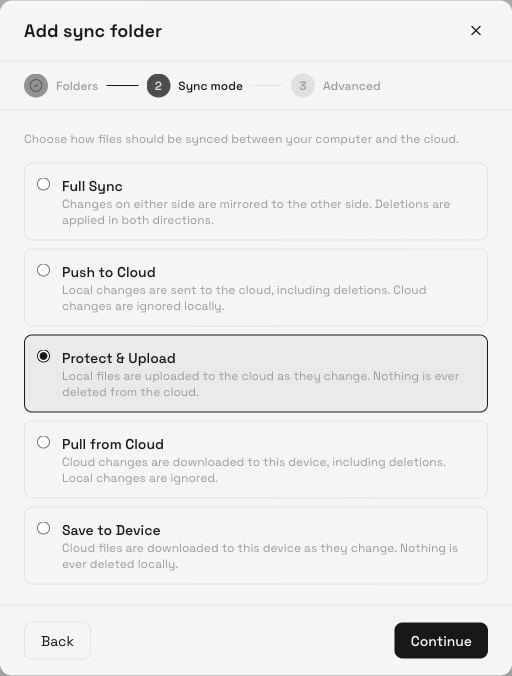
One-way modes filter transfer and deletion operations, but a same-path conflict can still require attention. Protect & Upload is the wizard default and provides the least destructive cloud behavior for a new pair.
Expected result
The sample change travels only in the direction allowed by the selected mode. A deletion affects the opposite side only when that mode explicitly includes deletion propagation.
If the test behaves differently, pause or remove the pair before adding more data. Removing the mapping stops future sync and leaves existing local and cloud files in place.
Related guides
Was this helpful?
Loading helpfulness results…
Voting saves a necessary ballot cookie for up to 180 days so you can change your answer.
Questions and replies
Ask about the steps in this guide. Questions are reviewed before publication.
Keep account details, credentials and private files out of public questions. Use private support for those.
Loading questions…
Sign in to your Dosya account to ask a question.