Choosing a desktop sync mode
Compare all five sync modes, understand which deletions propagate, and choose a conflict rule before starting a folder pairing.
Last reviewed
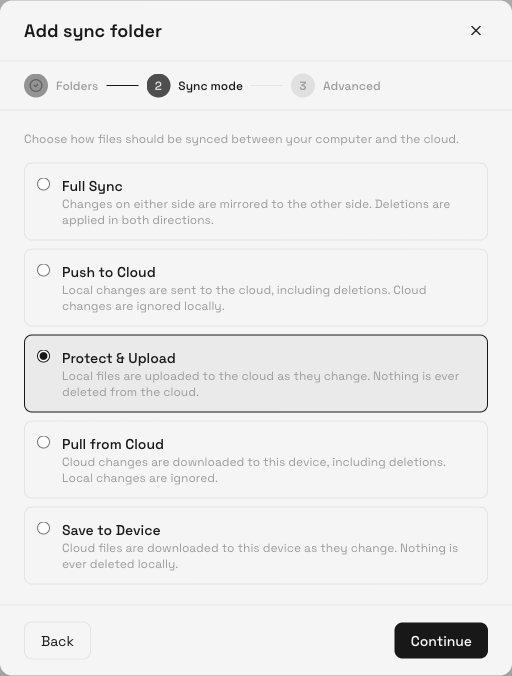
Choose the mode in Sync → Add sync folder → Sync mode. Use Full Sync for changes in both directions, Protect & Upload for local-to-cloud transfers that keep cloud files after local deletion, or Save to Device for cloud-to-local transfers that keep local files after cloud deletion. The two other one-way modes also propagate deletions from their source side.
Before you start
- Decide which side is the source of your changes: this computer, the cloud folder or both.
- Keep a separate copy of important files while testing a new pairing. Use a small disposable folder when testing deletion or conflict behavior.
- Check the workspace and cloud destination. A mistaken destination can affect files already stored there.
- Read the deletion column below. A mode that keeps destination files after deletion can still update them when its source changes.
Compare the five modes
| Mode in the app | Direction of changes | Deletions | Use when |
|---|---|---|---|
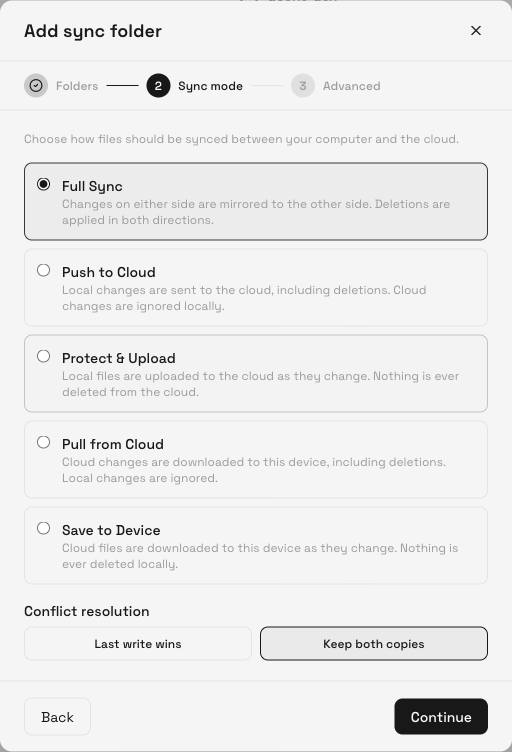
| Full Sync | Local ↔ cloud | Applied in both directions | You edit on both sides and want them to mirror each other. |
| Push to Cloud | Local → cloud | Local deletion can remove the cloud counterpart | This computer is the source and the cloud should follow it. |
| Protect & Upload | Local → cloud | Local deletion does not delete the cloud counterpart | You want local changes uploaded while retaining cloud copies of removed local files. |
| Pull from Cloud | Cloud → local | Cloud deletion can remove the local counterpart | The cloud is the source and this computer should follow it. |
| Save to Device | Cloud → local | Cloud deletion does not delete the local counterpart | You want cloud changes downloaded while retaining local copies of removed cloud files. |
For one-way modes, changes made only on the destination are not sent back to the source. They can still be affected by later source updates. For example, editing a downloaded file in Save to Device does not upload that edit.
Steps: choose the mode
- Open the pairing wizard. Select Sync → Add sync folder, choose both folders in Folders, then select Continue.
- Choose the direction. Select the mode that matches your intended source. The current wizard initially selects Protect & Upload; it does not initially select Full Sync.
- Check deletion behavior. Read the selected description. If you expect a destination copy to remain after removing the source, use the corresponding protective mode and test that expectation with disposable files.
- Choose a conflict rule for Full Sync. Selecting Full Sync reveals Conflict resolution. Choose Keep both copies if you want both versions retained when a conflict occurs, or Last write wins if the later change should replace the other version. The default is Keep both copies.
- Review Advanced. Select Continue, check exclusions and any folder-size notice, then select Start syncing.
- Verify the direction with a sample. Add a harmless sample on the source side and confirm it arrives at the destination. For Full Sync, repeat with a different sample created on the other side. Check Issues as well as the row status.
Expected result
The pairing’s Mode column matches your selection. Samples created on a source side reach the intended destination, and the destination-only sample in a one-way mode is not uploaded or downloaded back to the source.
If you need to confirm a deletion rule, use a disposable test file with copies already present on both sides. Remove it from the source, let sync settle and check both folders. Avoid testing a destructive rule with a file you need to keep.
Changing a saved pairing’s mode
The current app displays the saved mode but has no mode-edit control in Overview. Record the local path and cloud destination, pause the pairing, use its three-dot menu’s Remove, and create a new pairing with the intended mode. Remove stops the relationship without deleting existing files.
Review the files already present before restarting. Recreating a pairing is a fresh comparison; it is not an undo operation for earlier deletions or replacements. Use Deleted files or Version history when those recovery options apply.
Limitations
The protective modes preserve destination copies when their source is deleted. They still transfer changes, so they do not freeze every historical version indefinitely. Available recovery and retained versions depend on the file and account’s applicable limits.
Conflict rules apply when Full Sync detects competing changes. Keep both copies avoids choosing one winner automatically; it can leave extra copies for you to reconcile. Last write wins does not mean that the chosen version is the one you intended to keep. Check Issues for unresolved conflicts and skipped files.
Troubleshooting
A local edit did not reach the cloud. Check whether the pairing is Pull from Cloud or Save to Device. Those modes take changes from the cloud, so local edits do not upload through that pairing.
A cloud change did not reach this computer. Check whether the mode is Push to Cloud or Protect & Upload. Those modes upload local changes and do not pull cloud edits.
A destination copy disappeared after source deletion. Check for Full Sync, Push to Cloud or Pull from Cloud, which propagate the relevant deletions. Pause the pairing before recovering a file, then review its mode so the same relationship does not repeat the removal.
There are duplicate conflict copies. Check Issues and the conflict rule. With Keep both copies, compare your own copies, keep the intended version and resolve the conflict before continuing important work.
The mode looks right but a sample is missing. Check paused state, workspace, exclusions, storage and per-file errors. Follow the folder setup troubleshooting before recreating a pairing.
Frequently asked questions
Which mode is selected by default?
The current wizard defaults to Protect & Upload.
Does one-way sync stop people editing the destination?
No. It describes the transfer direction, not permissions. Destination edits do not propagate back and can be affected by later source updates.
Can I make a deletion-proof backup by choosing a protective mode?
It prevents deletion propagation in the stated direction. Source updates still transfer, so keep an independent backup if you need a separately recoverable copy.
Related guides
Was this helpful?
Loading helpfulness results…
Voting saves a necessary ballot cookie for up to 180 days so you can change your answer.
Questions and replies
Ask about the steps in this guide. Questions are reviewed before publication.
Keep account details, credentials and private files out of public questions. Use private support for those.
Loading questions…
Sign in to your Dosya account to ask a question.