Setting up a desktop sync folder
Pair a local folder with a cloud folder, review the mode and exclusions, then confirm a sample file reached the intended destination.
Last reviewed
Open Sync → Add sync folder, choose a cloud destination and a local folder, then review Sync mode and Advanced before selecting Start syncing. Start with a small sample and confirm its destination copy before adding your main working folder.
Before you start
- Install the desktop app and sign in. Select the workspace you want in the sidebar.
- Confirm that you can upload to the cloud destination and have enough available storage.
- Create a small local sample folder with a harmless text file. Keep a separate copy of important files while checking the pairing and mode.
- Close applications actively rewriting your sample file during the first transfer.
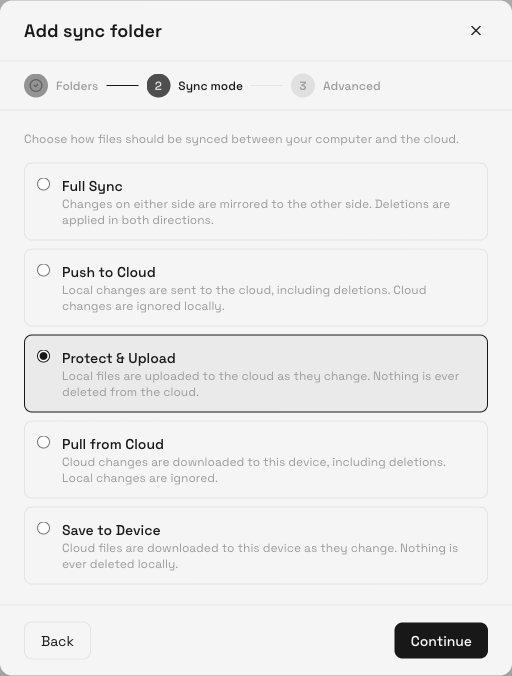
- Review sync modes. The current wizard defaults to Protect & Upload, which uploads local changes without deleting cloud files.
Steps: select the folders
- Open Sync. Select Sync in the sidebar, then Add sync folder near the top right. An empty Sync view also offers this action in the main area.
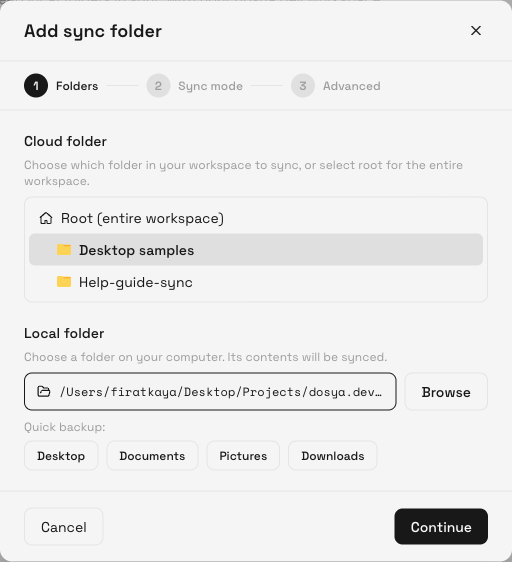
- Choose the cloud folder. In Folders, select your destination under Cloud folder. Root (entire workspace) pairs the local folder with the workspace root; select a specific folder to keep the test contained. Create that cloud folder in Files first if needed.
- Choose the local folder. Select Browse, choose the folder on your computer and confirm the operating system’s picker. The field beside Browse should show its path. Quick backup offers Desktop, Documents, Pictures and Downloads shortcuts; those choices can include far more files than a small test folder.
- Check both choices. Confirm the selected cloud folder and local path before selecting Continue. On systems that request folder access, grant access only to the folder you intend to sync.
Steps: review the mode and exclusions
- Choose Sync mode. Read its direction and deletion behavior. For this upload test, use Protect & Upload. Choose another mode only when its behavior matches your purpose, then select Continue.
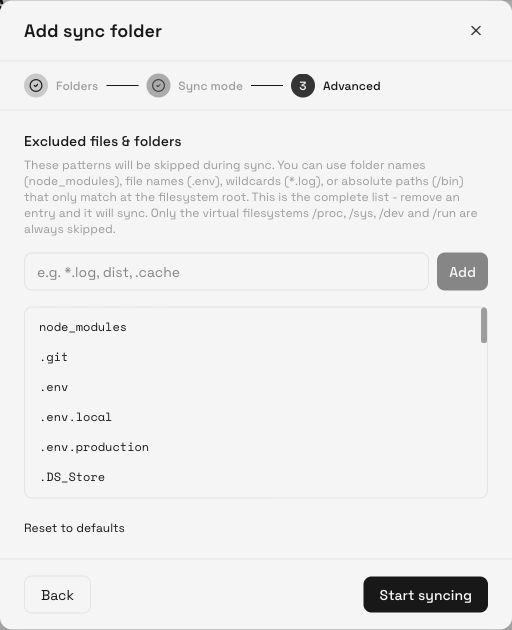
- Review Excluded files & folders. The Advanced step shows the patterns that will be skipped. Defaults include development and temporary items such as node_modules, .git, .env, .DS_Store and *.tmp. A file matching an exclusion will not appear in the destination through this pairing.
- Adjust only what you need. Enter an additional folder name or wildcard pattern and select Add to exclude it. The remove control beside a pattern removes that exclusion; Reset to defaults restores the default list. Removing a default may include files you did not intend to transfer.
- Review a large-folder notice if shown. A very large folder requires Sync it anyway before continuing. Check that the folder choice is deliberate and allow time, bandwidth and disk space for the operation.
- Start the pairing. Select Start syncing. Return to Overview to follow the folder’s status.
Expected result
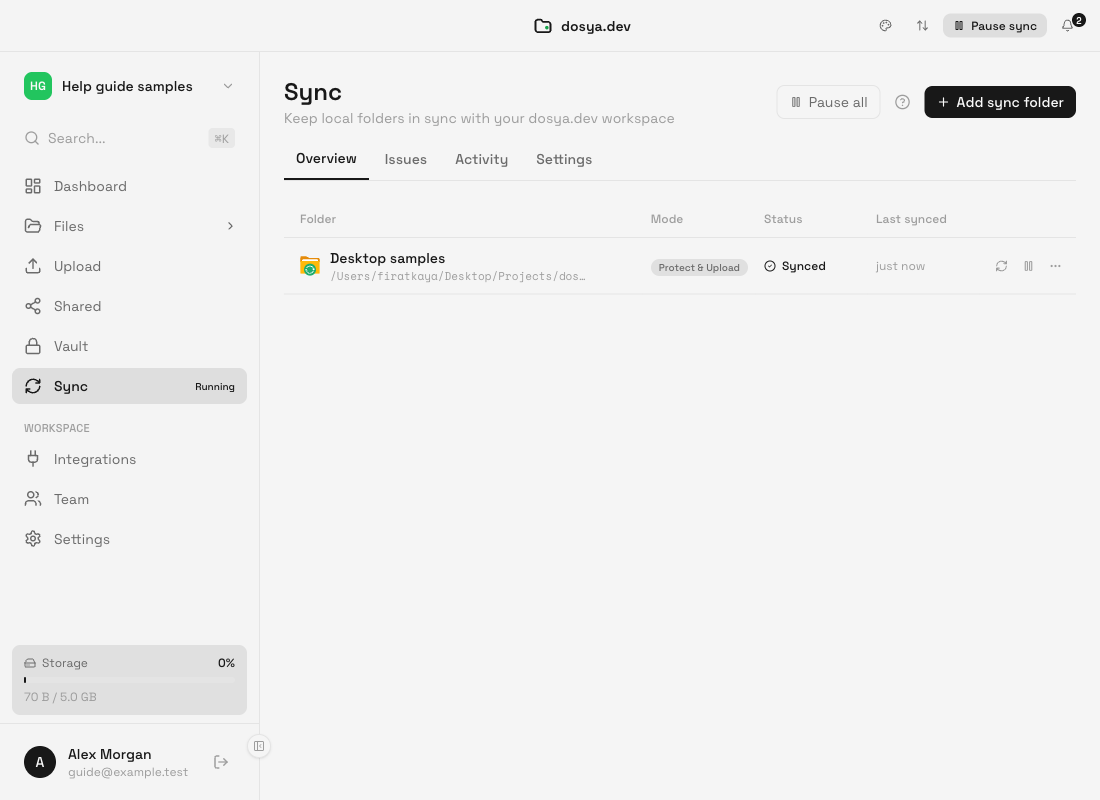
The pairing appears in Overview with the cloud folder, local path, Mode, Status and Last synced. For the sample upload, wait until activity settles, then open the same cloud folder in Files or the web app. Confirm the sample filename, download it and compare it with your original.
Also check Issues and any per-file notice. A row can say Synced while reporting a file that did not sync; the status label alone is not proof that every file reached the destination.
Pause, resume or stop a pairing
Use the folder row’s pause or resume control for one pairing. Pause all stops transfers across pairings; resume them when you are ready. Sync now requests a fresh sync cycle for a row.
Open the row’s three-dot menu for Open folder and Remove. Remove stops the pairing and clears its sync configuration; it does not delete the existing local or cloud files. Check that transfers have stopped before changing the relationship between the two folders.
Limitations
The chosen mode governs direction, updates and deletions. Protect & Upload preserves cloud files when local files are removed, but changed local files can still update cloud versions. It is not an immutable archive or a substitute for a separate backup.
Transfers run while the desktop app and computer can run them. Sleep, network loss, inaccessible external drives, paused sync, storage limits and permission changes can delay completion. Excluded items and unsupported virtual system folders are skipped. Vault uses a separate workflow.
Troubleshooting
Continue is disabled. Select a local folder through Browse and confirm the picker. Check that its path appears beside Browse.
A file is missing from the cloud folder. Verify the workspace, destination, mode, exclusion patterns and Issues. Check that the local file is inside the chosen folder, rather than beside it.
The new pairing is missing or does not start. Refresh the Sync view, check the workspace and any paused state, then restart the app if needed. In this local verification, the first pairing required an app restart before the engine began transferring. Do not add the same pairing repeatedly while checking its saved state.
Transfers remain stalled. Check connectivity, storage and access to the local drive. Use Sync now after correcting the cause. Share the mode, error text and sample filename with support; omit credentials and private file contents.
I need a different mode or exclusion list. The current Overview has no editor for those saved settings. Pause and remove the pairing, then recreate it with the intended choices. Review the files already on both sides first; a recreated pairing makes a new comparison.
Frequently asked questions
Does Remove delete my files?
It removes the sync pairing. Existing local and cloud files remain.
Why is an excluded file missing?
Exclusions deliberately skip matching paths. Review them in Advanced when creating the pairing.
Can I use a whole workspace as the destination?
Yes, by selecting Root (entire workspace). A dedicated folder is easier to verify for a first test.
Related guides
Was this helpful?
Loading helpfulness results…
Voting saves a necessary ballot cookie for up to 180 days so you can change your answer.
Questions and replies
Ask about the steps in this guide. Questions are reviewed before publication.
Keep account details, credentials and private files out of public questions. Use private support for those.
Loading questions…
Sign in to your Dosya account to ask a question.