Review a pending plan downgrade
Review a confirmed lower-tier plan change, its immediate storage result and proration, then correct it before quota blocks future uploads again.
Last reviewed
Dosya does not expose a deferred tier-downgrade queue. A lower plan submitted through Change plan is an existing-subscription update; period-end scheduling belongs to full cancellation.

Steps
- Open Billing and check whether the page shows the new plan or the amber cancellation state.
- For a tier reduction, review the mandatory warning: This replaces your [current] plan ([capacity]) with [new] ([capacity]). Submit only after that explicit confirmation.
- On success, inspect Plan updated, the new plan/interval, Next invoice, and Total limit. Stripe creates prorations for the item change.
- For cancellation, look instead for Cancelling, Ends [date], and Resume subscription. Storage remains paid through the end date plus 14 days of grace.
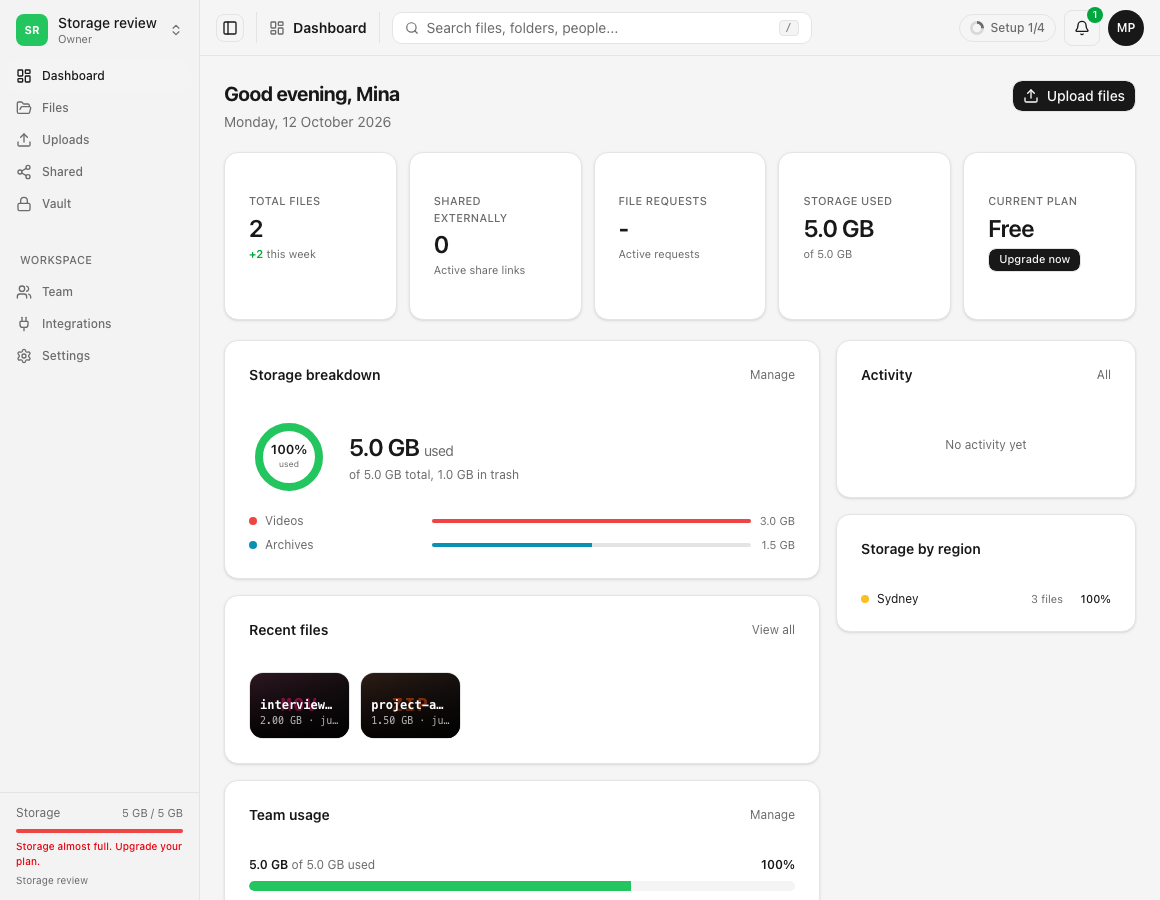
- Compare current usage with the effective post-change limit and correct the plan immediately if the account is now over quota.
Custom admin-granted subscription items are preserved during self-service plan changes. Add-on quantities come from the submitted cart and may change independently of the base tier.
Expected result
The interface clearly identifies either an already-applied plan replacement or a scheduled whole-subscription cancellation; there is no ambiguous “pending downgrade” state.
If the wrong tier became active, reopen Change plan and restore the intended plan. That recovery may create a second proration, so retain both receipt states for reconciliation.
Related guides
Was this helpful?
Loading helpfulness results…
Voting saves a necessary ballot cookie for up to 180 days so you can change your answer.
Questions and replies
Ask about the steps in this guide. Questions are reviewed before publication.
Keep account details, credentials and private files out of public questions. Use private support for those.
Loading questions…
Sign in to your Dosya account to ask a question.