Verify a plan or storage change after checkout
Read the checkout success state, wait for billing synchronization, confirm the receipt and storage total, and avoid duplicate purchases.
Last reviewed
After checkout, the success page synchronizes billing and counts from the previous allowance to the new total. Wait for that state before attempting another purchase.
Before you start
- Keep the checkout receipt and browser tab.
- Know the previous plan or storage total.
- Do not repeat payment while synchronization is still active.
- Use Billing as the final account ledger.
Steps: confirm the change
- Wait for the checkout success page to finish adding storage.
- Read the plan or package name and new total.
- Review receipt rows and purchase reference.
- Open Billing from the success page.
- Confirm subscription status and the matching ledger contribution.
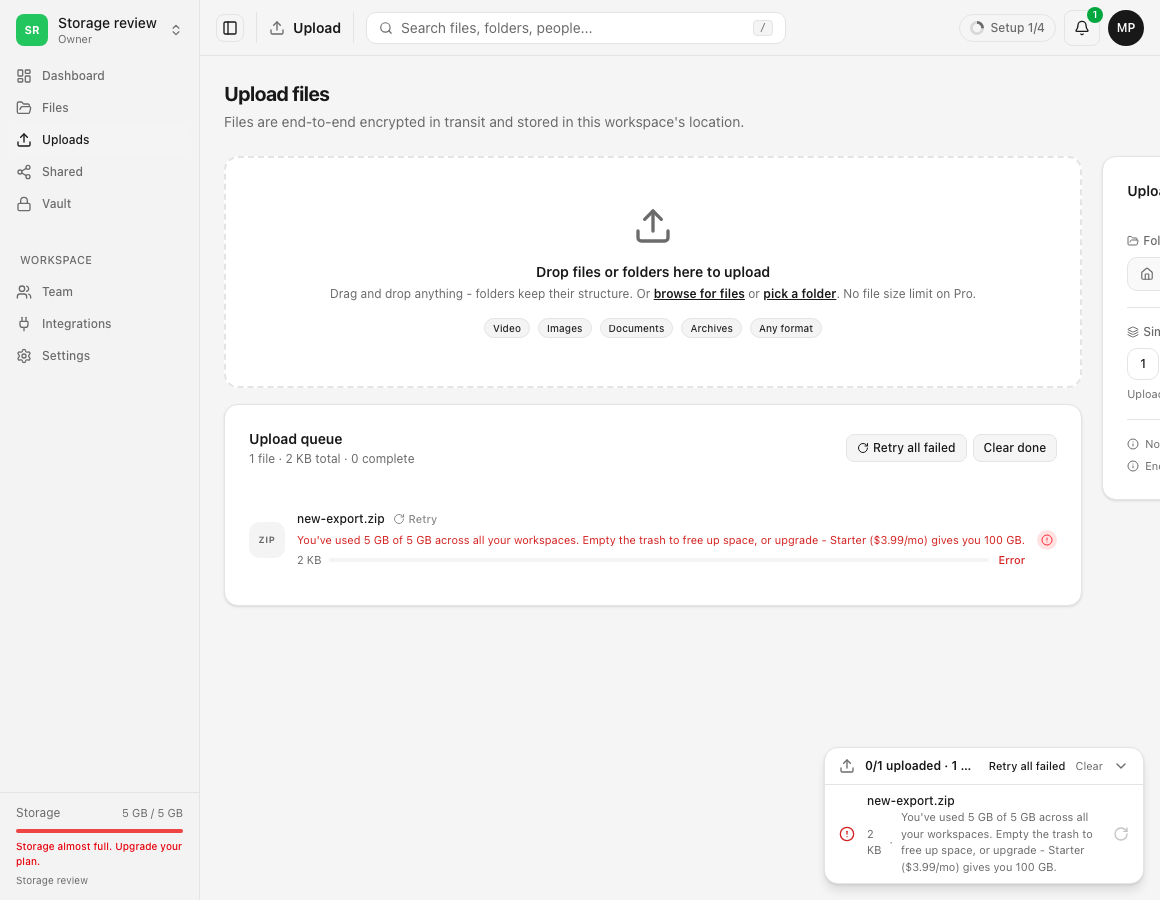
- Retry the blocked upload only after the new allowance is visible.
Expected result
The success page settles, Billing shows the new plan or contribution, and the total storage limit increases as purchased.
Limits and important details
- Synchronization can take a short time.
- A receipt does not override workspace-specific caps.
- The exact refund and billing terms are those displayed at purchase.
- A canceled checkout should not be treated as a successful plan change.
Troubleshooting
The page still says Adding your storage. Wait, then reload once before taking another payment action.
A receipt exists but Billing is unchanged. Preserve the session or receipt reference and contact private support.
Uploads still fail. Compare the new account limit with workspace caps and used storage.
Related guides
Was this helpful?
Loading helpfulness results…
Voting saves a necessary ballot cookie for up to 180 days so you can change your answer.
Questions and replies
Ask about the steps in this guide. Questions are reviewed before publication.
Keep account details, credentials and private files out of public questions. Use private support for those.
Loading questions…
Sign in to your Dosya account to ask a question.