Document suspicious account activity for support
Capture the session time, device, browser, available IP and location evidence support needs while keeping passwords, codes, cookies and keys private.
Last reviewed
Use Profile → Sessions to identify an unfamiliar login before contacting support. The list is account-wide and requires an authenticated browser session.

Steps
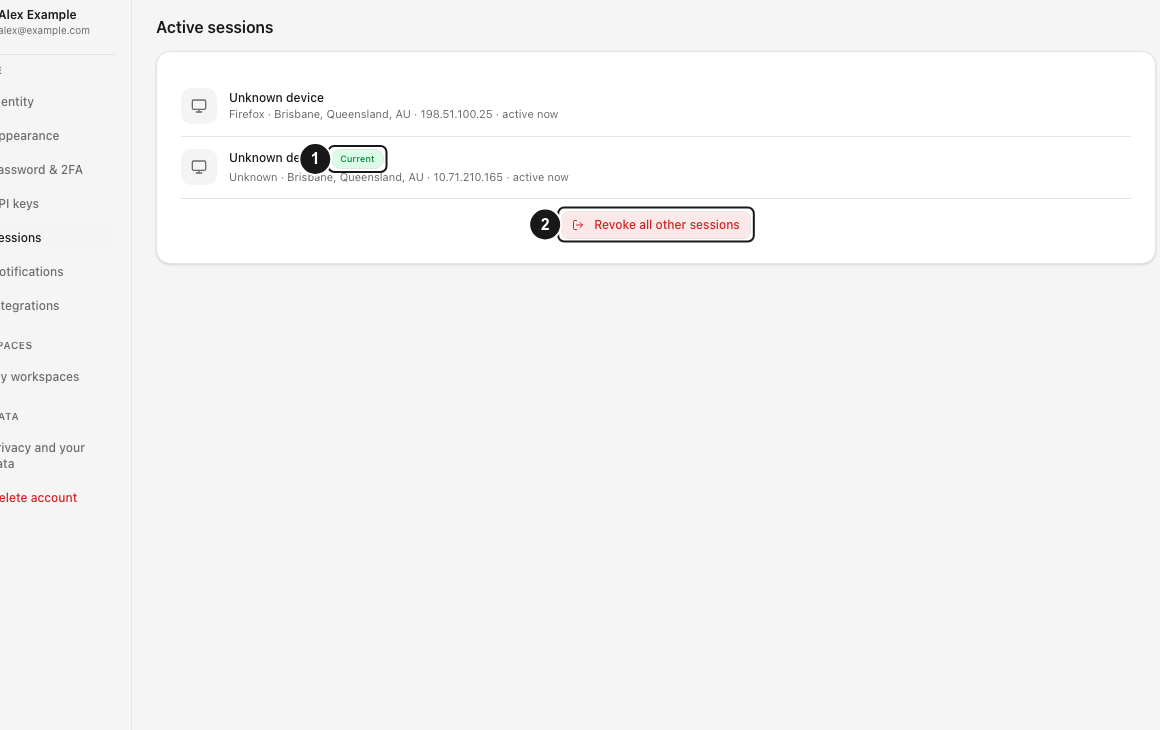
- Find the questionable row under Active sessions. Record its displayed device, browser, available IP/location, and relative activity time; note whether another row carries the Current badge.
- Capture the time zone shown by your device and the exact Dosya URL or workspace/file identifier involved. Describe the action you observed and its first and most recent occurrence.
- Save relevant notification or error text verbatim. Include a redacted screenshot when it clarifies which row or resource is affected.
- Select Revoke all other sessions when you do not recognize one or more noncurrent sessions. Success reports Sessions revoked and signs those sessions out; the current session remains.
- Send support the evidence through the private support route. Exclude passwords, email verification codes, two-factor codes, recovery keys, API keys, session cookies, share passwords, and full payment-card details.
A successful bulk action deletes other browser sessions, marks other mobile tokens revoked, and schedules their cache invalidation; it cannot restore work an affected device had not saved. If the suspicious row is the current session, secure the account from another trusted device and change the password, because the bulk control intentionally preserves the session making the request.
Expected result
Support receives a reproducible timeline tied to a specific session and resource, while reusable credentials remain undisclosed. After revocation, the current browser session remains, as do caller-linked Files or File Provider credentials for that same device and any sessions authenticated afterward.
If Sessions shows No sessions or does not load, reload while still signed in and record the failure time. A failed bulk action reports Revoke failed with the server message; do not assume the other devices were signed out until Sessions revoked appears.
Related guides
Was this helpful?
Loading helpfulness results…
Voting saves a necessary ballot cookie for up to 180 days so you can change your answer.
Questions and replies
Ask about the steps in this guide. Questions are reviewed before publication.
Keep account details, credentials and private files out of public questions. Use private support for those.
Loading questions…
Sign in to your Dosya account to ask a question.