Verify storage after cleanup
Confirm permanent deletion released workspace storage, distinguish Trash from purge, and reconcile bytes after versions and concurrent activity settle.
Last reviewed
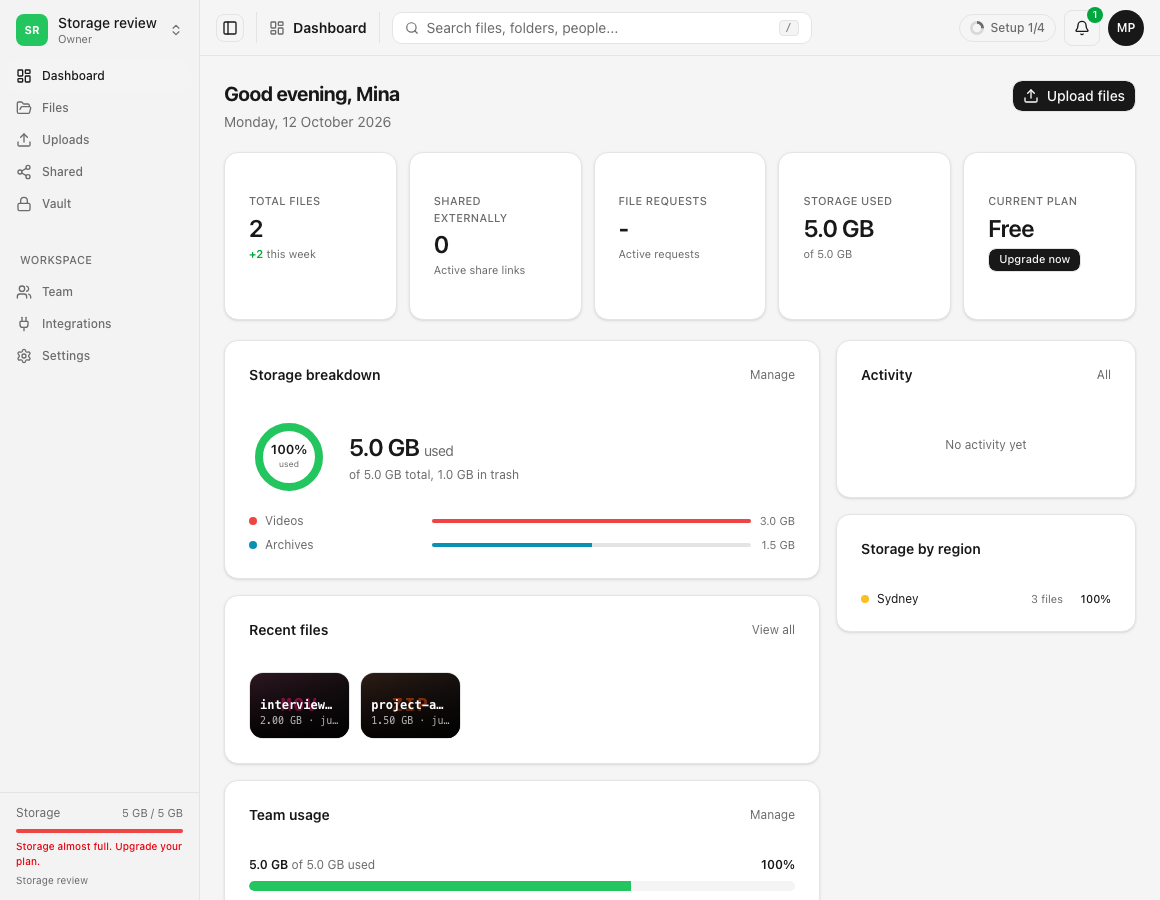
Moving a file to Trash does not reduce storage_used_bytes. Capacity returns only when the stored object and charged versions are permanently purged, an irreversible operation.

Before you start
- Select only disposable items and record their file plus version sizes before acting.
- Pause or account for uploads, copies, imports, and version creation during the measurement.
- Permanent deletion cannot restore the file, its versions, share context, comments, or related history.
Steps
- Open the destination workspace’s storage view and record its used bytes before cleanup.
- Move the selected item to Trash and confirm the used value does not decrease at this stage.
- Review the Trash selection again, including folders and every contained file or stored version.
- Choose the permanent delete or empty-Trash action and confirm the irreversible prompt.
- Wait for the purge and storage-counter update to complete, then refresh the workspace and account views.
- Subtract the new value from the baseline and reconcile the result with purged bytes plus any concurrent storage changes.
What frees capacity
Trash preserves content for recovery and therefore remains charged. The purge path removes stored objects, file rows and relevant versions, then decrements the workspace counter without allowing it below zero. Version-retention pruning can also release bytes independently.
A displayed total can be rounded, and cached preflight quota hints can lag by up to about 60 seconds. Use exact sizes and a quiet test window for a precise comparison.
Expected result
The used counter remains unchanged after trashing, falls only after permanent purge, and the measured difference is explainable from deleted versions and any concurrent writes.
Troubleshooting
Usage did not change. Confirm the item was permanently deleted rather than left in Trash, then refresh after the quota cache window.
The reduction is smaller than the visible file size. Check whether some versions or folder contents remain and whether new uploads occurred.
The reduction is larger than expected. Version pruning or another administrator’s cleanup may have happened concurrently; use activity timestamps and exact item records.
Related guides
Was this helpful?
Loading helpfulness results…
Voting saves a necessary ballot cookie for up to 180 days so you can change your answer.
Questions and replies
Ask about the steps in this guide. Questions are reviewed before publication.
Keep account details, credentials and private files out of public questions. Use private support for those.
Loading questions…
Sign in to your Dosya account to ask a question.