Understanding storage usage and failed quota checks
Read the active workspace’s storage total, account for retained versions and trash, and choose a safe cleanup or capacity action.
Last reviewed
The storage indicator belongs to the active workspace, while the owner’s plan storage is shared across all workspaces they own. An upload must fit both the account-wide entitlement and any tighter workspace or member limit.
Retained file versions count toward storage. Files in Deleted also continue using storage so they can be restored; their bytes are released only when they are permanently purged by you or the retention process.
Before you start
- Confirm the active workspace name. Switching workspaces changes the sidebar and dashboard figures you are viewing.
- Keep a copy of anything you may need. Permanent deletion and expired retention cannot be undone through the restore workflow.
- Record the exact upload error before clearing its queue row.
- Check the current Free plan allowances or live pricing page for the account’s capacity.
- Ask an owner or admin about Hard limits when you cannot view workspace settings.
Steps: inspect the active workspace
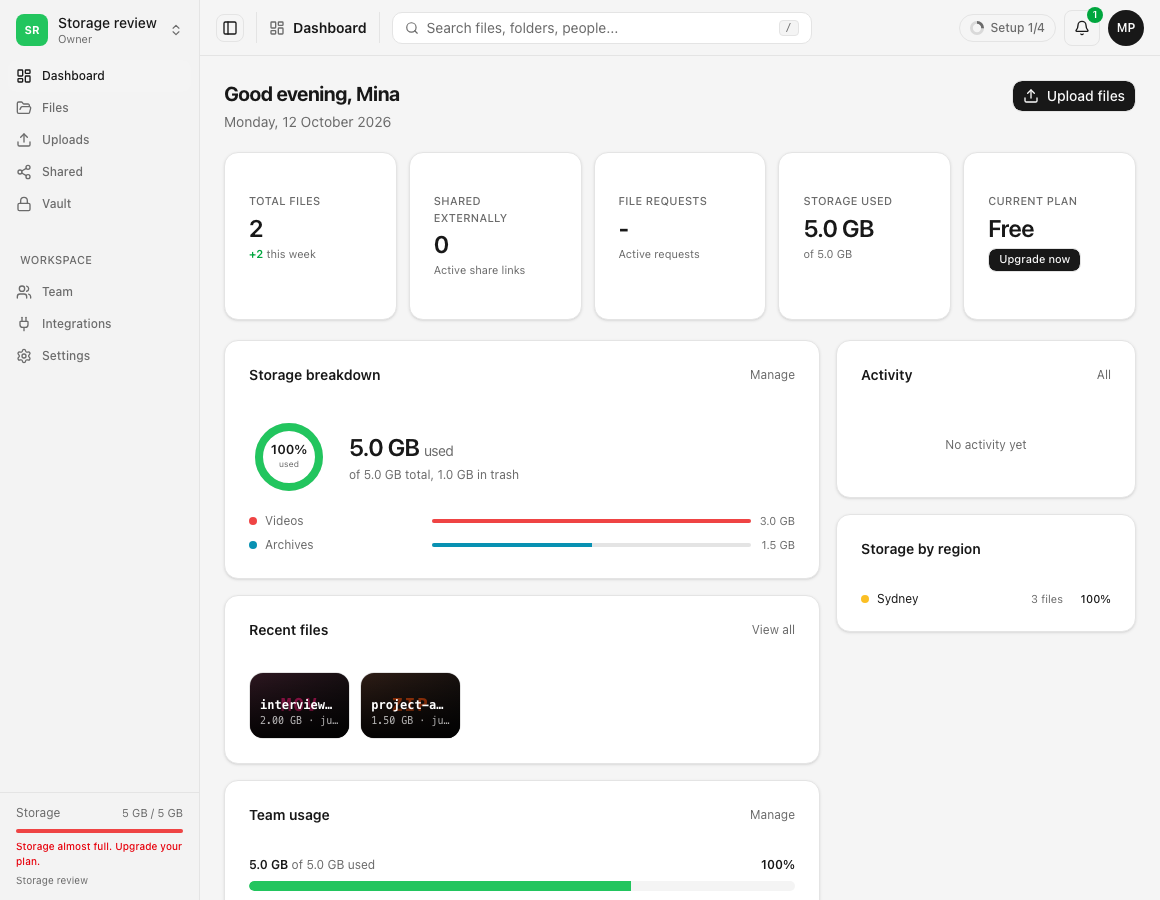
- Read Storage at the bottom of the sidebar. It shows used and effective total capacity for the active workspace.
- Open Dashboard and find Storage used and Storage breakdown.
- Note any explicit amount in trash. Deleted items remain restorable because they still occupy storage.
- Compare the category bars with the total. The categories describe current and trashed file types; retained historical versions can make the total larger than the visible current files suggest.
- If the workspace belongs to a team, review Team usage and any per-member storage policy. Your own visible files may not be the only use of the pool.
Steps: identify which limit refused the upload
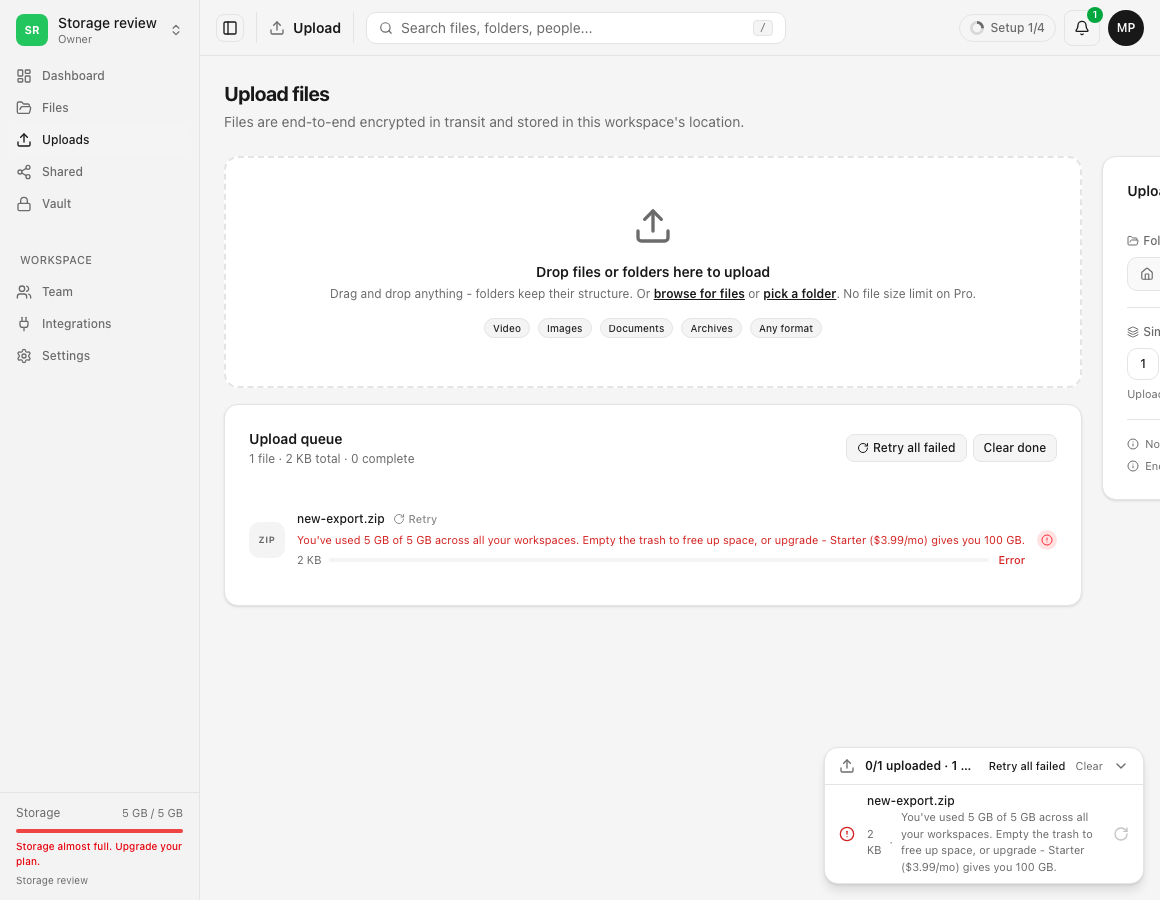
- Read the upload row’s complete error in Uploads → Upload queue.
- If it says you have used the plan capacity across all your workspaces, check every workspace you own. A nearly empty active workspace can still be blocked by account-wide usage elsewhere.
- If it names this workspace and a storage limit, ask an owner or admin to review Settings → Hard limits → Total workspace storage cap.
- If it names a member limit, review Storage per member and which member uploaded the retained data.
- If it names a maximum file size or blocked type, storage cleanup will not resolve that different policy. Follow the stated rule.
- After correcting the applicable limit, retry the failed row once while the original file is still available.
Steps: free storage safely
- Review current files first. Download or otherwise preserve anything required by your retention policy.
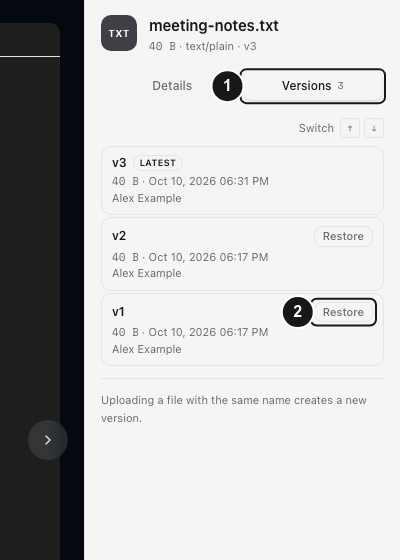
- Review version history. Open a file’s menu and choose Version history. Each stored version is a full retained object for quota purposes. Download a needed version before removing or allowing it to expire.
- Review Deleted. Open Files → Deleted. Ordinary Delete moved these items to trash and did not free their bytes.
- Restore mistakes before purging. A restore does not need extra quota because the trashed bytes never left the storage count.
- Permanently delete only verified items. Use Delete permanently for selected trash items when immediate removal is intended. This removes recovery and releases their measured storage after the purge completes.
- Refresh the workspace figures after cleanup settles. If policy requires keeping the data, add capacity or have an owner adjust a tighter workspace allocation instead of deleting it.
Expected result
You can reconcile the active workspace’s current files, retained versions and trash with the storage total, then identify whether the upload was blocked by account capacity, a workspace cap, a member limit or a different file policy.
After a successful permanent purge or capacity change, the relevant headroom increases and a permitted upload can start. A normal download can remain available while uploads are blocked because reading an existing file does not add stored bytes.
Limits and accounting behavior
- The owner’s plan entitlement is account-wide across workspaces they own. An explicit workspace cap limits that workspace further; it does not create extra plan storage or reserve bytes from sibling workspaces.
- Every retained version counts. Uploading a new version adds the full size of that version, rather than only the difference from the previous version.
- Soft-deleted files and folders count until permanent purge. This guarantees that restoring them does not need capacity that may have been reused meanwhile.
- Scheduled retention removes eligible old versions and trash according to the current plan and workspace policy. The process is not a promise of an immediate byte-for-byte update at a chosen second.
- Cached previews and transfer fragments are implementation details. Use the product’s storage figure and exact refusal rather than estimating from local filenames alone.
- Storage capacity is separate from daily transfer or request allowances. Free plan protocol and share-link limits can pause transfer without saying the storage is full.
Troubleshooting
The dashboard total is larger than my current files. Check retained versions, Deleted, other team members and other file categories. Historical versions and trash can explain bytes that are not visible in the main live-file list.
I deleted files but storage did not fall. Ordinary Delete moves them to Deleted so they remain recoverable and continue using quota. Permanently purge only the items you have verified, then allow the dashboard to refresh.
The active workspace looks empty but the error says all workspaces. The owner’s plan is shared across owned workspaces. Switch through those workspaces and inspect their storage, versions and trash.
I can download but cannot upload. A download reads an existing object; an upload needs new capacity and passes workspace policy checks. Read the upload refusal for the limiting condition.
The file is smaller than the displayed free space but is refused. Check the account-wide headroom, workspace total cap, per-member storage, maximum file size and file-type rules. The smallest applicable headroom wins.
Permanent deletion completed but the value still looks wrong. Refresh once after the operation settles and confirm the active workspace. Record the time, workspace, deleted items and current figures, then contact support without sending private file contents.
Frequently asked questions
Do old versions count toward storage?
Yes. Every retained version counts by its full stored size until version pruning or permanent file purge removes it.
Do deleted files count toward storage?
Yes while they remain in Deleted. Their bytes are released when the items are permanently purged, either by an authorized action or the applicable retention process.
Why can I download files but not upload more?
Downloading reads data already stored. Uploading adds bytes and is refused when the account, workspace, member or file policy would be exceeded.
Does restoring a deleted file need free space?
No additional storage reservation is needed for the restore because the trashed file continued counting while it was deleted.
Related guides
Was this helpful?
Loading helpfulness results…
Voting saves a necessary ballot cookie for up to 180 days so you can change your answer.
Questions and replies
Ask about the steps in this guide. Questions are reviewed before publication.
Keep account details, credentials and private files out of public questions. Use private support for those.
Loading questions…
Sign in to your Dosya account to ask a question.