Grant sharing permissions in a custom role
Configure custom-role sharing access for creating, viewing, managing, and analyzing links, then test exactly which controls a member receives.
Last reviewed
Sharing access is split across four switches so a role can create links without seeing every colleague’s links, or audit workspace-wide links without receiving unrelated file-administration powers. Configure these controls as a set and test them from a member account.

Choose the permission set
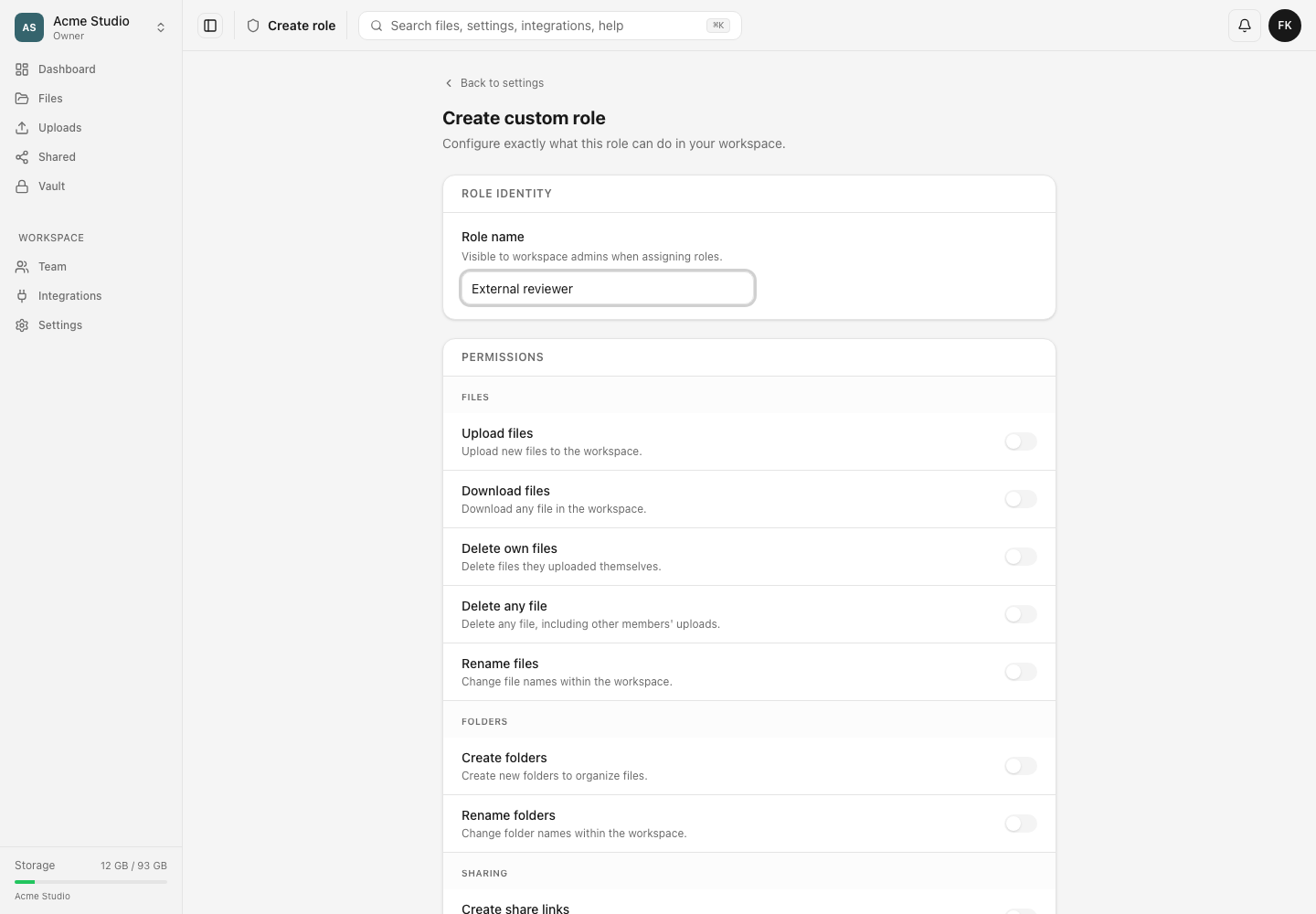
In Create custom role or Edit custom role, the relevant switches are:
- Create share links displays sharing actions and permits public or private link creation for accessible files and folders.
- View own shared links lets a member see statistics for links they created and edit or revoke those links.
- View all shared links exposes links created by any workspace member and authorizes management and analytics for another creator’s link.
- Access Shared opens the Shared page. Without it, that page is denied even when another sharing capability is enabled.
Page access and action access are independent. A member who has Access Files plus Create share links can use the Share control from Files even if Access Shared is off. Conversely, Access Shared alone does not reveal link rows; the role also needs View own shared links or View all shared links.
Use View own shared links for ordinary creators. Add View all shared links only for people responsible for organization-wide link review. Hiding a target can remove its link from that member’s view; a full lock can make the recipient URL unavailable. Broad share visibility does not bypass those controls.
Steps
- Open Workspace settings, find the custom role under Existing roles, and select Edit.
- Scroll to the Sharing group and enable Create share links, View own shared links, or View all shared links according to the responsibilities above.
- In Page access, enable Access Shared when the member should use the workspace link dashboard.
- Review Access Files and Download files separately. Sharing switches do not automatically grant file browsing or downloading.
- Select Save changes and confirm Role updated — The role and its permissions have been saved.
- In a session belonging to a member with that role, reload Dosya and open Files and Shared.
- Create a disposable link only if Create share links should be allowed. Then check whether the session can see its analytics, edit it, and revoke it.
- When View all shared links is intended, verify one controlled link created by a different member; otherwise confirm that link is absent or refused.
Administrative rules and effects
Editing a custom role requires Manage roles. Newly enabled permissions cannot exceed those held by the editor. A refused save returns You can’t grant permissions you don’t hold yourself: …, identifies the rejected rows, and leaves those grants unapplied.
Changing the role definition affects every current holder rather than one member. When at least one permission moves, holders receive an in-app Your permissions in workspace changed notice naming the editor, role, gained capabilities, and removed capabilities. Because a lost sharing permission can interrupt active work, ask members to reload before validating controls.
The change is reversible by another authorized role manager, but access is enforced during the interval. Revoking a share link during testing is irreversible: the same public URL cannot be restored, so create a disposable link rather than using an active recipient-facing link.
Troubleshoot the test
- A missing Share action usually means Create share links is off or the Files page itself is unavailable.
- An empty or refused Shared page can mean Access Shared is disabled, or neither view permission is present.
- Analytics for the member’s own link requires View own shared links or the broader View all shared links.
- Editing, analyzing, or revoking another member’s link requires View all shared links; ownership plus View own shared links covers only the creator’s records.
- If the old controls remain after a successful save, reload the member session and retry after the permission cache refreshes.
Expected result
The test member can create links, open the Shared page, inspect analytics, and manage records only to the extent enabled by the four selected controls, with other members’ links withheld unless workspace-wide visibility was granted.
Related guides
Was this helpful?
Loading helpfulness results…
Voting saves a necessary ballot cookie for up to 180 days so you can change your answer.
Questions and replies
Ask about the steps in this guide. Questions are reviewed before publication.
Keep account details, credentials and private files out of public questions. Use private support for those.
Loading questions…
Sign in to your Dosya account to ask a question.