Change a workspace member role
Change another workspace member’s role, respect the permission ceiling, and verify when the new access and role-change notices take effect for them.
Last reviewed
Changing a role replaces the member’s workspace permission map. A promotion can expose more files or administration controls; a downgrade can immediately remove upload, sharing, download, page, or protocol access. Review the actual permissions in a custom role rather than relying on its name.

Who can change a role
The acting account needs Manage roles in the target workspace. The Team page itself also requires Access Team and View team members. The role selector appears only on another member’s non-owner row; your own row and the current owner remain labels.
Dosya applies a permission ceiling: every enabled permission in the target role must also be held by the person making the assignment. This rule covers built-in and custom roles. Owner never appears as an assignable choice because ownership moves through the separate transfer control.
Before a downgrade, confirm that a second trusted person will retain Manage roles. A user cannot change their own role, so someone who loses administrative access cannot restore it from that same account.
Steps
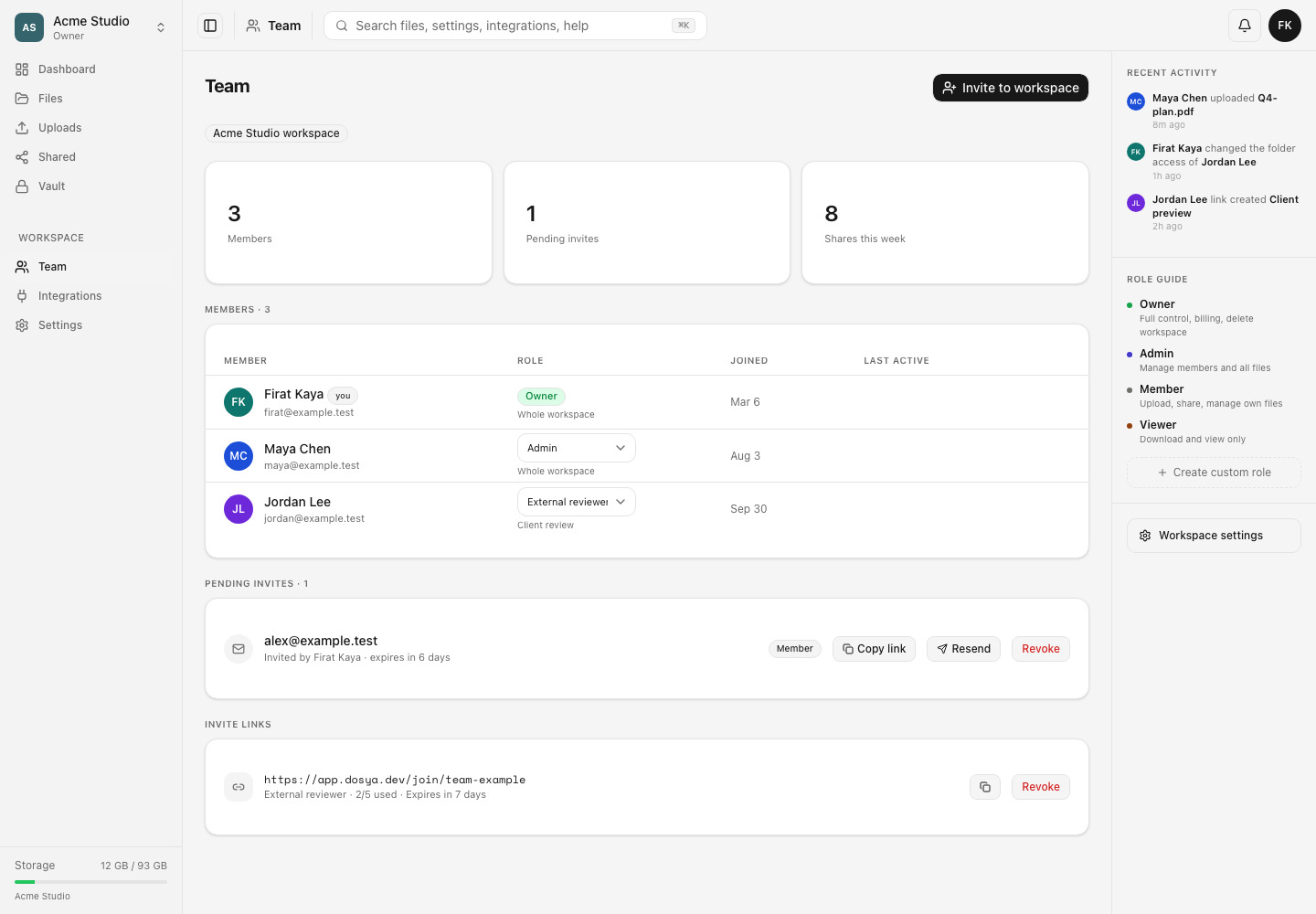
- Switch to the correct workspace and open Team.
- Under Members, find the person by name and email. Do not use the row marked you.
- Open the Role for member name selector in the Role column.
- Choose the intended built-in or custom role. Roles that exceed your permissions are omitted or disabled.
- Wait for the Role updated message, which names the member and their new role.
- Have the member reload any open Dosya tabs, then test one action they should retain and one they should no longer have.
What changes for the member
The new role is saved immediately. The affected member receives an important in-app notification, email, and push notification when enabled. The notice names the old and new roles, the actor, what access is now available, and permissions that were lost. Workspace administrators receive a separate in-app record of the change.
Changing only role_id preserves the member’s Limit to a folder setting. Role permissions and folder confinement therefore apply together: selecting a broader role does not expand the person beyond their assigned folder.
Open clients can retain an old permission result briefly. The member notification explicitly asks them to reload; distributed permission caches can take roughly 60 seconds to converge. If a correct role still behaves like the previous one, wait a minute, reload, and repeat a single representative action.
Resolve a refused change
- You don’t have permission to manage this member means the actor lacks Manage roles.
- You don’t have permission to assign this role means the selected role contains at least one permission the actor does not hold. Ask the owner to make the change or select a narrower role.
- You cannot change your own role protects against self-escalation and accidental self-lockout. Use another authorized account.
- Ownership is transferred, not assigned. Use the transfer control. Use workspace ownership transfer rather than this role list.
- Cannot change the workspace owner’s role. Transfer ownership first. Complete the transfer, then change the former owner’s role if needed.
- Invalid role can indicate a deleted role or a custom role from another workspace. Reload Team and choose from the current list.
A role change is reversible by another member who still holds Manage roles and satisfies the permission ceiling. Access removed during the interval remains unavailable until a permitted role is assigned again.
Expected result
The member row displays the selected role, permitted controls match its current permission map, its folder boundary remains as configured, and the member receives a notice describing the access change.
Related guides
Was this helpful?
Loading helpfulness results…
Voting saves a necessary ballot cookie for up to 180 days so you can change your answer.
Questions and replies
Ask about the steps in this guide. Questions are reviewed before publication.
Keep account details, credentials and private files out of public questions. Use private support for those.
Loading questions…
Sign in to your Dosya account to ask a question.