Choosing built-in and custom workspace roles
Compare Owner, Admin, Member and Viewer access, create a custom role, and assign a role without granting more access than intended.
Last reviewed
A workspace role determines which pages and actions a member can use. Start with the least powerful built-in role that fits. Create a custom role when the built-in choices include permissions the person does not need or omit a permission they do need.
Folder access is a separate boundary. A role answers what someone can do; a folder restriction answers which part of the workspace they can see.
Before you start
- Select the correct workspace and open Team.
- You need Manage roles to create custom roles, change another member’s role or set folder access.
- You can grant only permissions you hold yourself. This rule also applies to custom roles and invitation links.
- You cannot change your own role or assign Owner from the member role selector. Transfer ownership from Workspace settings when required.
- Review what the person actually needs across files, folders, sharing, Team, settings and protocol access.
Built-in roles
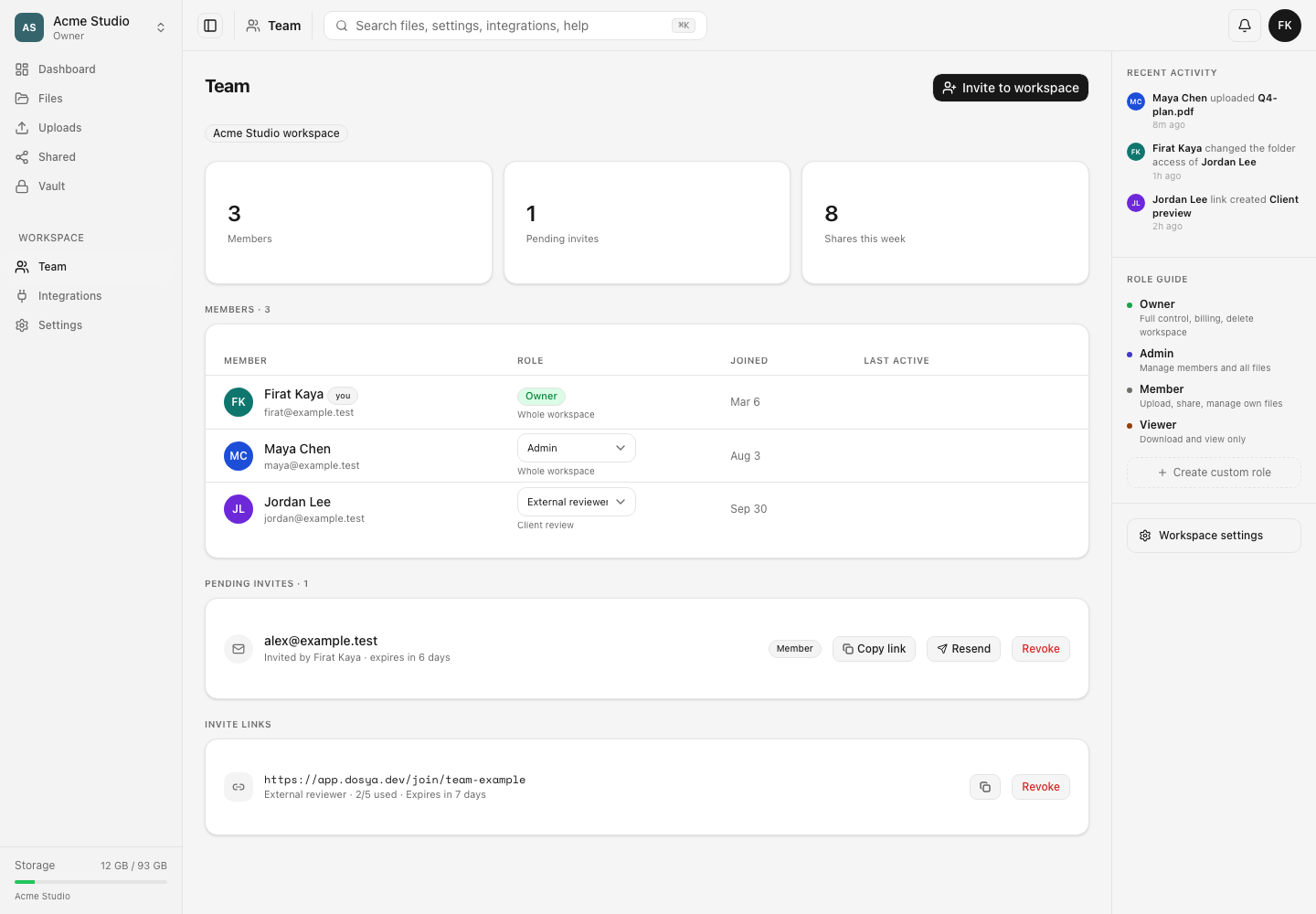
The Role guide on Team summarizes the built-in roles:
- Owner has full control, billing responsibility and the ability to delete the workspace. A workspace has one owner.
- Admin can manage members and workspace files. It is a powerful operational role.
- Member can upload, share and manage their own work under the workspace’s policies.
- Viewer is intended for viewing and downloading without write access.
The permission matrix in Settings → Roles & permissions is the authoritative view for the current workspace. Review it when a decision depends on a specific action.
Steps: change a member’s role
- Open Team and locate the person under Members.
- Open the role selector in that member’s row.
- Choose the new built-in or custom role.
- Wait for the Role updated confirmation.
- Check that the member row displays the new role.
- Ask the member to refresh or reopen the relevant page. Permission caches may take a short time to settle across active sessions.
A role with permissions beyond your own remains unavailable. The owner’s row is displayed as a badge because ownership uses the transfer workflow.
Steps: create a custom role
- On Team, select Create custom role in the Role guide. You can also open Settings → Roles & permissions and select Add role.
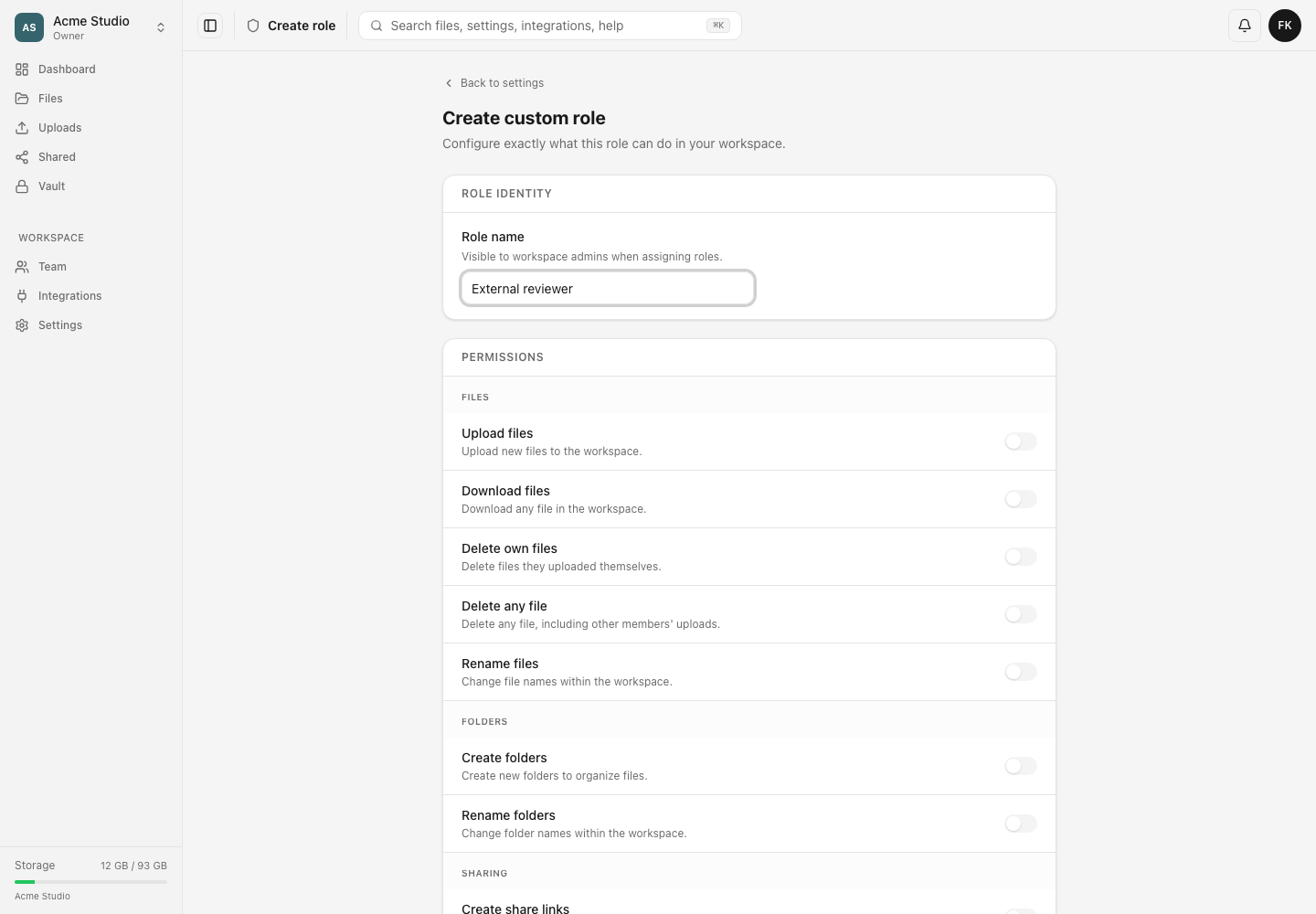
- Enter a clear Role name, such as “External reviewer” or “Upload coordinator.” Name the responsibility rather than a person’s name.
- Review each permission group and enable only the required actions.
- Include the necessary Page access permissions. For example, a file permission alone does not automatically make the Files page available.
- Review protocol access for WebDAV, S3 and SFTP. Leave each protocol off unless the role needs it.
- If needed, set role access conditions such as allowed IP addresses or active hours.
- If needed, set usage limits such as requests per minute, daily egress, maximum file size or concurrent transfers.
- Select Create role.
- Return to Team and assign the new role to a member, email invitation or invitation link.
Expected result
A changed member row shows the newly assigned role. A newly created custom role appears in the workspace’s role matrix and in eligible assignment and invitation selectors.
The member receives the intersection of the role’s permissions, workspace policies, any folder restriction and any access conditions. A role does not override those additional boundaries.
Limits and permission rules
- Owner is transferred, not assigned through a role selector or invitation.
- You cannot change your own role from Team.
- A custom role belongs to the workspace where it was created.
- You cannot grant a permission you do not hold.
- Built-in roles can be reviewed but are not edited like custom roles.
- Deleting a custom role can be refused while members or invitations still reference it. Reassign those references first.
- Removing a permission can immediately interrupt a member’s work. Review active transfers and integrations before making a broad change.
Troubleshooting
Manage-role controls are missing. Your current role lacks Manage roles, or the page is restricted. Ask the owner to make the change.
A permission switch is disabled. You do not hold that permission and therefore cannot grant it. An owner or sufficiently privileged administrator must create the role.
The role saves but a page is still unavailable. Review Page access alongside the action permission. Also check folder access, workspace policies and role conditions.
The member still appears to have the old access. Confirm the member row shows the new role, then have the person refresh the app or reconnect the client. If the behavior persists, capture the page, action and exact refusal message for private support.
The role cannot be deleted. Reassign members, pending invitations and active invitation links that use it, then try again.
Frequently asked questions
Can a custom role be more powerful than the person creating it?
No. The server checks the permissions of the person creating or assigning the role and refuses grants beyond that ceiling.
Does a Viewer automatically see every file?
A role alone does not define the visible tree. Hidden items, locks, workspace policies and an optional folder restriction can further limit access.
Can I reuse a custom role in another workspace?
No. Create and review the role separately in each workspace.
Related guides
Was this helpful?
Loading helpfulness results…
Voting saves a necessary ballot cookie for up to 180 days so you can change your answer.
Questions and replies
Ask about the steps in this guide. Questions are reviewed before publication.
Keep account details, credentials and private files out of public questions. Use private support for those.
Loading questions…
Sign in to your Dosya account to ask a question.