Understanding upload progress and transfer states
Read Queued, Uploading, Done, Error, Interrupted and Canceled states, then choose the action that matches the current transfer.
Last reviewed
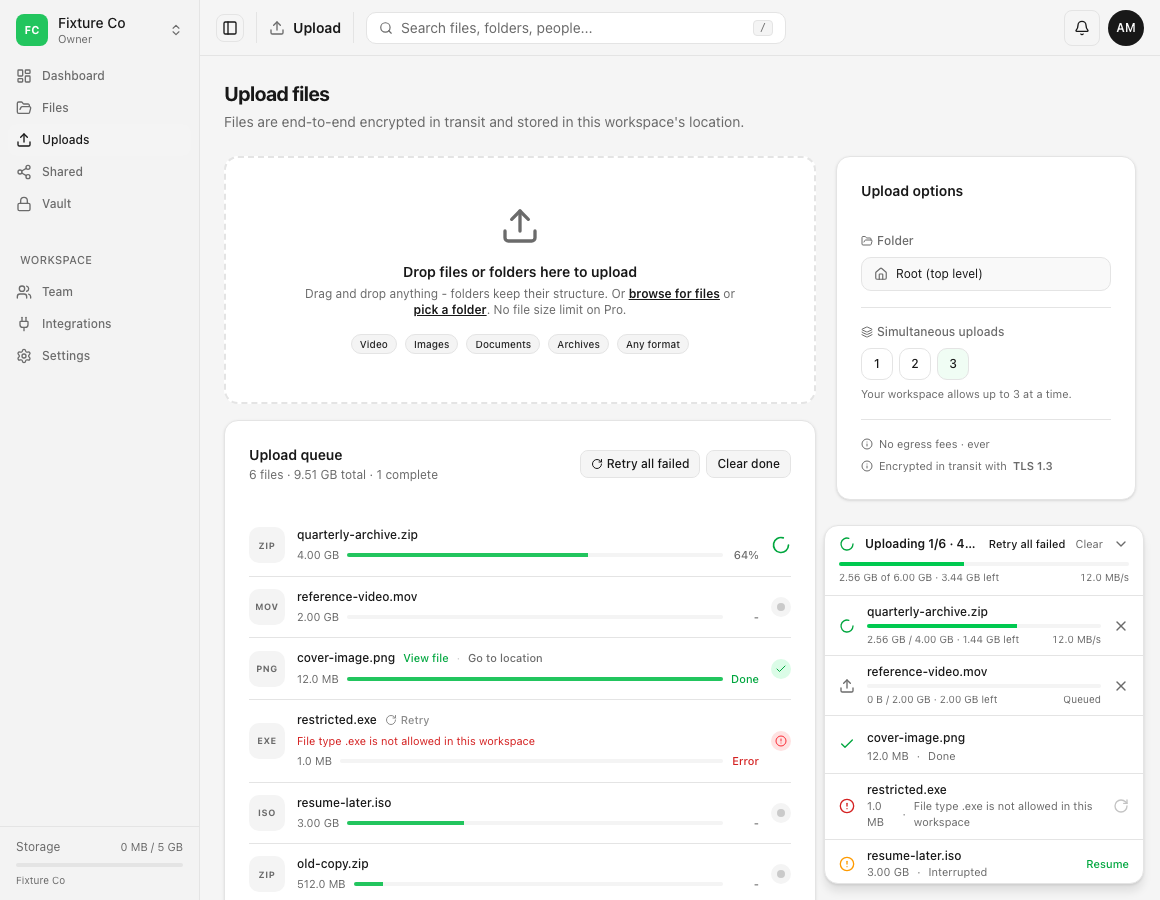
Use an upload’s current state to decide what to do. Queued waits for a transfer slot, Uploading is moving data, Done is complete, Error needs its cause corrected, Interrupted needs the original source selected again, and Canceled was deliberately stopped.
The current Dosya web queue uses Interrupted, not “Paused,” for a transfer that lost its browser source after a reload or similar interruption. Follow the label and action shown in your app; desktop or mobile surfaces can present their transfer controls differently.
Before you start
- Open Uploads in the active workspace and expand the small upload list at the bottom right if it is collapsed.
- Identify the exact filename and destination. Similar filenames can represent separate attempts.
- Keep the source file available and unchanged until you verify Done in Files.
- Do not clear a failed, interrupted or canceled row until you have recorded its message and checked the destination.
Steps: read the current state
- Find the file under Upload queue or in the upload list at the bottom right.
- Match its label to the table below. The state is more reliable than guessing from how long the row has been visible.
- Read the filename, transferred bytes, percentage and message together. A combined dock heading such as Uploading 1/6 · 43% summarizes the whole visible batch; inspect the individual row before taking action.
- Use only the action for that row: wait, Cancel, Retry, Resume, View file or Go to location.
- After any recovery action, wait for Done and inspect the stored file.
| Web state | Meaning | Appropriate action |
|---|---|---|
| Queued | The item is waiting for an available transfer slot. | Keep the tab open and let running items progress. Review simultaneous-upload limits if nothing starts. |
| Uploading | Dosya is transferring the file. Percentage, bytes and speed can change as work continues. | Keep the tab and device running. Cancel only if you intend to stop this attempt. |
| Done | The service completed this upload. | Use View file or Go to location, then verify the destination copy. |
| Error | The attempt failed with a stated cause. | Read and correct the cause, then use Retry when the source is still available. |
| Interrupted | The retained row no longer has direct access to its browser source, often after reload. | Select Resume and reselect the unchanged original file. |
| Canceled | A user stopped this attempt. | Check Files for a completed copy. Start a new upload if the file is still needed. |
Steps: monitor a running batch
- Leave Uploading rows running while their bytes or percentage continue to move.
- Let Queued rows wait behind the active transfers. Upload options → Simultaneous uploads controls how many the browser tries to run, and the workspace can enforce a lower cap.
- You may browse to another page inside Dosya; the bottom-right upload list remains available. Keep the tab open and avoid a reload during active work.
- If one row changes to Error, read that row’s message. Other files can continue and should not be restarted automatically.
- If a reload leaves a row Interrupted, choose Resume and select the same filename and size from your device. The name-and-size check helps locate the source but does not prove identical contents.
- Wait until every required row is Done or has a clearly understood exception.
Steps: confirm completion
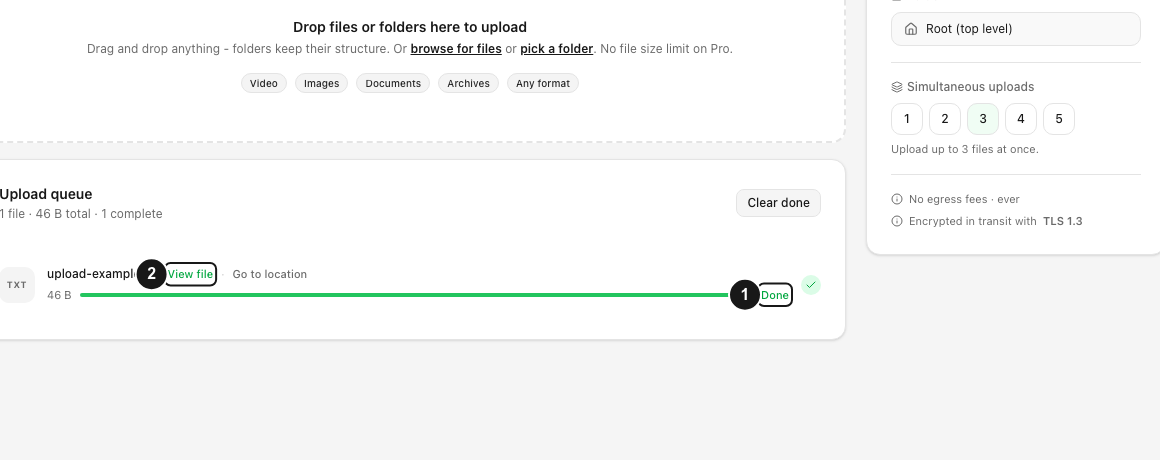
- Select View file beside a Done row, or Go to location for its folder.
- Check the active workspace, folder, filename and size in Files.
- Open or download important files and perform any integrity check your workflow requires.
- Use Clear done only after verification. It tidies queue history and does not remove uploaded files.
Expected result
You can tell whether a file is waiting, transferring, finished, failed, recoverable or deliberately stopped. You use the action attached to the affected row and verify a Done item in its destination instead of restarting the full batch.
Limits of the progress display
- Progress reports the current transfer attempt. It does not replace checking the destination file.
- Percentage, transferred bytes and speed can update at different intervals. A short pause in the number does not by itself establish failure.
- The batch heading summarizes several files. It can show one active upload while another row is queued, done or failed.
- Queue history is stored in the browser and can be cleared or lost. A row is not a permanent audit record.
- Web, desktop and mobile apps can use different layouts or labels. These instructions describe the current English web app.
Troubleshooting
A file remains Queued after others finish. Check whether another transfer still occupies a slot, whether the workspace’s simultaneous-upload cap is lower than your selection, and whether an active request is backing off after a temporary refusal. Keep the tab open. If no row progresses, record the messages before reloading.
The percentage has not moved. Check whether bytes or speed are changing and whether the connection is available. Give an active request time to finish its current part. If the row changes to Error, diagnose that message rather than adding a duplicate.
The page says Error. Resolve the named network, storage, permission, destination or file-type cause, then select Retry. See Troubleshooting a failed upload.
The page says Interrupted. Expand the bottom-right upload list and select Resume. Reselect the unchanged original file. If the saved session is no longer valid, Dosya can restart the upload rather than reuse prior progress.
The page says Canceled but I still need the file. Check Files first. If no completed copy exists, start a new upload from the original. A canceled attempt does not offer Resume.
A row says Done but I cannot find the file. Use View file or Go to location from that row and confirm the workspace. The upload keeps the destination selected when that attempt was added; changing the folder later affects new items.
Frequently asked questions
Can I use another Dosya page while an upload runs?
Yes. The global upload list can continue while you navigate inside the web app. Keep the browser tab open and the device awake.
Why is an upload pending after another file appears complete?
The previous request can still be releasing its slot, another item can be active, or the workspace can enforce a lower concurrency cap. Look at every row and allow a short transition before treating the queued item as stuck.
Is Interrupted the same as Canceled?
No. Interrupted can offer Resume after you reselect the original. Canceled records a deliberate stop; begin a new upload if no completed copy exists.
Related guides
Was this helpful?
Loading helpfulness results…
Voting saves a necessary ballot cookie for up to 180 days so you can change your answer.
Questions and replies
Ask about the steps in this guide. Questions are reviewed before publication.
Keep account details, credentials and private files out of public questions. Use private support for those.
Loading questions…
Sign in to your Dosya account to ask a question.