Prepare file names before uploading
Prepare names for Dosya sanitization, the 255-character limit, extension rules, and same-name versioning before starting a large upload batch.
Last reviewed
The web uploader sanitizes incoming names before validating them. Leading and trailing whitespace is trimmed, / and \\ become _, ASCII control characters are removed, and the complete names . or .. become _. The result must be at most 255 characters.
Workspace upload rules can allow or block extensions. Dosya derives the extension from the final suffix in lowercase. A same-name file in the same destination normally becomes a new version of the existing file; rename one source first when both should remain separate live items.

Steps
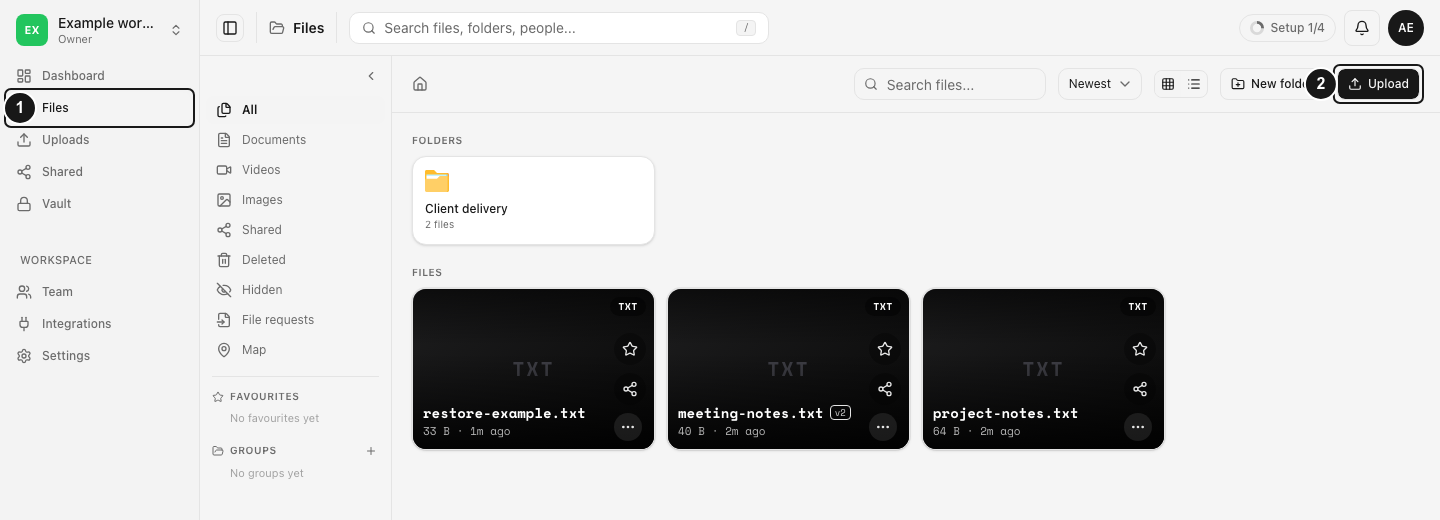
- Open the final Dosya folder and compare source names with existing live files; choose new names when a new version is not the intended outcome.
- Keep each file name at 255 characters or fewer after trimming, including the extension; longer results are rejected as Name too long (max 255).
- Replace path separators and ASCII control characters yourself when the exact stored spelling matters, because ingest would otherwise sanitize them automatically.
- Leave ordinary quotes, apostrophes,
<, and>intact when the local platform permits them; Dosya’s current single-segment policy does not reject those characters. - Confirm every final suffix satisfies the workspace’s allowlist or blocklist; files without an extension are reported as (no extension) when an allowlist requires one.
- Upload one sample, wait for Done, and choose View file to inspect the stored name; rename the local source before the larger batch if sanitization changed the intended label.
Expected result
Each accepted queue row has a recognizable, valid name and allowed extension. Distinct source names create distinct live items; an intentional exact match updates the existing item’s version history.
Folder uploads automatically skip .DS_Store, Thumbs.db, desktop.ini, and AppleDouble names beginning ._. A blocked suffix stays as an error row with File type .ext is not allowed in this workspace; an allowlist miss says it is not in the allowed list. Correct the local name, remove the refused row, and add the renamed source as a new upload rather than pressing Retry on unchanged input.
Related guides
Was this helpful?
Loading helpfulness results…
Voting saves a necessary ballot cookie for up to 180 days so you can change your answer.
Questions and replies
Ask about the steps in this guide. Questions are reviewed before publication.
Keep account details, credentials and private files out of public questions. Use private support for those.
Loading questions…
Sign in to your Dosya account to ask a question.