Remove a recipient from a file request
Remove a file-request recipient safely, understand why the public link may still work, and preserve files that the address already uploaded.
Last reviewed
Removing an email deletes its recipient record and invalidates the personalized identity token. It does not close the file request, erase that person’s completed uploads, or make the underlying public request URL private.

Decide whether removal is enough
Recipient removal is suitable when an address should disappear from invitation tracking or its personalized token should stop identifying uploads. The old invitation still contains the base public request URL and can open while the request remains active. With no recognized recipient token, the visitor may upload anonymously if they satisfy the current password and file rules.
To stop every further submission, revoke the request. To keep the request available to others while adding a shared secret, set or change its password. Removing one row alone does not guarantee that the person cannot reach a public link copied elsewhere.
Web, desktop, and mobile all support recipient removal. The mobile app shows Remove recipient? and explains that the address keeps files already uploaded. The web and desktop trash control removes the row without the same confirmation screen, so verify the exact email first.
Steps
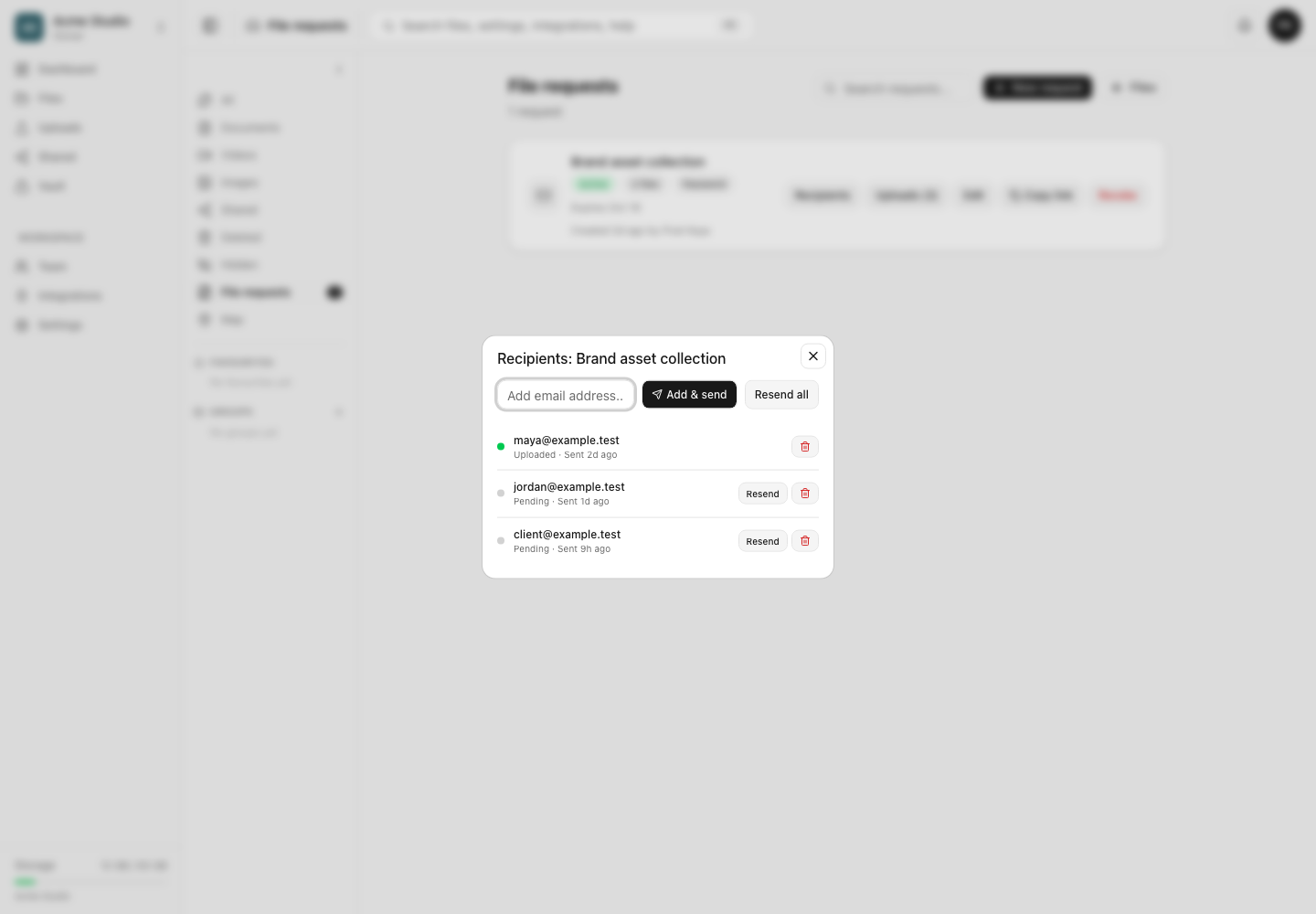
- Open the relevant request, then choose Recipients.
- Match the full email address and inspect whether its state is Pending or Uploaded. If it uploaded, identify the submitted files before removing the tracking row.
- Decide whether the public request should remain active. If no one should add files, revoke it instead of relying on recipient removal.
- On mobile, choose remove and approve Remove recipient?. On the web or desktop, select the trash control beside the address; the change is immediate.
- Refresh the recipients panel and confirm that the email is absent.
- Review Uploads to make sure prior files remain available. The removal endpoint does not delete them.
- When appropriate, test the old personalized invitation in a private browser. It should no longer resolve to that recipient identity, although the active base request may still load.
Permissions and permanent effects
The actor needs View all shares, or View own shares on a request they created, and the request must be within folder scope. Owners and Admins ordinarily have all-request management, Members ordinarily have own-request management, and Viewers have neither. There is no distinct plan restriction in the recipient deletion handler.
The recipient-row deletion itself cannot be undone. Adding the same address again creates a new row with a new personalized token; it does not restore the old token, sent timestamp, or uploaded state. Dosya does not notify the removed address.
Files that were already accepted stay in workspace storage and retain their upload records. Deleting a recipient is therefore different from deleting or withdrawing a file. It also leaves the request’s title, message, destination, expiry, password, extension rule, size maximum, and remaining slot count unchanged.
Expected result
The address vanishes from recipient tracking and its former token no longer supplies verified recipient identity. Earlier uploads remain with the workspace, and the public request continues accepting permitted submissions until it expires or is revoked.
Troubleshooting
The removed person can still open the link. This is expected for an active public request. Revoke the request to close it for everyone, or apply a password and share the new secret only with intended uploaders.
The row reappears or removal is unavailable. Reload the request and confirm the active workspace. You need appropriate own-share or all-share management and access to the request’s folder scope.
You removed the wrong address. Add that email again. The replacement receives a new personalized URL and begins with a fresh recipient status; the deleted token cannot be recovered.
Files seem to be missing after removal. Recipient deletion does not erase files. Check the request’s Uploads, the original destination folder, hidden-item visibility, and Trash. A separately deleted file may be in Trash, while the recipient operation itself never puts files there.
Related guides
Was this helpful?
Loading helpfulness results…
Voting saves a necessary ballot cookie for up to 180 days so you can change your answer.
Questions and replies
Ask about the steps in this guide. Questions are reviewed before publication.
Keep account details, credentials and private files out of public questions. Use private support for those.
Loading questions…
Sign in to your Dosya account to ask a question.