Changing or closing a file request
Edit a file request's instructions, destination, password, limits or expiry, or revoke its upload link while keeping files already received.
Last reviewed
Open File requests, select the request, then use Edit to change its settings or Revoke to stop future uploads. Revoking closes the public request link; it does not remove files that have already arrived in the destination folder.
Before you start
- Confirm that you are in the workspace that owns the request.
- Record the current destination, expiry and file rules. Changing them affects later submissions, so tell active uploaders what changed.
- Wait for any expected upload to finish before revoking. A request can be rechecked while a transfer is running, so closure can stop the unfinished transfer.
- You need permission to manage the request. A member who can only view requests cannot edit or revoke one.
- Download or inspect received files before changing the destination if their location matters to your workflow.
Steps: change a request
- Open File requests from the sidebar and select the request title.
- Check the status beside the title. Active accepts uploads, Expired has passed its deadline and Revoked has been closed.
- Select Edit. A revoked request no longer shows this action.
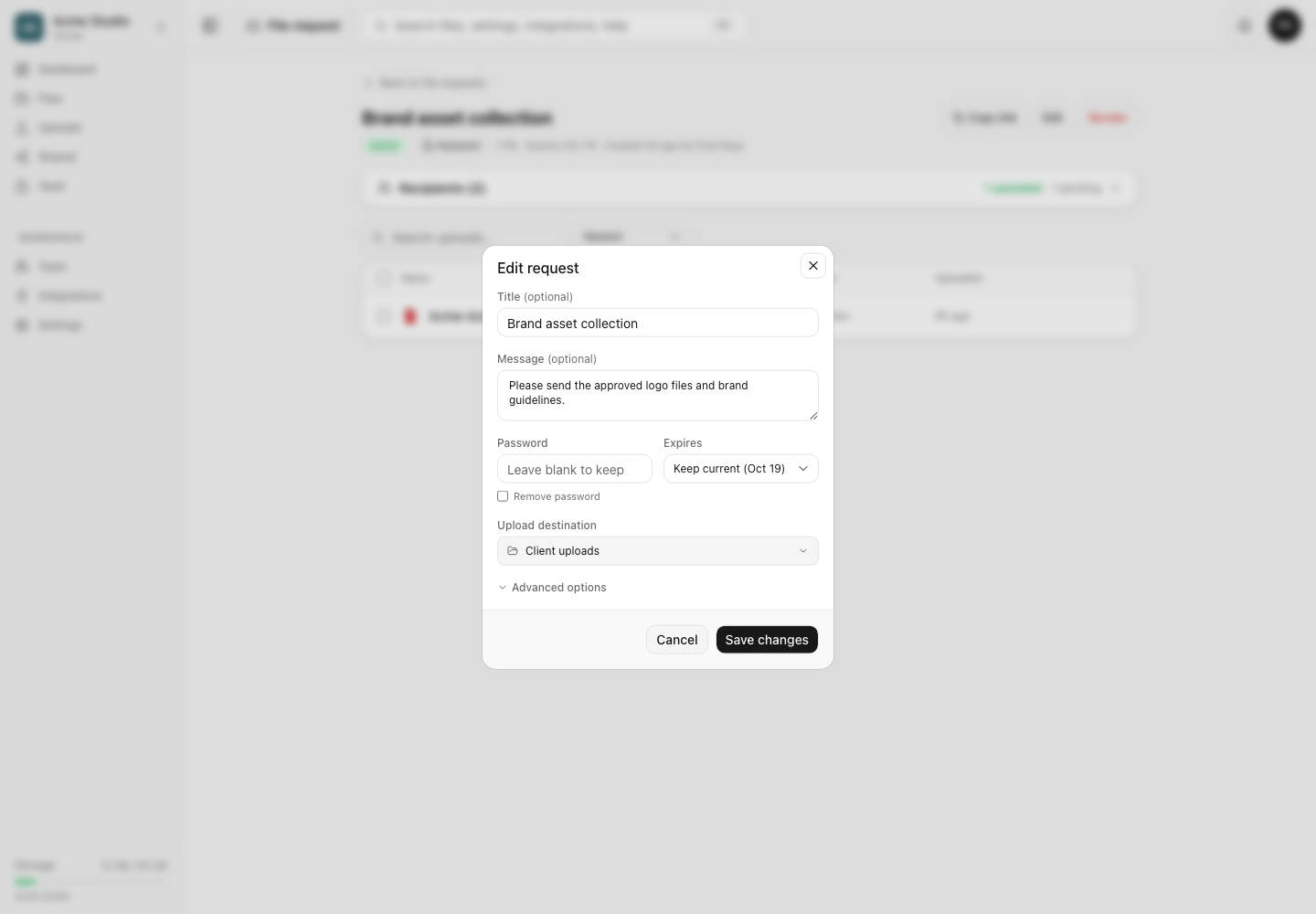
- Change only the fields you need:
- Title and Message change what an uploader reads.
- Password can be replaced, added or removed. Leaving the field blank keeps an existing password unless Remove password is selected.
- Expires can keep the current date, use a new preset or change to Never.
- Upload destination controls where later submissions are stored.
- Advanced options changes allowed extensions, the per-file size limit and the total file count.
- Select Save changes and wait for the Request updated confirmation.
- Reopen the request in a private browser and test it with a harmless sample that follows the new rules.
What changes apply to
A new title, message, password or rule is read the next time the public page loads or the upload API checks the request. An uploader with an older page open can still meet the current server-side check only; ask them to reload after a change so the visible instructions match.
Changing the destination sends later files to the new folder. It does not move files received earlier. Review both the old and new folders when reconciling a request that changed mid-project.
Changing the maximum file count uses the number already received. If the new maximum is equal to or below that count, the request has no remaining slots. Removing a size or count value restores the request to no request-specific limit, while workspace storage and service upload limits still apply.
Close the request
- Open the active request’s detail page.
- Select Revoke beside Edit.
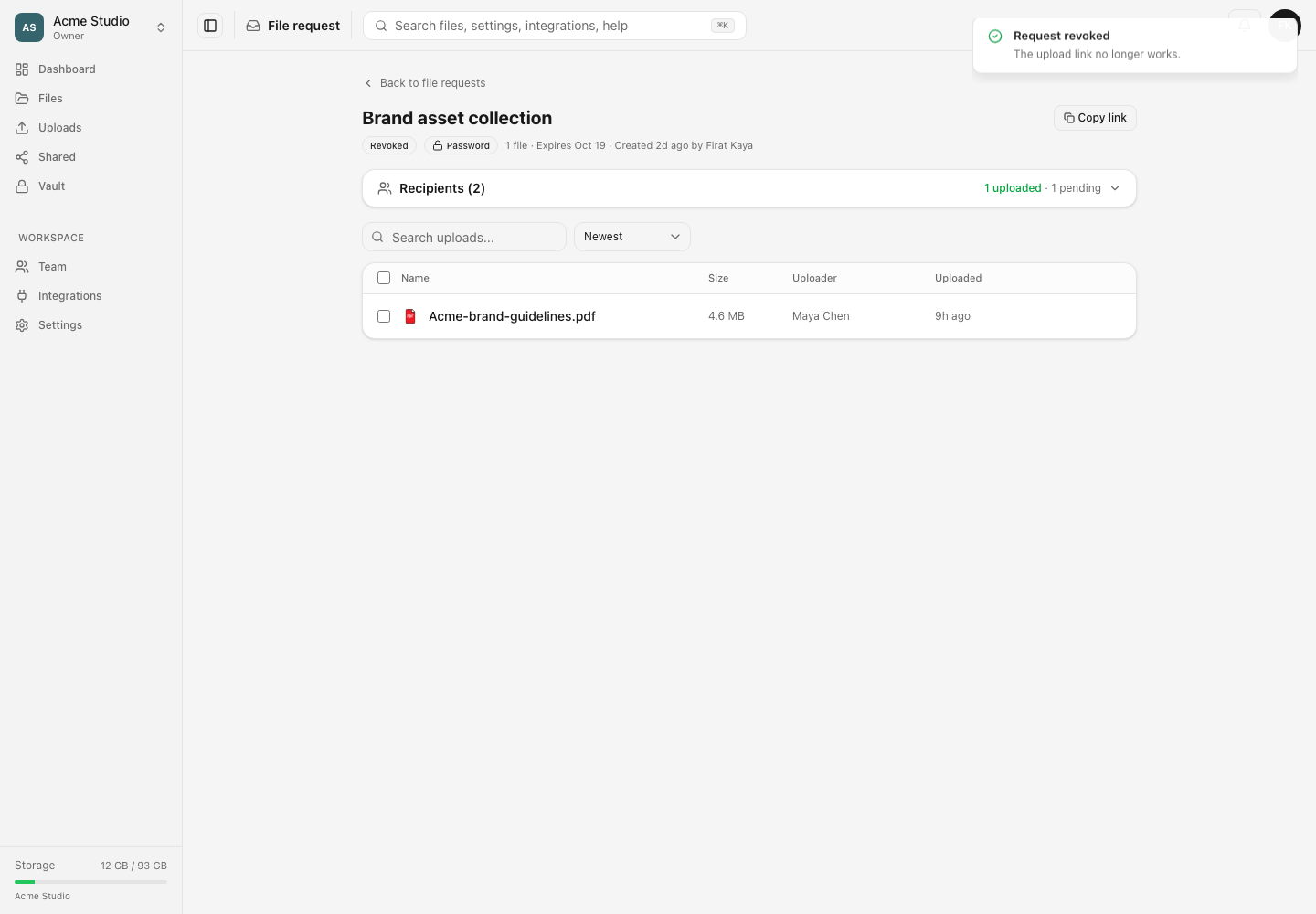
- Wait for the status to change to Revoked and for the confirmation that the link no longer works.
- Open the public URL in a private browser to confirm it no longer accepts a submission.
- Leave the received files in place, or manage them from the request’s upload table or their destination folder.
Expected result
An edited request presents the saved settings and stores later uploads in the selected destination. A revoked request shows Revoked to its owner and refuses future use of the public URL. Existing uploaded files remain ordinary workspace files.
Limits and safety notes
- Revocation is final in the current interface. Create a new request if collection must resume.
- An expired request can be edited while it has not been revoked, but the public link remains closed until its expiry is changed to a future preset or Never.
- Moving the destination does not migrate earlier files or change their existing access controls.
- Replacing a password does not encrypt received files. It changes the challenge on the request link.
- Recipient invitations can be notified when a request is revoked. Email delivery is separate from the status change, so verify the request itself rather than relying on an email.
- If the selected destination is missing, outside your folder scope, hidden from you or fully locked, the save can be refused.
Troubleshooting
Edit is missing. The request is revoked, or your role cannot manage it. Ask the request creator or a workspace administrator to make the change.
The old rules still appear. Reload the public URL in a private window. If it was already open, its visible terms may predate the edit even though the server checks current rules.
Files are split between folders. Files received before the destination change stay in the old folder. Check the request’s upload table to identify all submissions, then organize them deliberately.
The old link still opens. Confirm that the owner page says Revoked, then test in a private window to avoid an old rendered page. A page that was open before revocation cannot complete a newly checked upload.
A received file disappeared after closure. Revocation does not delete it. Check the request table, the original destination, Deleted items and workspace activity. Someone may have moved, renamed or deleted the workspace file separately.
Frequently asked questions
Does revoking a request delete received files?
No. It closes future use of the upload link. Files already received remain in the workspace until someone manages them separately.
Can I change a request’s destination?
Yes, while the request is not revoked. Later uploads use the new destination; earlier files stay where they were received.
Can I reopen a revoked request?
The current interface has no reopen action. Create a new request and share its new URL.
Related guides
Was this helpful?
Loading helpfulness results…
Voting saves a necessary ballot cookie for up to 180 days so you can change your answer.
Questions and replies
Ask about the steps in this guide. Questions are reviewed before publication.
Keep account details, credentials and private files out of public questions. Use private support for those.
Loading questions…
Sign in to your Dosya account to ask a question.