Close a file request after collecting uploads
Review received and pending submissions, revoke the file-request upload link, and verify that new uploads stop while previously received files remain available.
Last reviewed
Close a file request when you have received everything you expect or when its upload URL should no longer accept files. In the current Dosya web app, closing a request uses Revoke. Revocation stops new uploads immediately and keeps files that were already received.
Before you start
- Open Shared, then open File requests.
- Confirm the active workspace and select the exact request. Requests with similar titles can point to different folders or recipient lists.
- On the request detail page, review the status badge, file count and expiry.
- Expand Recipients when the request was sent by email. Compare uploaded and pending counts and follow up with anyone who still needs to send a file.
- Review the received file list. Check names, sizes, uploader details and received times. Download or preview a harmless sample when content verification is required.
- Confirm the destination folder still contains the received files. Revoking the request does not move them to another folder.
If the request should remain open but needs a different deadline, password, message or upload limit, use Edit instead. Use Revoke only when the public upload channel should close.
Steps: close the request
- On the active request’s detail page, select Revoke.
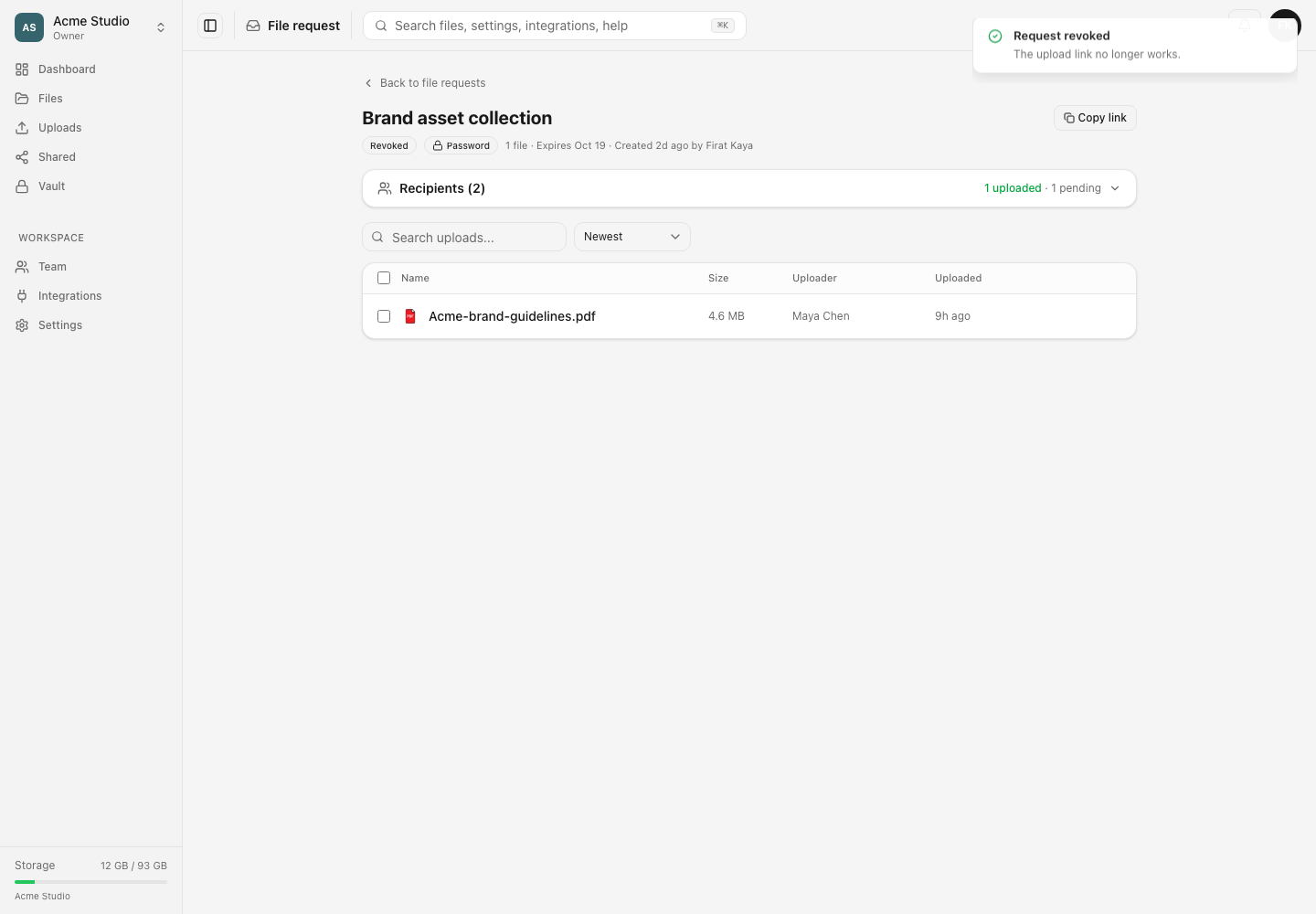
- Wait for the request to reload and show the Revoked status.
- Confirm that Edit and Revoke are no longer available. The file list remains available to authorized workspace members.
- If the request has named recipients, expect Dosya to notify them that the request was closed. Contact critical recipients directly when delivery confirmation matters.
- Open the old request URL in a private browser window. It should report that the file request has been revoked and must not show upload controls.
Expected result
The request shows Revoked in Dosya. Opening its public URL returns a revoked message, and upload attempts through that URL are rejected. Files received before revocation remain in the request detail page and destination folder.
Limits and important details
- The request URL stops accepting single-part and resumable uploads.
- Password unlock and recipient-specific invitation URLs do not reopen the request.
- Existing received files remain ordinary workspace files and continue to follow workspace permissions, locks, retention and trash rules.
- Revocation cannot be undone from the current web app. Create a new request when collection must resume, then send its new URL.
- An expired request is already closed by its deadline. The current detail page does not offer Revoke after expiry.
Troubleshooting
Revoke is missing. Check the status badge. Revoked and expired requests are already closed. For an active request, confirm that you created it or have permission to manage file requests in the workspace.
A recipient says the old page is still open. Ask them to refresh the page and try a harmless upload. A page left open before revocation cannot complete a new upload after the server rejects the request.
A file arrived near the time you revoked. Check its received time, filename and size in the request detail page. An upload that completed before revocation can remain; an incomplete transfer cannot be resumed afterward.
You closed the wrong request. Revocation is not reversible. Keep its received files, create a replacement request with the correct destination and settings, and send the new URL only to the intended recipients.
Received files appear missing. Confirm the active workspace and request, clear any search filter, and inspect the destination folder. Contact private support with the request ID and nonsecret timestamps if the request count and folder listing disagree.
Related guides
Was this helpful?
Loading helpfulness results…
Voting saves a necessary ballot cookie for up to 180 days so you can change your answer.
Questions and replies
Ask about the steps in this guide. Questions are reviewed before publication.
Keep account details, credentials and private files out of public questions. Use private support for those.
Loading questions…
Sign in to your Dosya account to ask a question.