Mount Dosya WebDAV in macOS Finder
Mount the active workspace in macOS Finder with Dosya’s WebDAV URL, an email username, and a restricted API key, then diagnose mount failures.
Last reviewed
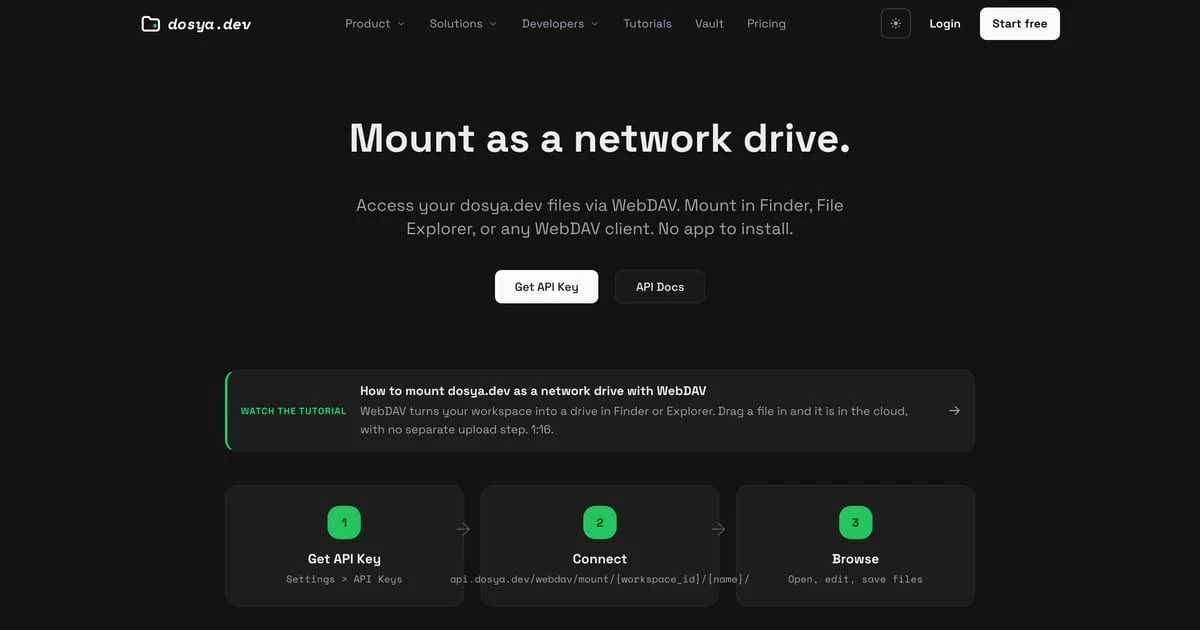
Finder can mount one Dosya workspace as a network volume. Use the endpoint shown for that workspace in Integrations → WebDAV; it contains the workspace ID, an encoded display label, and a trailing slash. The ID chooses the workspace. The final name only labels the mounted volume, so renaming the workspace does not invalidate an existing mount.

Before you start
Your workspace role must include WebDAV access. When it does not, the integration page says Your role can’t use WebDAV and explains that credentials will be refused. Ask an owner or admin to change the role before troubleshooting Finder.
Create a separate key in Profile → API keys. Under Restrictions and expiry → Where can it reach?, choose Only the ones I pick and enable WebDAV. A Read only key can list and download; use Full access only when Finder must upload, move, rename, or delete. You may pin the key to this workspace. An optional folder anchor makes that folder the mount root and hides everything above or beside it, including the Documents, Videos, Images, Shared, and Deleted smart views.
Copy the key when it is shown and store it securely. Finder uses the key owner’s Dosya email as the username and the complete dos_… key as the password.
Steps
- In Dosya, switch to the workspace you intend to mount and open Integrations → WebDAV.
- Copy the address under Endpoint & credentials. Its form is
https://api.dosya.dev/webdav/mount/WORKSPACE_ID/WORKSPACE_LABEL/; keep the trailing slash. - In Finder, choose Go → Connect to Server… or press Command+K.
- Paste the copied HTTPS address and select Connect.
- Choose registered-user authentication when Finder asks. Enter the API key owner’s account email in Name and paste the
dos_…key into Password. - Complete the connection, then open the new Finder volume. Check a known folder and download a small test file. For a writable key, create a disposable folder and remove it after verification.
Troubleshooting
- Repeated credential prompts usually mean the Basic-auth pair was refused. Confirm the username is the key owner’s email, the password starts with
dos_, the key is active, and its protocol list includes WebDAV. A malformed or invalid pair returnsUnauthorized. - This API key is pinned to a different workspace means the address and key name different workspaces. Copy the endpoint again after switching to the pinned workspace.
- This role is not permitted to use WebDAV is a role permission issue; changing Finder settings cannot grant access.
- This API key’s anchor folder is no longer available means the credential’s folder was trashed or removed. Restore that folder or issue a replacement key with a live anchor.
- An anchored key deliberately fails on REST and SFTP, but remains valid for WebDAV and S3. If Finder shows the workspace root instead of the expected folder, stop and inspect the key’s Workspace and Folder restrictions.
- A
Read onlykey refuses writes; Finder may display the volume normally while create, rename, or delete operations fail. Do not broaden scope just to clear a read test.
Disconnecting the Finder volume changes no cloud data. Deleting through a full-access mount does change Dosya content and is subject to the member’s delete permissions and lock rules.
Expected result
Finder shows a volume named from the endpoint’s final label and lists only the workspace or anchored subtree allowed by the credential. The small read test succeeds; any attempted write matches both the key scope and the role’s file permissions.
Related guides
Was this helpful?
Loading helpfulness results…
Voting saves a necessary ballot cookie for up to 180 days so you can change your answer.
Questions and replies
Ask about the steps in this guide. Questions are reviewed before publication.
Keep account details, credentials and private files out of public questions. Use private support for those.
Loading questions…
Sign in to your Dosya account to ask a question.