Download files with rclone
Download cloud files with a read-only rclone WebDAV remote, preview the paths, handle local collisions and verify the resulting file contents.
Last reviewed
To download files from Dosya cloud storage with rclone, put the remote path first and the local directory second. This example retrieves the contents of All/rclone-checks into ./sample-download, leaving the cloud originals in place:
rclone copy dosya-webdav:All/rclone-checks ./sample-download --progressStart with a new local destination. Review the setup and preview below before running it against your own files.

Prepare a read-only WebDAV remote
Install rclone from its official downloads and run rclone version. Sign in to the key owner’s account in Dosya and select the workspace containing the files. The account must have file-access and download permissions, and its role must permit WebDAV.
In Profile → API keys, select New API key, choose Read only for this download task, and allow WebDAV under Restrictions and expiry → Protocols. Review the workspace and folder reach and save the full key after Generate key. An Upload only credential is refused for reads. In the chosen workspace’s Integrations → WebDAV, copy the full HTTPS address under Endpoint & credentials, including its mount path and trailing slash.
Run rclone config, create a remote named dosya-webdav, and enter:
| Setting | Value |
|---|---|
| Storage | webdav |
| URL | The copied workspace WebDAV mount address |
| Vendor | other |
| User | The email belonging to the API key owner |
| Password | Enter the complete API key using the hidden password prompts |
| Bearer token | Empty |
| Advanced configuration | No for this setup |
| Keep remote | Yes |
The official WebDAV backend reference documents these settings. Protect the configuration file and avoid exposing the credential in process arguments. Password obscuring is reversible; see rclone obscure.
Steps: find the correct source and preview it
rclone listremotes
rclone lsf dosya-webdav:
rclone lsf dosya-webdav:All/rclone-checks --recursive
rclone copy dosya-webdav:All/rclone-checks ./sample-download --dry-run --progress
Substitute an existing cloud folder you can read. An ordinary connection lists All, Documents, Videos, Images, Shared and Deleted; All/ reaches the live workspace tree. An anchored key exposes its allowed folder’s children directly, so dosya-webdav:rclone-checks may be the correct source instead. If the key is anchored at rclone-checks itself, use dosya-webdav:. Verify the root listing rather than adding All/ to every address.
The preview makes no permanent transfer. Check the names and the remote-to-local direction, then repeat the copy without --dry-run. A local path with spaces needs quotes; a relative local path is resolved from the terminal’s current directory. The destination directory is created if absent, and receives the source directory’s contents rather than an extra rclone-checks nesting level. Those path rules come from rclone copy.
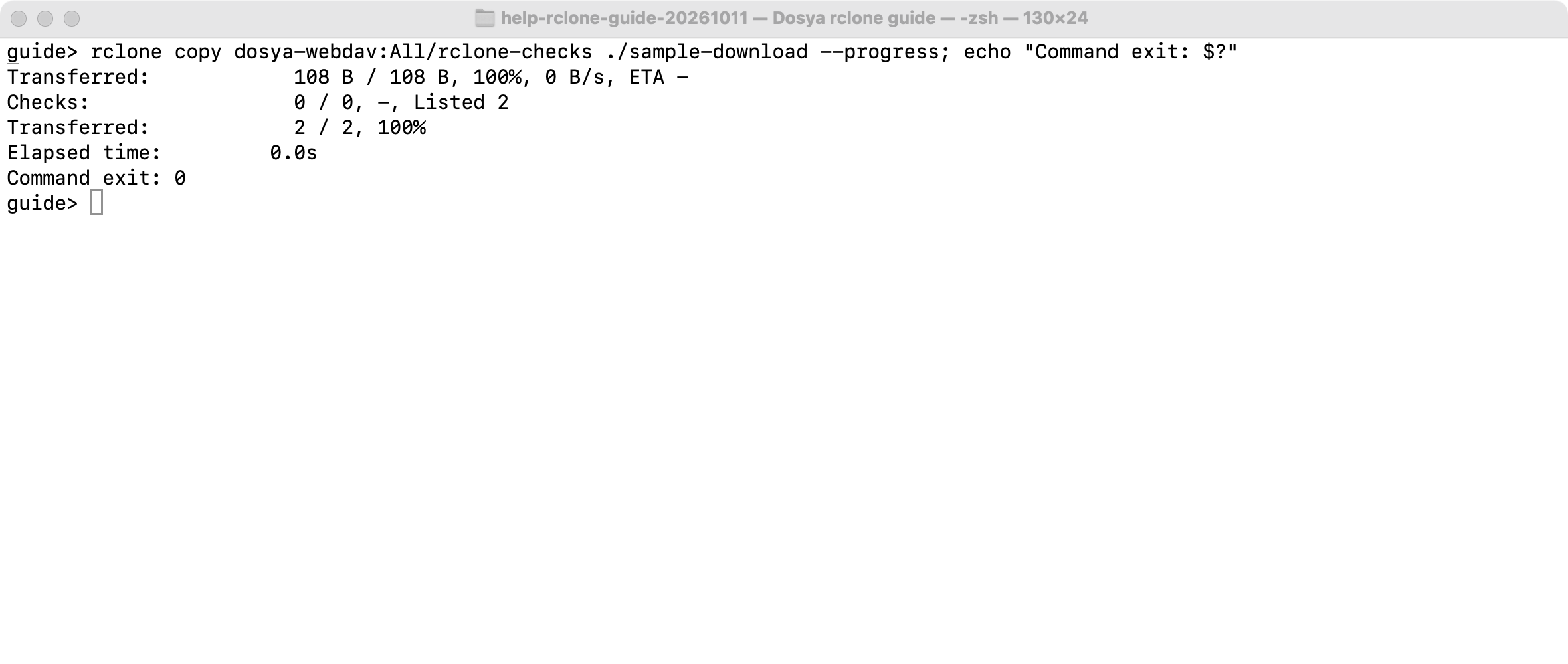
This real capture uses rclone 1.75.2 on macOS against an isolated Dosya workspace fixture. The two downloaded files were checked against their source bytes. Your workspace address and selected filenames will differ; the capture does not establish a production transfer or verify every operating system.
Existing local files and interrupted downloads
copy preserves local files that exist only at the destination, but a differing file at the same relative path can be replaced. Choose an empty directory to avoid that collision. For an intentional additive download into an existing folder, --ignore-existing skips existing paths; it also skips stale or incomplete files with those names, so it is not an integrity check. Rclone documents this flag in its copy options.
By default rclone downloads through a temporary file and renames it when complete; --inplace changes that behavior and can leave the destination file partially written. After interruption, keep successful local files and rerun the reviewed copy. Rclone can skip items it considers unchanged, but do not assume a partially downloaded file will resume at the same byte across runs. Check the result after retrying, especially if comparison metadata is limited. See rclone’s local backend and in-place transfer option.
Dosya WebDAV advertises byte-range support and serves one byte range per request. A valid range returns 206 with Content-Range; an unsatisfiable range returns 416. Each streaming GET, including each range request, occupies its own usage slot. Range support does not promise that a client will resume a partial file.
Rclone normally transfers 4 files at once. Separately, a remote-to-local file above the default 256 MiB cutoff can use 4 simultaneous range streams. Setting only --transfers 1 limits parallel files, but a single large file can still exceed a one-slot allowance. Retry the reviewed download with both concurrency controls:
rclone copy dosya-webdav:All/rclone-checks ./sample-download --progress --transfers 1 --multi-thread-streams 0--multi-thread-streams 0 disables multiple streams within each file. The parallel-file control and multi-thread controls address different kinds of concurrency; neither removes daily egress or request-rate restrictions. Follow any HTTP 429 retry hint before starting another attempt.
Verify the downloaded bytes
Inspect the completion summary and exit status immediately after the copy: echo $? on macOS/Linux, or $LASTEXITCODE in PowerShell. Rclone returns 0 when no errors remain, including when it did not need to transfer files. A nonzero return requires checking the preceding errors; the exit-code reference lists the categories.
List the downloaded directory, compare its names and sizes with the remote selection, and open representative files. A deeper check that does not rely on the backend exposing a compatible hash is:
rclone check dosya-webdav:All/rclone-checks ./sample-download --download --one-wayThis reads remote data again and compares it with the local data; it does not modify either side. --one-way ignores local-only extra files. Use the rclone check reference to interpret mismatch and missing-file reports. For a full-folder retrieval, verify the expected files rather than only a success count.
With the other vendor, plain WebDAV does not provide rclone’s full hash and modification-time comparison capabilities. Dosya returns file dates, ETags and stored SHA-256 properties when available, but this does not promise that the generic client uses them for a byte-for-byte comparison. Unix ownership, permissions, extended attributes and complete original metadata are not guaranteed by this setup.
Egress, permission failures and what stays in cloud
A download leaves Dosya’s source file, its sharing configuration and version history intact. It creates an independent local copy that remains on your computer even if cloud access is later revoked; account revocation does not erase a downloaded file.
Each WebDAV GET counts the requested body size against applicable egress allowances before streaming starts; a range is charged for its requested length. HEAD and unchanged conditional responses do not charge a body. Repeated downloads and check --download use additional allowance, and interruption should not be assumed to refund it. The built-in free-plan fallback is 100 GiB daily, with the active plan catalog and stricter key/role restrictions determining the effective cap. Protocol traffic avoids plan-imposed request/concurrency ceilings, but explicit key/role limits still apply.
| Server response | Resolve it before retrying |
|---|---|
Unauthorized (401) | Check the key owner’s email, full key, expiry and revocation. |
API key scope 'upload' cannot download files (403) | Replace the upload-only credential with one permitting reads. |
Download not allowed (403) | Ask the workspace administrator to review download permission. |
Resource not found (404) | Check the remote root, path, folder reach and whether the item is visible to this membership. |
Locked (423) | Resolve the file or ancestor-folder lock through the authorized Dosya workflow. |
| Usage refusal (429) | Respect Retry-After when present and review egress, request or transfer restrictions. |
Keep the downloaded directory and original cloud listing until verification is complete. Do not substitute move or sync simply to resolve a read failure: those commands have different deletion effects.
Expected result
The selected remote files are readable in sample-download and match the expected contents. The original workspace folder is still present, and the copy has not deleted cloud files or local-only extras.
Related guides
Was this helpful?
Loading helpfulness results…
Voting saves a necessary ballot cookie for up to 180 days so you can change your answer.
Questions and replies
Ask about the steps in this guide. Questions are reviewed before publication.
Keep account details, credentials and private files out of public questions. Use private support for those.
Loading questions…
Sign in to your Dosya account to ask a question.