Copying files with rclone over WebDAV
Configure a WebDAV remote, preview a copy, transfer a sample into All and check a separate downloaded copy.
Last reviewed
Create an rclone remote with WebDAV, your workspace’s copied HTTPS address, your account email and an API key. For an ordinary workspace connection, send your first sample to All or a folder beneath it. Preview with --dry-run, run copy, then check the destination and a separate downloaded copy.
Before you start
- Install rclone for your operating system from the official downloads page and confirm that
rclone versionruns in your terminal. This walkthrough was checked with version 1.75.2 on macOS; prompts can vary between versions. - Sign in to Dosya and select the intended workspace. Your role must allow WebDAV and the operations you plan to use.
- Prepare a local folder named
sample-sourcecontaining one harmless, nonempty, uniquely named sample. Keep the original. Run the commands from the directory that contains this folder, or substitute your actual source path. - Choose a separate test destination. This guide uses an existing workspace folder named
rclone-checks; create it in Files if needed. - This workflow reaches ordinary workspace files. Vault has its own workflow.
Steps: prepare the key and address
- Create a dedicated key in Profile → API keys. Give it a recognizable label, such as rclone on this Mac. Choose Full access for the upload walkthrough. That permission also allows moving and deleting within your account’s allowed reach. Read only is sufficient for listing and downloading; Upload only cannot browse folders.
- Limit its reach. Open Restrictions and expiry, choose Only the ones I pick under Protocols, check WebDAV and select the intended Workspace. Review any other limits before generating the key.
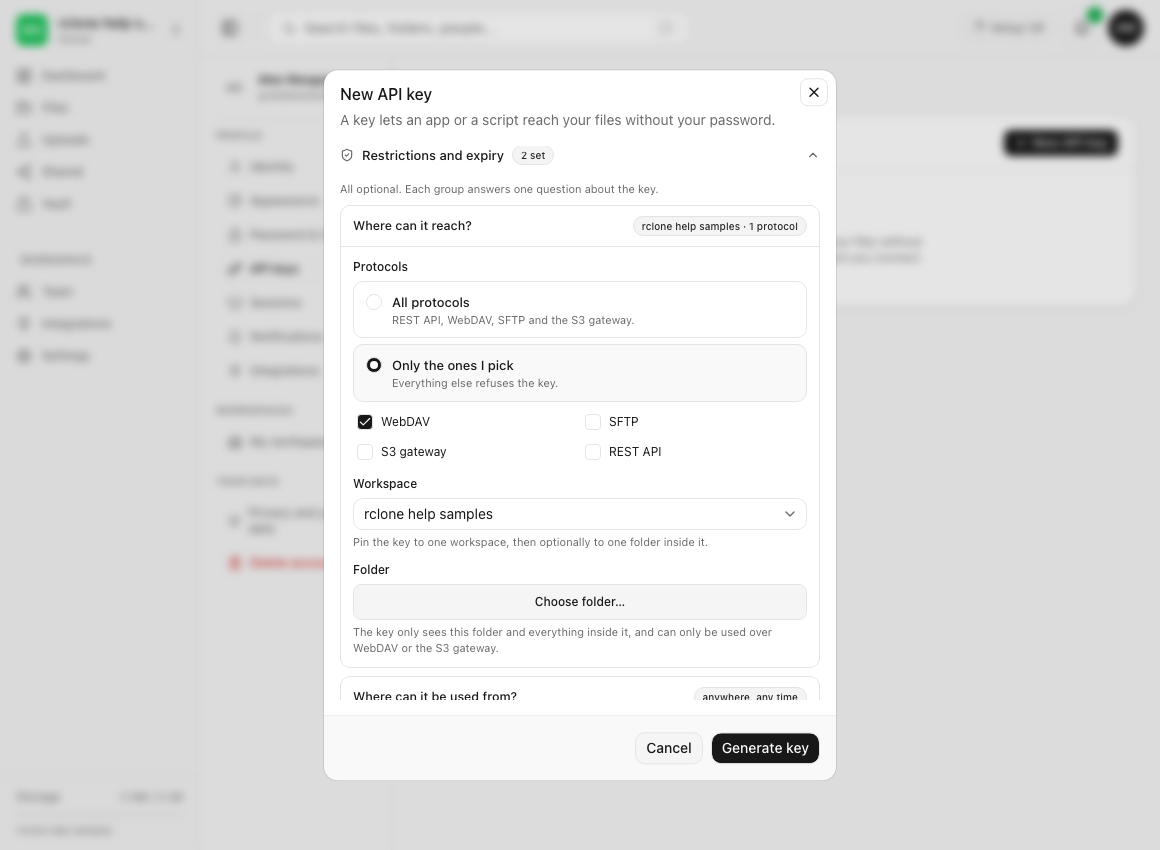
- Save the full key privately. Select Generate key and copy it before closing the result dialog. You will enter it into rclone’s password prompt. The label or saved prefix cannot authenticate the client. See Creating and managing an API key.
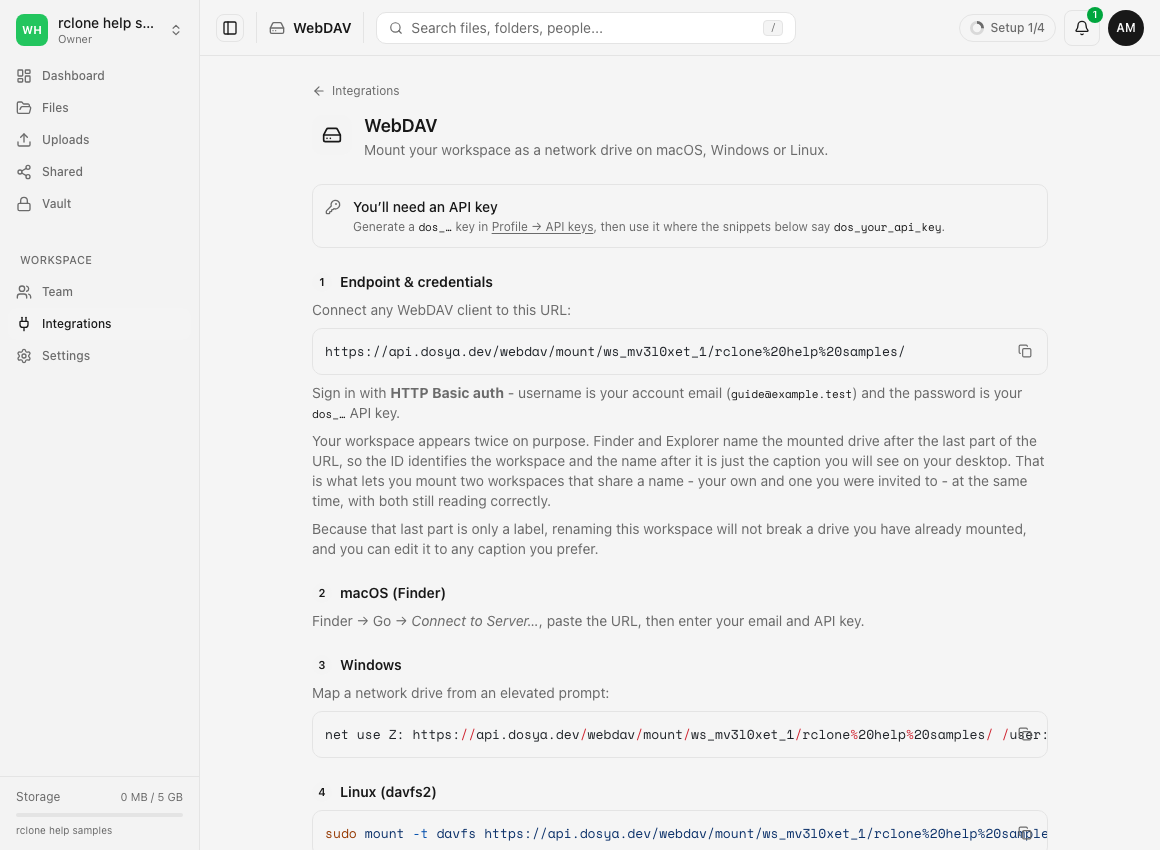
- Copy the workspace’s WebDAV address. Open Integrations → WebDAV and copy the complete URL under Endpoint & credentials, including the mount path, encoded spaces and trailing slash.
Steps: configure the remote
- Start the setup wizard. Run
rclone config, choose New remote and name itdosya-webdav. If that name already exists, choose a new name and use it consistently in the commands below. - Choose the backend and credentials. Type the textual option values rather than copying a provider number from a screenshot; numbers can change. Follow rclone’s WebDAV setup with these values:
| Prompt | What to enter |
|---|---|
| Storage | webdav |
| URL | Your complete copied Dosya HTTPS mount address |
| Vendor | other |
| User | The email of the account that owns the API key |
| Password | Choose to enter your own password, then enter the full API key and confirm it |
| Bearer token | Leave empty |
| Edit advanced config? | No for this first connection |
| Keep this remote? | Yes, then quit the wizard |
Use the hidden password prompts. Keep the resulting configuration file private; rclone’s password obscuring is reversible and does not protect the file as an encrypted secret store. See rclone’s explanation of obscuring. Avoid putting the key in a command argument, a shared config snippet or a screenshot.
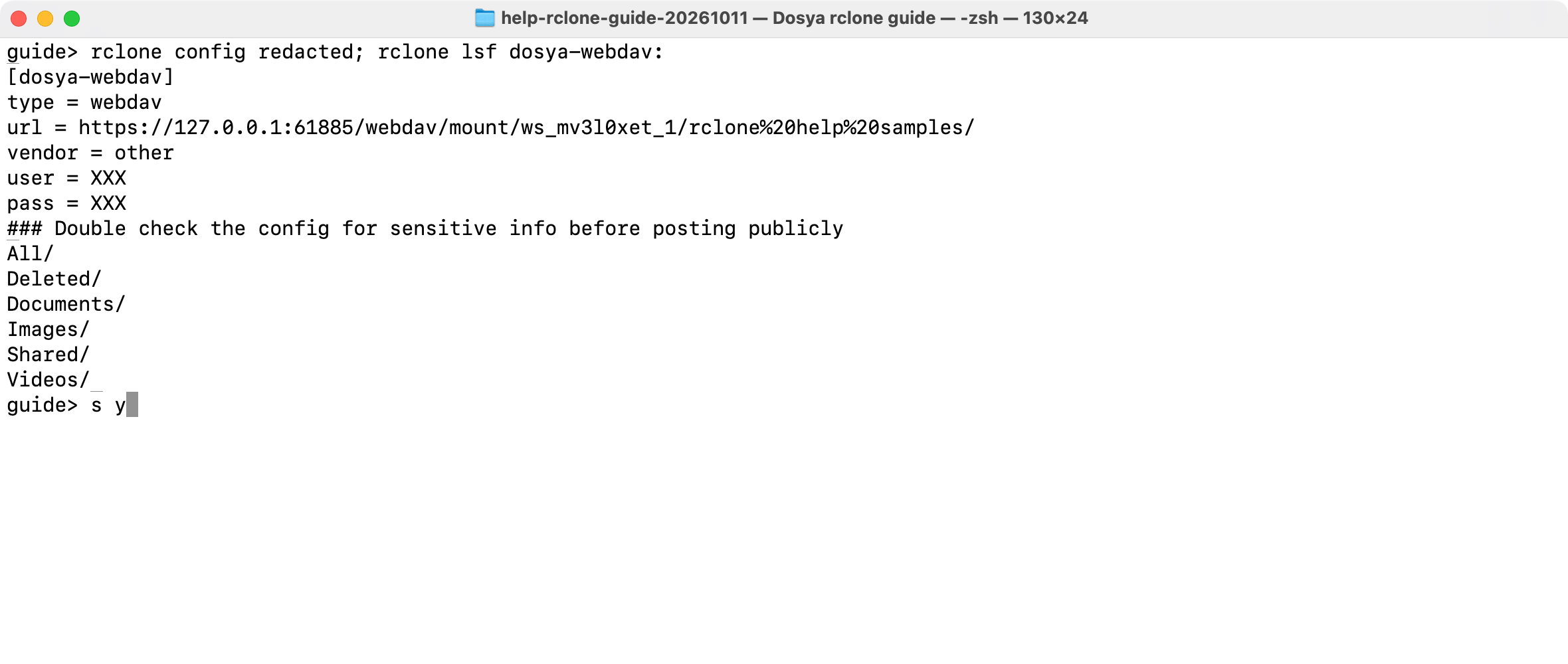
- Check the remote and folder listing. Run:
rclone listremotes
rclone lsf dosya-webdav:
For an ordinary workspace connection, expect All, Documents, Videos, Images, Shared and Deleted. The colon separates the remote name from its path. A folder-restricted key has a different root; see the limits below.
Steps: preview and copy the sample
- Check both paths. The local
./sample-sourcefolder must exist in your current terminal directory.dosya-webdav:All/rclone-checksmeans therclone-checksfolder beneath the writable All collection. Quote a path containing spaces. - Preview the operation. Run:
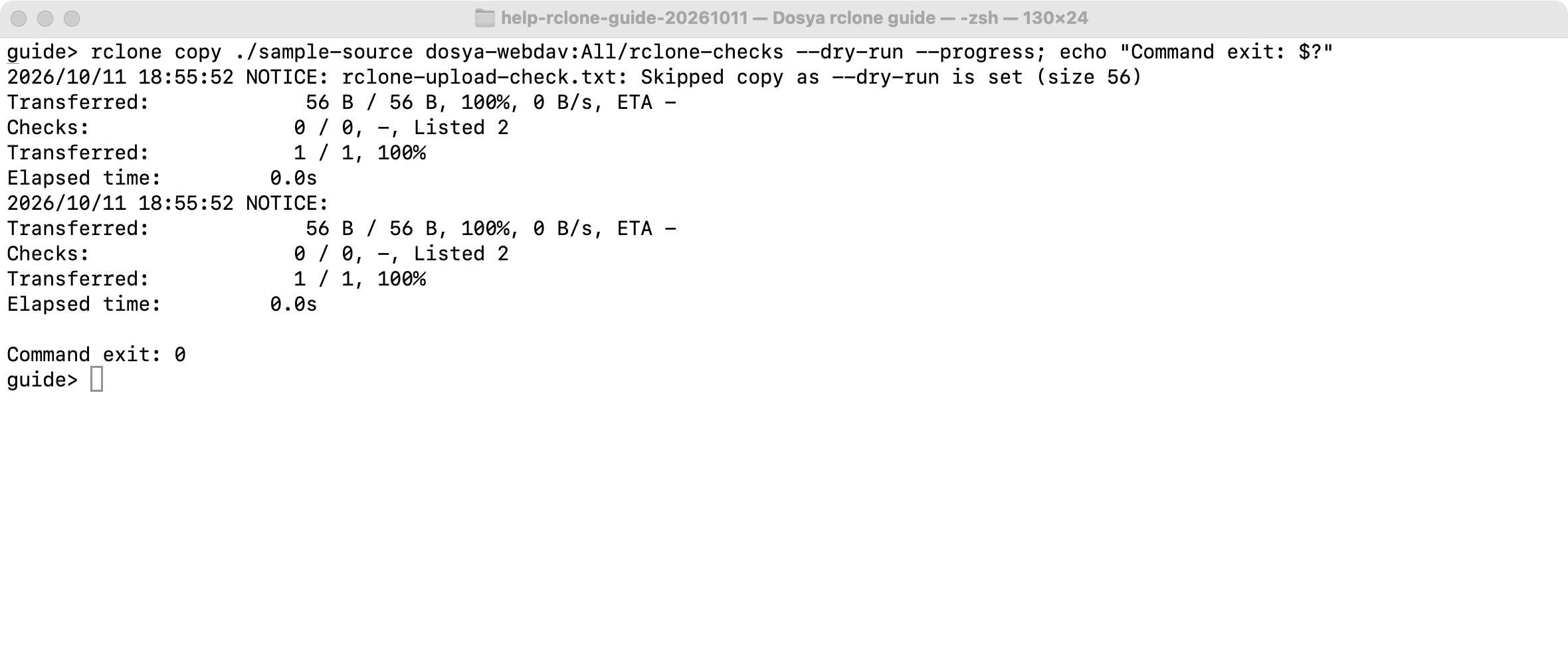
rclone copy ./sample-source dosya-webdav:All/rclone-checks --dry-run --progressReview the filenames and direction. A dry run may show planned transfer totals or 100% progress. Look for the Skipped copy as —dry-run is set message: it is a preview, not evidence that a file arrived.
- Run the copy. Once the paths and preview are correct, remove
--dry-run:
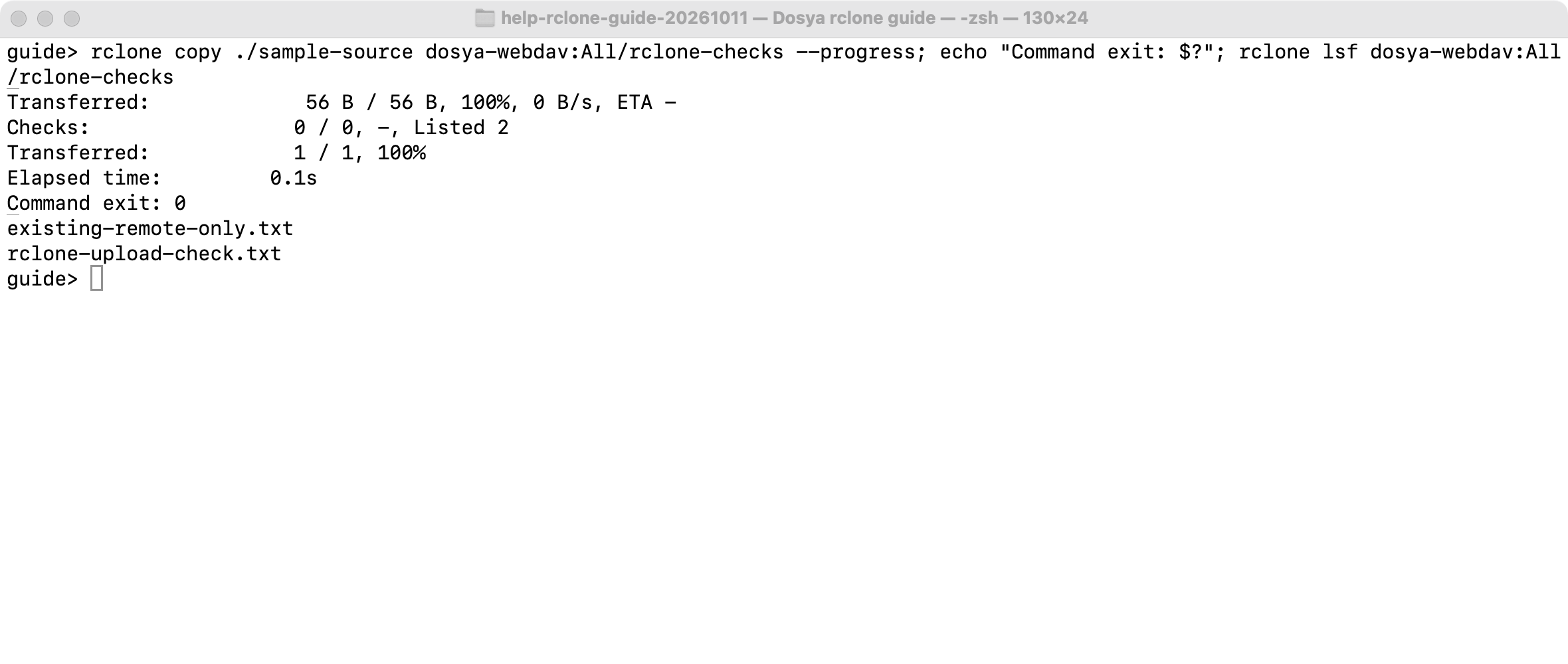
rclone copy ./sample-source dosya-webdav:All/rclone-checks --progress
rclone lsf dosya-webdav:All/rclone-checks
Wait for the command to finish and review any errors. copy can update matching destination filenames, but it does not delete other destination files. It places the files inside sample-source into the selected destination; it does not add another sample-source folder there. rclone’s copy reference explains this behavior.
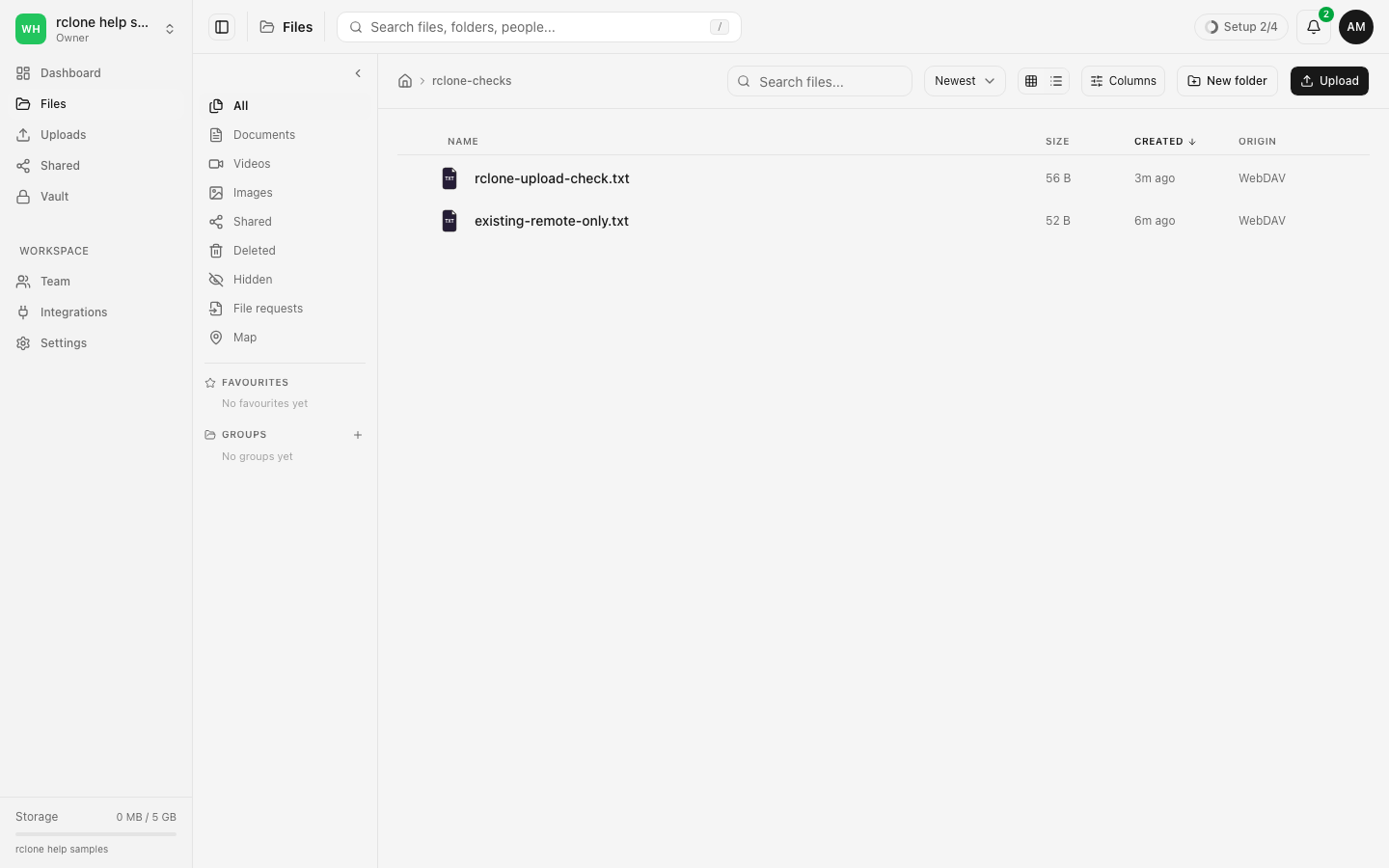
- Verify in Dosya. Open Files → rclone-checks in the same workspace and refresh if necessary. Confirm the sample’s filename and size. The WebDAV All collection corresponds to the ordinary workspace tree in Files.
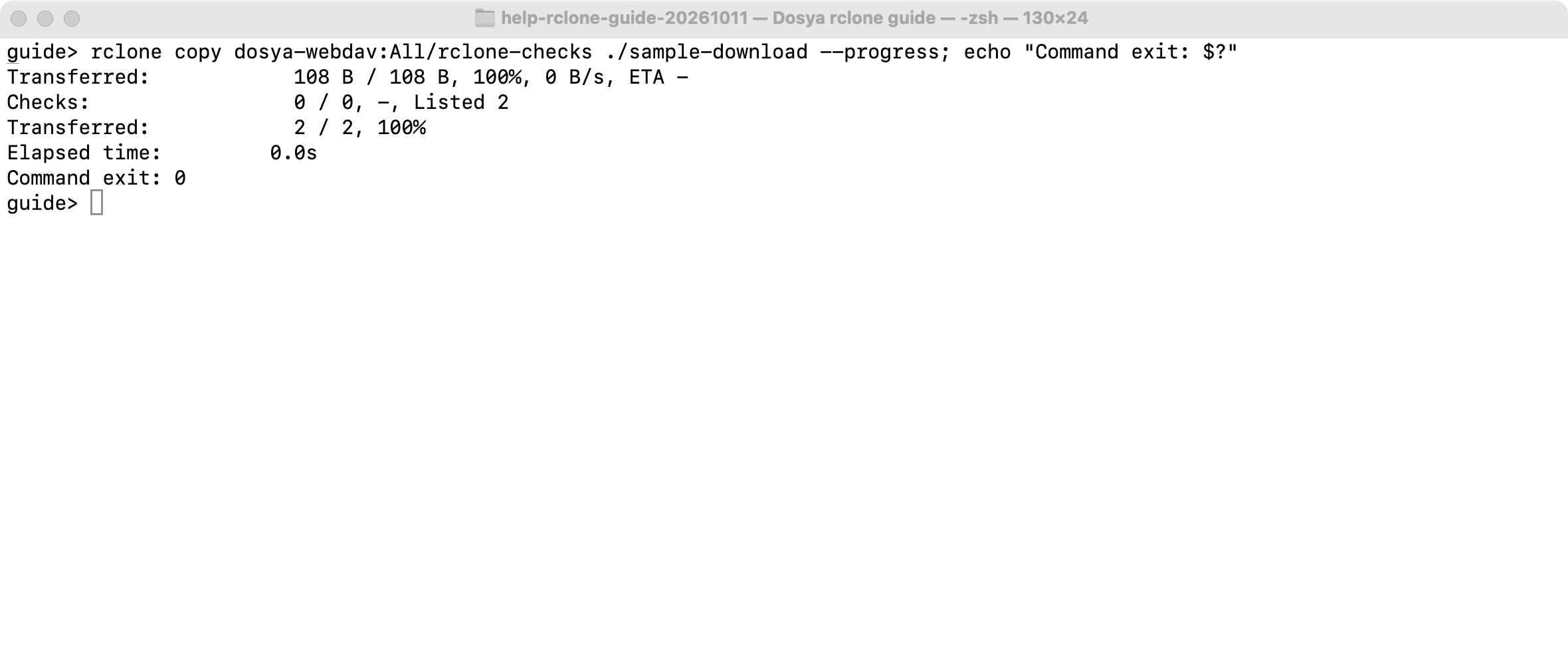
- Check a separate downloaded copy. Choose a new, empty local folder and copy from the remote into it:
rclone copy dosya-webdav:All/rclone-checks ./sample-download --progressThis direction downloads the files in the remote folder. Open your own downloaded sample and confirm it is the file you expected. Keep the original source while checking.
Expected result
The intended sample appears in rclone’s destination listing and Dosya’s Files page. Existing destination files that were absent from the source remain after copy, and your downloaded sample matches your original.
Limits and choosing another operation
- Copy and sync have different effects.
syncupdates the destination to match the source, including deletion when necessary. Do a dry run and review the direction and destination before choosing it. This guide’s walkthrough usescopy; see the sync reference before running a mirror operation. - The normal root is a collection directory. Upload into All or a folder beneath it. The connection root and Documents, Videos, Images, Shared and Deleted are read-only views.
- Folder-restricted roots differ. With an anchored key, the permitted folder’s children appear directly and there is no All collection. Do not add
All/blindly. See WebDAV folder restrictions. - Metadata support varies. Generic WebDAV does not supply rclone’s full checksum and modification-time features. A successful listing or progress display is insufficient to prove your downloaded copy matches. Check your sample before relying on repeat-transfer behavior.
- Other backends have other settings. Dosya’s Integrations → rclone page describes its native backend setup. This guide chooses
webdav; adosya, S3 or SFTP remote uses different credentials/options and paths. - A copy command does not schedule itself. Automatic jobs, mounts and bidirectional sync need their own configuration. This walkthrough does not establish a desktop folder-sync pairing.
Troubleshooting
Command not found. Check the executable’s installation and PATH using the official installation instructions. Open a new terminal if its PATH was changed.
Unknown remote or config file not found. Run rclone listremotes and rclone config file in the same account/environment that runs the command. Check the chosen name, colon and any custom --config path. Another shell, scheduled job or container can use a different config.
Source directory not found. Confirm your current terminal directory and the local folder path. A relative path such as ./sample-source is resolved from the current directory. Quote paths with spaces.
Unauthorized or repeated authentication failures. Use the key owner’s email and the full API key in the wizard’s password prompt. Check expiry/revocation and update this remote if the key was replaced. Pasting a raw key directly into a config’s pass field is not the same as completing the password prompt.
Forbidden or an upload refusal. Check key permission, selected WebDAV protocol, workspace reach and your role. For an ordinary connection, use All rather than a smart view. Address, schedule, usage and destination restrictions still apply.
A certificate error. Check the copied HTTPS address and intended host. Do not disable certificate checks to make an unexplained production error disappear. Share the error privately with support.
The dry run says 100%, but no file appears. The dry run planned the transfer. Run the reviewed copy without --dry-run, then verify the actual destination.
For a persistent problem, send private support the rclone version, backend, operation and error. Remove credentials and private paths from diagnostics; double-check even a redacted config before sharing it.
Frequently asked questions
Is WebDAV the same as the native Dosya backend?
They are different rclone backends. This guide uses type = webdav, the workspace’s WebDAV address and the All path for an ordinary root.
Will copy remove files that are only in Dosya?
copy leaves other destination files in place. It can still update a matching filename. sync has deletion behavior, so review that operation separately.
Where should I upload if All is missing?
Check whether the key or workspace membership is folder-restricted. Its allowed folder is the root, so its children appear directly.
Related guides
Was this helpful?
Loading helpfulness results…
Voting saves a necessary ballot cookie for up to 180 days so you can change your answer.
Questions and replies
Ask about the steps in this guide. Questions are reviewed before publication.
Keep account details, credentials and private files out of public questions. Use private support for those.
Loading questions…
Sign in to your Dosya account to ask a question.